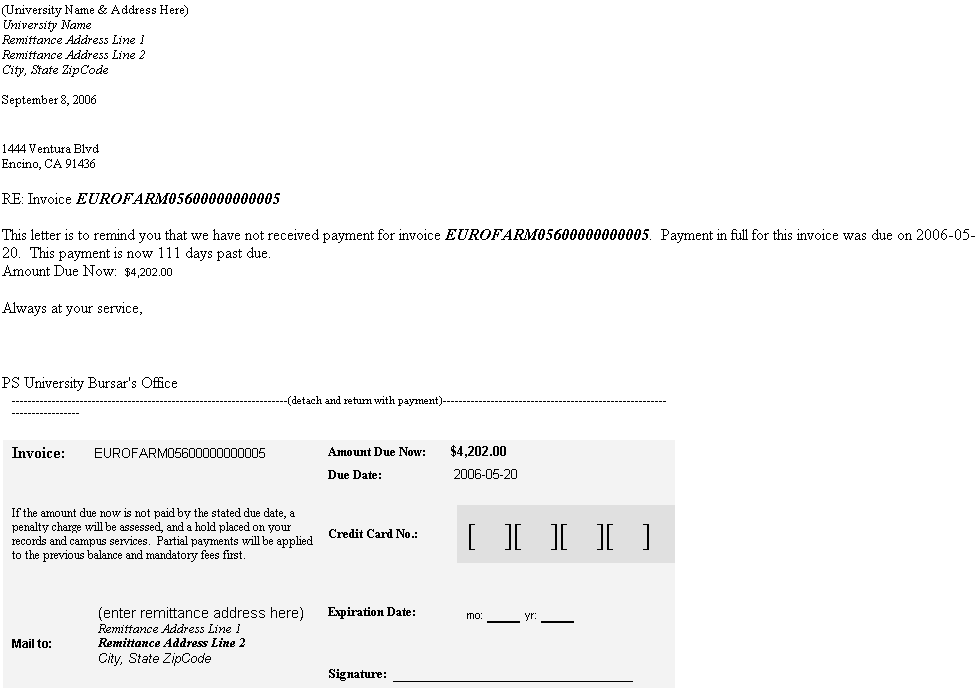
Defining and Issuing Reminder Letters
This section provides institutions who use global invoicing an example of how to define and issue invoice Reminder Letters.
Reminder Letters can be generated for open invoices after the due date has passed.
Reminder Letters can include fields such as: original invoice amount, any payments, remaining unpaid balance and the number of days passed due. Institutions define a minimum balance as selection criteria when sending reminder letters. A minimum balance can be utilized at the invoice. Like the invoice, the reminder letter can include a payment voucher.
Reminders are tracked at the student level for each invoice through Campus Community Communications.
Student Financials uses Campus Community Communications Engine to generate reminder letters. The Communications Engine process supports Population Selection and uses Queries and Equations to determine who receives a Reminder Letter and what data is available to the template.
Note:
The information below pertains to the Global Invoicing .
For more information about the setup and generation design of communications, see Campus Community Fundamentals.
Pages Used to Define and Issue Reminder Letters
| Page Name | Definition Name | Navigation | Usage |
|---|---|---|---|
|
Communication Data Source |
SCC_CG_DTASRC |
|
Define communication data source. |
|
Report Definition |
PSXPRPTDEFN |
|
Define invoice Reminder Letter properties. |
|
Report Definition — Template |
PSXPRPTTMPL |
|
Define template properties. |
|
Report Definition — Output |
PSXPRPTOUT |
|
Define output properties. |
|
Report Definition — Bursting |
PSXPRPTBURST |
|
Define bursting properties. |
|
Standard Letters |
SCC_STN_LTR_TBL |
|
Set up standard letter. |
|
Communication Speed Keys |
COMM_SPDKEY_TABLE |
Set Up SACR, Common Definitions, Communications, Communication Speed Key Table |
Define communication key. |
|
Event 3C Groups |
EVNT_GRP_3C_TABLE |
Campus Community, 3C Engine, Set Up 3C Engine, Event 3C Group |
Define 3C Event Group. |
|
Event Definition |
EVNT_3CS_SETUP |
Campus Community, 3C Engine, Set Up 3C Engine, Event Definition |
Set up event definition. |
|
3C Engine Parameters |
RUN_CNTL_3CENGINE |
Campus Community, 3C Engine, Run 3C Engine |
Define 3C Engine parameters. |
|
Manage Duplicate Assignment |
MANAGE_DUP_ASSIGN |
Campus Community, 3C Engine, Run 3C Engine, Manage Duplicate Assignment |
Define Manage Duplicate Assignment. |
|
Person Communication |
COMM_MGMT1 |
Campus Community, Communications, Person Communications, Communication Management |
Review generated communication. |
|
Selection Parameters |
SCC_CG_RUNCTL1 |
Campus Community, Communications, Communication Generation |
Running Communication Generation process. |
|
Process Parameters |
SCC_CG_RUNCTL2 |
Campus Community, Communications, Communication Generation, Process Parameters |
Set up process parameters. |
|
View Communication |
SCC_CG_ATTREL |
Campus Community, Communications, Communication Generation, Process Parameters, View Communication |
View Reminder Letter. |
Defining Communication Data Source
Access the Communication Data Source page ().
This example illustrates the fields and controls on the Communication Data Source page (1 of 2). You can find definitions for the fields and controls later on this page.
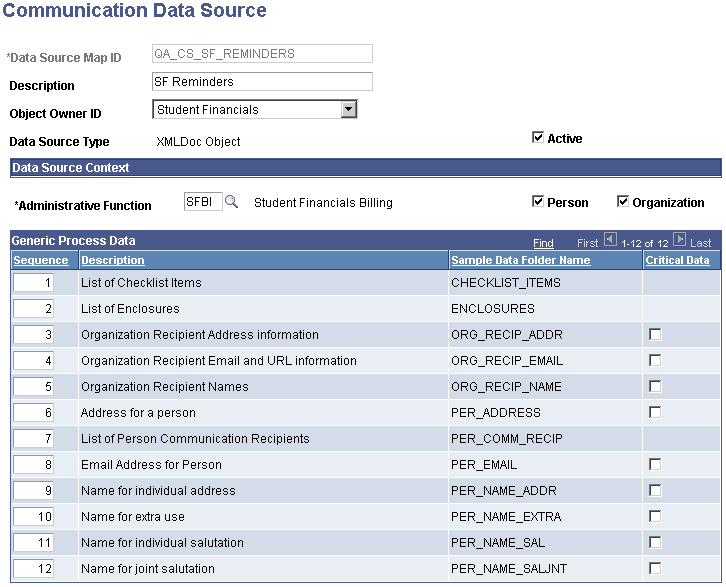
This example illustrates the fields and controls on the Communication Data Source page (2 of 2). You can find definitions for the fields and controls later on this page.
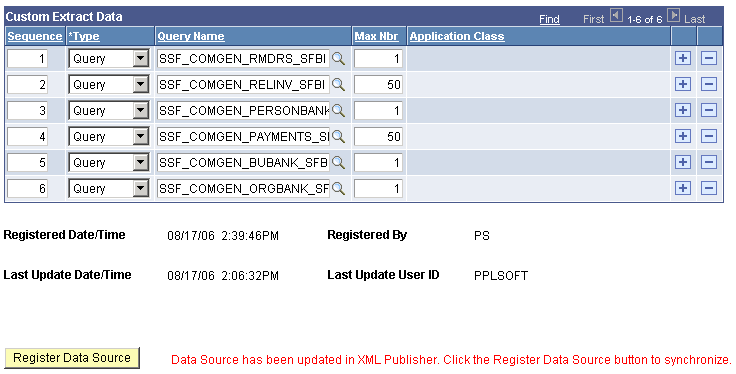
Click Register Data Source if this is a new Data Source or if the Communications Data Source definition has been modified.
Defining Invoice Reminder Letter Properties
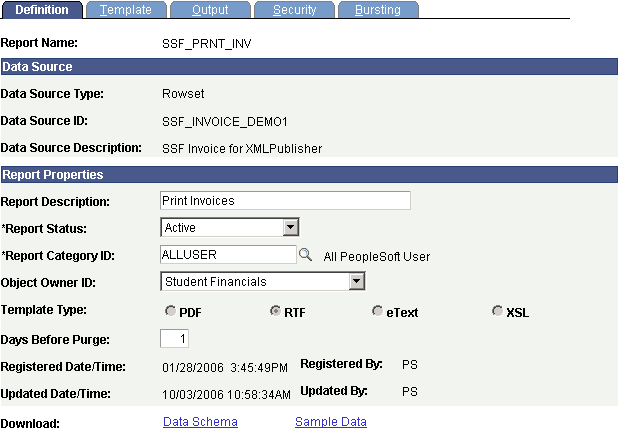
Access the Report Definition page ().
Select the QA_CS_SF_RMD report (Invoice Reminder Letters).
This example illustrates the fields and controls on the Report Definition page. You can find definitions for the fields and controls later on this page.
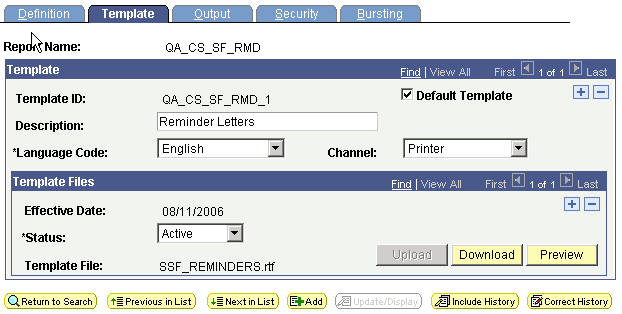
Defining Template Properties
Access the Report Definition — Template page ().
This example illustrates the fields and controls on the Report Definition — Template page. You can find definitions for the fields and controls later on this page.
Defining Output Properties
Access the Report Definition — Output page ().
This example illustrates the fields and controls on the Report Definition — Output page. You can find definitions for the fields and controls later on this page.
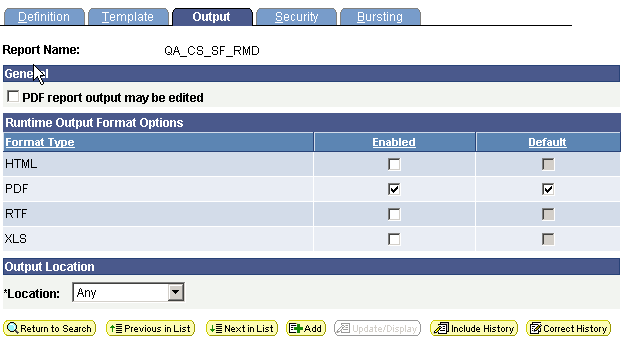
For Format Type, select Enabled and Default for PDF.
Defining Bursting Properties
Access the Report Definition — Bursting page ().
This example illustrates the fields and controls on the Report Definition — Bursting page. You can find definitions for the fields and controls later on this page.
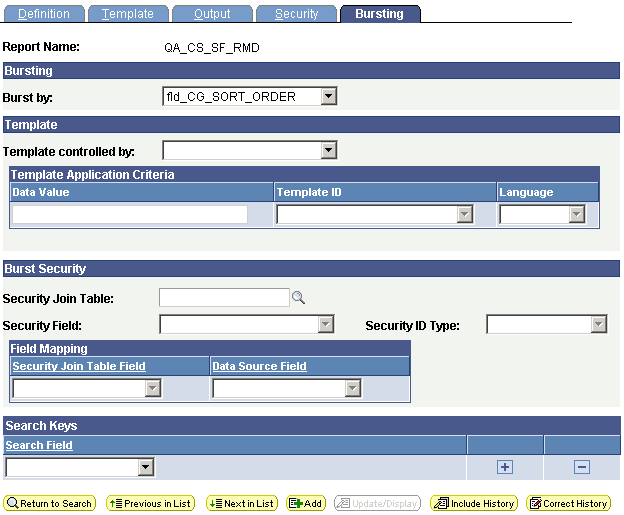
For Burst by, select fld_CG_SORT_ORDER so the reminder letter is used by the Comm Gen process.
Setting Up Standard Letter
Access the Standard Letters page ().
This example illustrates the fields and controls on the Standard Letters page. You can find definitions for the fields and controls later on this page.
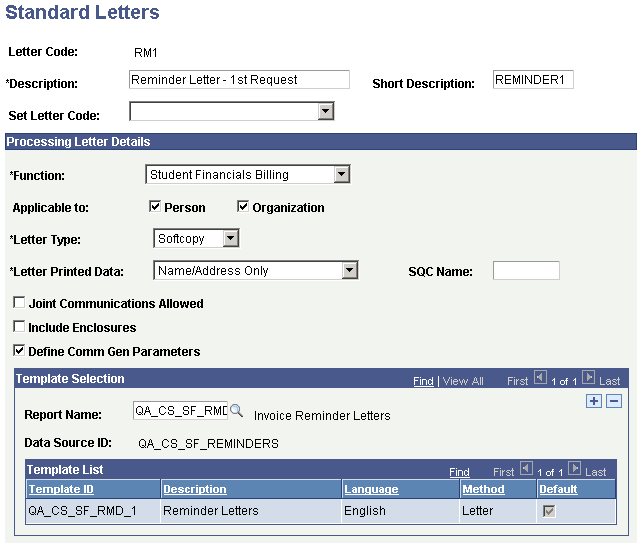
Select the appropriate RM1 Letter Code and the Define Com Gen Parameters check box.
Template Selection
Select the QA_CS_SF_RMD report name (Invoice Reminder Letters).
Defining Comm Key
Access the Communication Speed Keys page ().
This example illustrates the fields and controls on the Communication Speed Keys page. You can find definitions for the fields and controls later on this page.
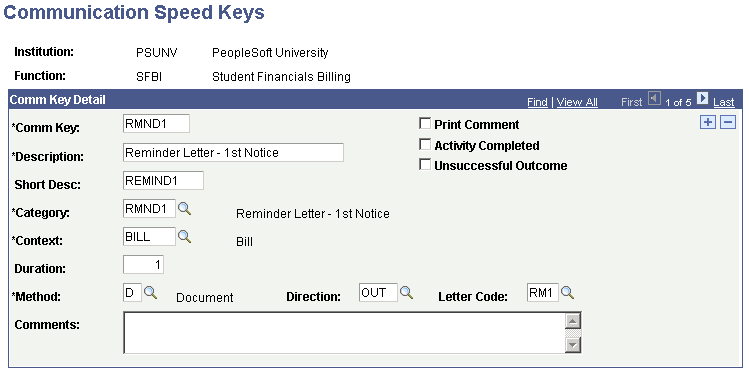
Select the appropriate RM1 Comm Key.
| Field or Control | Description |
|---|---|
|
Comm Key: |
Enter the name of the communication speed key to represent this set of communication elements |
|
Category |
Enter the communication category to associate with this communication speed key |
|
Context |
Enter the communication context to associate with this communication speed key. |
| Field or Control | Description |
|---|---|
|
Duration |
Enter Document as method of the communication that you are associating with this communication speed key. |
|
Direction |
Enter Outgoing as the direction of the communication you are associating with this communication speed key. |
|
Letter Code |
Enter RM1 as the code you are associating with this communication speed key |
Defining Event 3C Groups
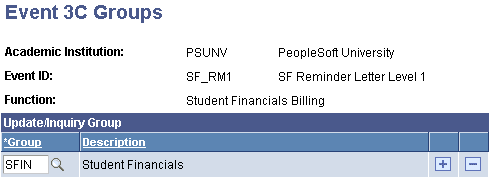
Access the Event 3C Groups page ().
This example illustrates the fields and controls on the Event 3C Groups page. You can find definitions for the fields and controls later on this page.
Defining Event Definition
Access the Event Definition page ().
This example illustrates the fields and controls on the Event Definition page. You can find definitions for the fields and controls later on this page.
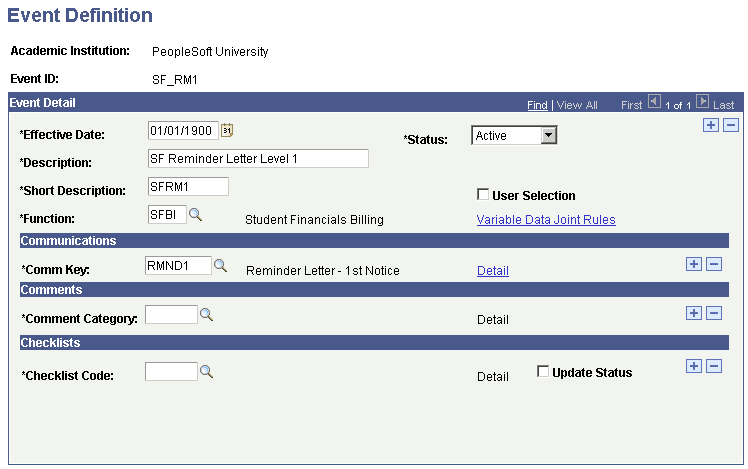
Select the appropriate SF RM1 Event ID.
Defining 3C Engine Parameters
Access the 3C Engine Parameters page ().
This example illustrates the fields and controls on the 3C Engine Parameters page. You can find definitions for the fields and controls later on this page.
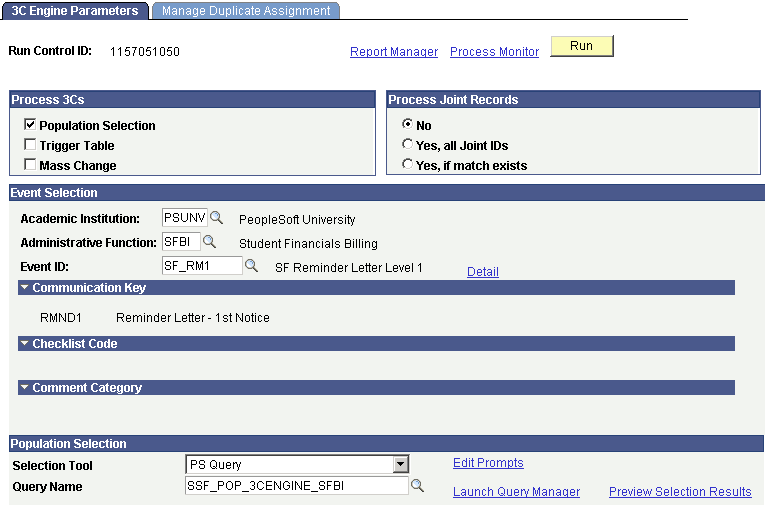
Select the SSF_POP_3CENGINE_SFBI query
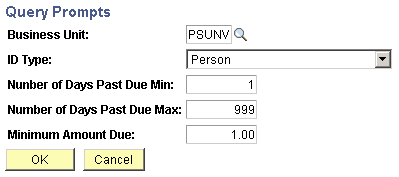
In the Population Selection group box, select Edit Prompts to access the Query Prompts page.
This example illustrates the fields and controls on the Query Prompts page. You can find definitions for the fields and controls later on this page.
Defining Manage Duplicate Assignment
Access the Manage Duplicate Assignment page ().
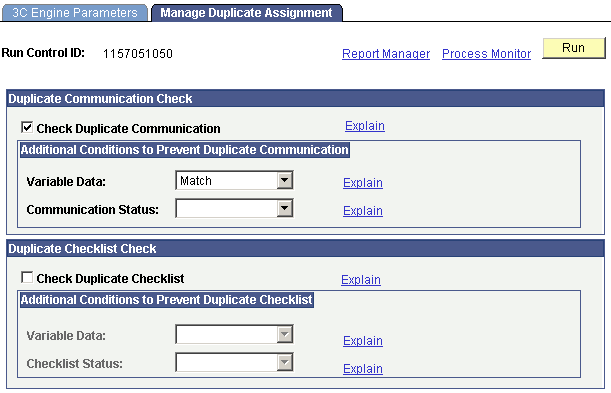
This example illustrates the fields and controls on the Manage Duplicate Assignment page. You can find definitions for the fields and controls later on this page.
Check Duplicate Communication
Select the Check Duplicate Communication check box.
In the Variable Data field within the Additional Conditions to Prevent Duplicate Communication group box, select Match.
Click Run to run the process.
Reviewing the Generated Communication
Access the Person Communication page ().
Note the Communication Completed check box is not selected.
Setting Up Process Parameters
Access the Process Parameters page ().
Output Settings
In the Missing Critical Data group box, select the Produce Communication check box and the Complete Communication check box.
Reviewing Communication
Access the Person Communication page ().
Note the Communication Completed check box is selected.
Click View Generated Communication to view the reminder letter.
Access the Reminder Letter for Global Invoicing.
This example illustrates the fields and controls on the Reminder Letter for Global Invoicing. You can find definitions for the fields and controls later on this page.