Importing and Mapping HESA Codes
First, you import HESA field codes into your system. These codes are the valid values that the system can assign to a field in a return. For example, the Student.NATION field has HESA codes such as DE for Germany and AU for Australia.
To import HESA codes:
-
Place the HESA code list XSD file in a local directory before you access the Import HESA Codes page.
-
Use the Import HESA Codes page to load the HESA codes from the XSD file to your system.
After importing the codes, you can use the Codes page to search and view the imported codes. Also, you can use the Codes page to manually add new codes for fields.
In some cases, you must use the Code Mapping pages to map the HESA codes with the Campus Solutions codes. For example, you must map Campus Solutions marital status codes to the HESA marital status codes. You can delete a mapping by clicking the Delete Row button or inactivate a mapping by clearing the Active check box in all the Code Mapping pages.
On all the Mapping pages, such as the Ethnicity page, the drop-down fields display both the inactive and active Campus Solutions codes. For example, if you use the Ethnic Groups page () to set the ABC ethnic group as inactive, the system continues to display ABC as the drop-down value for the Ethnic Group field on the Ethnicity page.
This section discusses how to:
-
Import HESA codes.
-
Search for the imported HESA codes.
-
Map ethnic codes.
-
Map campus codes.
-
Map marital status codes.
-
Map religion codes.
-
Map qualification codes.
-
Map nationality codes.
-
Map fee eligibility codes.
-
Map mode of study codes.
-
Map classification codes.
-
Map disability codes.
-
Map module outcome codes.
-
Map gender codes.
-
Map orientation codes.
-
Map entry qualifications.
Note:
For Aggregate Offshore return, the mapping for campus codes is required. For Register/ITT return, the mappings for ethnicity, gender, mode of study, and disability codes are required.
Note for Unistats/KIS
Some codes are not provided in Cnn061CodeLists.xsd and you need to manually add them via the Codes page. The codes that you need to manually add are:
-
ACCTYPE
-
ILRAIMID
-
KISAIM
Pages Used to Import and Map HESA Codes
| Page Name | Definition Name | Navigation | Usage |
|---|---|---|---|
|
Import HESA Codes |
SSR_HE_RUNCNTL |
|
Import HESA codes from the XML Schema Definition (XSD) file. The code list XSD file is available from the HESA website. |
|
Codes |
SSR_HE_CODES |
|
View the codes that you have imported from the code list XSD file. If required, add new codes for fields. |
|
Ethnicity |
SCC_HE_ETHNIC |
|
Map Campus Solutions regulatory region and ethnic group codes to the HESA ethnicity codes. |
|
Campus |
SSR_HE_CAMPUS |
|
Map Campus Solutions campus codes to the HESA campus and Institution's Own Campus codes. |
|
Marital Status |
SCC_HE_MARITAL |
|
Map Campus Solutions marital status codes to the HESA marital status codes. |
|
Religion |
SCC_HE_RELIGION |
|
Map Campus Solutions religious preference codes to the HESA belief and religion codes. |
|
Qualification |
SSR_HE_QUALIFIC |
|
Map Campus Solutions degree codes to the HESA qualification codes. |
|
Nationality |
SCC_HE_NATIONALITY |
|
Map Campus Solutions country codes to the HESA nationality codes. |
|
Fee Eligibility |
SSR_HE_FEE_ELIG |
|
Map Campus Solutions residency codes to the HESA fee eligibility codes. |
|
Mode of Study |
SSR_HE_MODE_STD |
|
Map Campus Solutions academic load codes to the HESA mode of study codes. |
|
Classification |
SSR_HE_CLASSIFI |
|
Map Campus Solutions honors type and honors codes to the HESA classification codes. |
|
Disability |
SCC_HE_DISABILITY |
|
Map Campus Solutions type of impairment and support services request codes to the HESA disability codes. Note that the system creates disability records as part of Universities & Colleges Admissions Service (UCAS) processing. For information on how to assign impairment codes to students and specify whether or not support services have been requested, refer to Campus Community Fundamentals: Identifying Regional Impairment and Support Services |
|
Module Outcome |
SSR_HE_MODULE |
|
Map Campus Solutions grading scheme, grading basis, grade input, and grade category codes to the HESA module outcome codes. |
|
Gender |
SCC_HE_GENDER |
|
Map Campus Solutions gender values to HESA gender identifiers. |
|
Orientation |
SSR_HE_ORIENT |
|
Map Campus Solutions orientation values to HESA orientation identifiers. |
|
Entry Qualification Mapping |
SSR_HE_QOE_MAP |
|
Map a qualification type to a list of valid grades for that qualification. If grades are not mapped to a particular qualification type, then all the grades are available for a qualification type on the Entry Profile page. If you do this mapping, the Entry Profile page displays only the mapped grades for a type. |
Importing HESA Codes
Access the Import HESA Codes page ().
| Field or Control | Description |
|---|---|
|
Add Attachment |
Click to browse to the schema file that HESA delivers, and click Upload. You can browse your local drive and select a file. Note: The upload process creates a files subdirectory to store and process the XSD file. This subdirectory is created in the server directory location that is specified in the PS_SERVDIR system parameter in the Application Server/Process Scheduler configuration file psappsrv.cfg/psprcs.cfg. Ensure that PS_SERVDIR is set up with an appropriate value in the configuration file and that users have the correct permission to access the files subdirectory. |
|
XSD File Path |
Enter the path and file name of the HESA codes XSD file. You must store this XSD file on an application server that the import process can access. |
Note that institutions need to handle the deletion of processed files from the application server. Therefore, after using an .xsd file, you will need to handle the deletion of this file from the application server.
For Unistats/KIS return, the process imports:
-
LEVEL values to the LEVELK field rather than the LEVEL field which is for the Aggregate Offshore return.
-
JACS values to the JACSA field rather than the JACS field which is for the DLHE return.
Notes
The import process does not import codes for fields that are not required by the system, for example EMPFEES. The log file for the process includes messages for codes that are not imported.
When there are multiple fields with the same HESA data type, the process will create the codes for each of the fields. For example, when importing codes for MOBTYPE, the process imports the same codes and descriptions for MOBTYPE2 and MOBTYPE3.
From a Unistats/KIS code list file (Cnn061CodeLists.xsd), codes for this field are not imported: TTCID (same codes as Student return).
For the Graduate Outcomes return, existing COUNTRY codes (used in the DFSTDNT return) are not inactivated by the import process.
If any of the codes that the process does not import for Register or Unistats/KIS are required by your institution before the code list for the Student return is imported, then you can add such codes manually through the Codes page.
Searching for the Imported HESA Codes
Access the Codes search page ().
This example illustrates the fields and controls on the Codes search page. You can find definitions for the fields and controls later on this page.
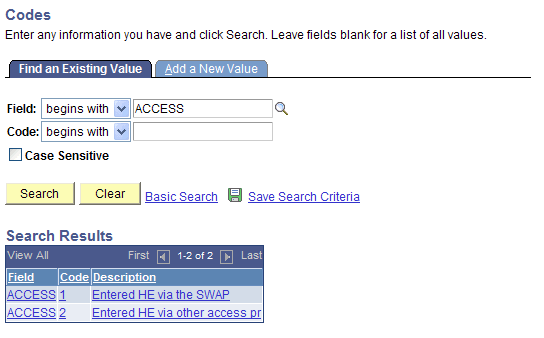
Use the Codes search page to search for all the codes of a specific field. If required, click the Add a New Value link to manually add a code for a field.
Click the Add a New Value link or click a link in the Search Results group box to access the Codes page.
This example illustrates the fields and controls on the Codes page. You can find definitions for the fields and controls later on this page.
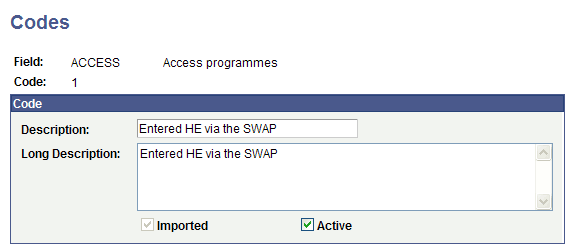
The text in the Description field can accept a maximum of 30 characters. Note that when you select a code on a data capture page, the page displays the text from the Description field. If the Import HESA Codes Application Engine (SSR_HE_IMPCD) process has cut a description text that extends beyond 30 characters, you can modify the description text so that a meaningful description appears on the data capture pages.
The "Setting Up and Entering Data for HESA Reporting" section discusses the data capture pages.
Mapping Ethnic Codes
Access the Ethnicity page ().
Map Campus Solutions regulatory region and ethnic group codes to the HESA ethnicity codes. The system uses this mapping to derive the Student.ETHNICS field.
Mapping Campus Codes
Access the Campus page ().
Map the Campus Solutions campus codes to the (HESA) Venue ID. The system uses this mapping to derive StudyLocation.VENUEID.
Mapping Marital Status Codes
Access the Marital Status page ().
Map the Campus Solutions marital status codes to the HESA marital status codes. The system uses this mapping to derive EntryProfile.MARSTAT.
Mapping Religion Codes
Access the Religion page ().
Map the Campus Solutions religious preference codes to the HESA belief and religion codes. The system uses this mapping to derive Student.RELIGIONS.
Mapping Qualification Codes
Access the Qualification page ().
The system uses this mapping to derive PostGraduateEntryQualificationAward.DEGREETYPEID.
Mapping Nationality Codes
Access the Nationality page ().
Map the Campus Solutions country codes to the HESA nationality codes. The system uses this mapping to derive the Student.NATION and EntryProfile.PERMADDCOUNTRY field values.
You map only certain Campus Solutions country codes to the HESA codes for Nationality. In most cases, the system can use the two-character Campus Solutions country code (COUNTRY_2CHAR) from the Country table (PS_COUNTRY_TBL).
| Field or Control | Description |
|---|---|
|
HESA Nationality |
Enter a value only if the two-character Campus Solutions country code is not a valid value for Student.NATION and Student.DEGCTRY. For example, the French territory of Reunion Island has its own country code RE but the academic institution must report the value as France FR in Student.NATION and Student.DEGCTRY. If you do not select a value, the system uses the default two-character country code. |
|
HESA Domicile |
Enter a value only if the two-character Campus Solutions country code is not a valid value for EntryProfile.DOMICILE. If you do not select a value, the system uses the default two-character country code. |
In the above exhibit example, the institution has mapped both Nationality and Domicile to XA for Cyprus. Therefore, if a student's record in Campus Solutions has a country code of CYP, the system uses the XA value for Student.NATION and Student.DEGCTRY, and uses the same value XA for EntryProfile.DOMICILE. Also, in the second row of the exhibit example, the setup indicates that if the student's record in Campus Solutions has a country code of REU (Reunion Island), then the system uses the value of FR for Student.NATION and Student.DEGCTRY. In such a case, because the HESA Domicile field has been left blank, the system uses the default two-character country code of RE for reporting EntryProfile.DOMICILE of the student.
Mapping Fee Eligibility Codes
Access the Fee Eligibility page ().
Map Campus Solutions residency codes to the HESA fee eligibility codes. The system uses this mapping to derive Engagement.FEEELIGE and FEESTATUS.
Mapping Mode of Study Codes
Access the Mode of Study page ().
Map the Campus Solutions academic load codes to the (HESA) Session and (HESA) Mode of Study codes. The system uses this mapping to derive the Register/ITT return's Student.MODE field values, and the Student return's StudentCourseSession.SCSMODE and SessionStatus.STATUSCHANGEDTO.
Mapping Classification Codes
Access the Classification page ().
Map the Campus Solutions honors code and type codes to the HESA classification codes. The system uses this mapping to derive QualificationAwarded.QUALRESULT.
Mapping Disability Codes
Access the Disability page ().
Disability Mappings
Use this region to map the Campus Solutions type of Impairment codes to the HESA disability codes. The system uses this mapping to derive the Student.DISABILITY and the Disability entity.
Mapping Module Outcome Codes
Access the Module Outcome page ().
Map the Campus Solutions grade input and grade category codes to the HESA module outcome codes. The system uses this mapping to derive ModuleInstance.MODULEOUTCOME and ModuleInstance.MODULERESULT.
Mapping Gender Codes
Access the Gender page ().
The system uses this mapping to derive Student.SEXIDS.
Mapping Orientation Codes
Access the Orientation page ().
The system uses this mapping to derive Student.SEXORTS.
Mapping Entry Qualification
Access the Entry Qualification Mapping page ().
An institution can only return specific Grades (QUALGRADE) for a Qualification Type to HESA. If an invalid Grade is returned, then validation errors will occur at HESA. Use the Entry Qualification Mapping page to define which Grade values are appropriate for a particular Qualification Type. Campus Solutions then uses this mapping to ensure that only valid Grade values are entered for the selected Qualification Type on the Entry Profile page. The Import Applicant Data process also uses this mapping when importing ivStarJ records to report invalid grade values.