Preparing for ARTS Processing
To prepare for ARTS processing, use these components: Academic Program Table (ACADEMIC_PROG_TBL), ARTS Institution Mapping AUS (SSR_ARTS_INST_MAP), Service Indicator Data (SERVICE_IND_PERS), ARTS Student Program Notes AUS (SSR_PROG_NOTES), Honors and Awards (HNR_AWD_EXT_PERS), Person Comment Entry (CMNT_ENTRY), and Communication Management (COMM_MANAGEMENT).
This section provides an overview of ARTS processing and discusses how to:
-
Enter field of study values.
-
Enter data mapping specifications.
-
Assign service indicators.
-
Enter student program notes.
-
Enter honors and awards.
-
Enter comments.
-
Enter communications.
Understanding ARTS Processing
To prepare for ARTS processing, ensure that:
-
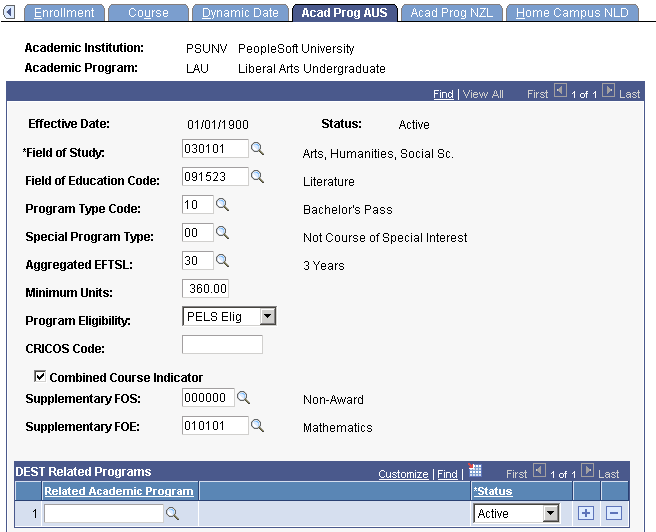
Fields of study have been populated on the Acad Prog AUS (Academic Program AUS) page.
-
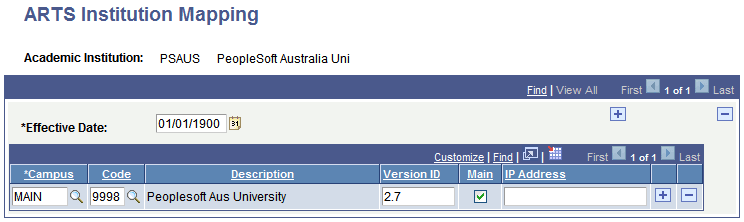
Data mapping specifications have been completed on the ARTS Institution Mapping page.
-
Service indicators are assigned to students that you want the system to exclude from ARTS processing on the Service Indicator Data page.
In addition to reporting traditional personal data and course data that resides in your system for students, the ARTS process can also report:
-
Honors and awards information.
-
Program notes.
-
Comments.
-
Communications.
Therefore, prior to running the ARTS process, add:
-
Program notes to student records.
-
Honors and awards information to student records.
-
Comments to student records.
-
Communications to student records.
Pages Used to Prepare for ARTS Processing
| Page Name | Definition Name | Navigation | Usage |
|---|---|---|---|
|
Acad Prog AUS (academic program Australia) |
SSR_ACAD_PROG_AUS |
|
Assign a field of study value for each program that can be processed by ARTS. |
|
ARTS Institution Mapping |
SSR_ARTS_INST_MAP |
|
Map PeopleSoft campus codes to the Department of Education institution codes, which the system uses in the ARTS transcripts. |
|
Manage Service Indicators |
SRVC_IND_SUMRY |
|
Assign or release a service indicator. Students with service indicators that match one or both of the service indicators entered on the Arts Parameters 1 page at runtime will be excluded from ARTS processing. |
|
ARTS Student Program Notes |
SSR_PROG_NOTES |
|
Add notes to a student's program in order for notes to appear on the ARTS transcript. |
|
Honors and Awards |
HONORS_AWARDS_CS |
|
Track student honors and awards. The Honors/Awards process populates the page according to the rules you set on the Honors/Awards Rule page. You can also manually enter information on this page. |
|
Person Comment Entry |
CMNT_ENTRY1 |
|
Enter comments about an individual. |
|
Person Communication |
COMM_MGMT1 |
|
Assign a communication to an individual. |
Entering Field of Study Values
Access the Acad Prog AUS page ().
This example illustrates the fields and controls on the Acad Prog AUS page (1 of 2).
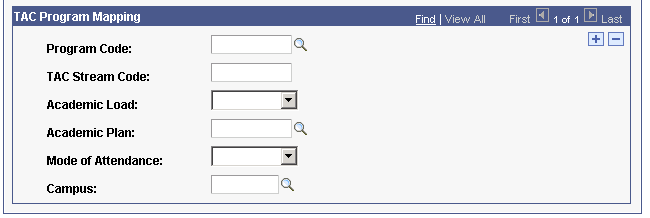
This example illustrates the fields and controls on the Acad Prog AUS page (2 of 2). You can find definitions for the fields and controls later on this page.
Enter a field of study value for each program that you process as part of ARTS.
Entering Data Mapping Specifications
Access the ARTS Institution Mapping page ().
This example illustrates the fields and controls on the ARTS Institution Mapping page. You can find definitions for the fields and controls later on this page.
| Field or Control | Description |
|---|---|
|
Version ID |
Enter the Version ID. The ARTS version number represents the specification number applicable to the request/return. The system includes this number on the Request file header record, Result file header record, Request acknowledgement file header record and Result acknowledgement file header record. Except for a short period of time during change over from one version to the next, this number will be the same for all request/results records—the current version. However during changeover periods and for testing, multiple versions may coexist for short periods. |
|
Main |
Select this check box to indicate the main campus for the institution. |
|
IP Address |
An IP address can be assigned to the campus for which you select the Main check box. The system includes this on the ARTS transcript header record. |
Assigning Service Indicators
Access the Manage Service Indicators page ().
Assign service indicators to students that you want to exclude from ARTS processing. At runtime, you can specify up to two (2) service indicators which, if assigned to a student, will exclude the student from ARTS processing.
Entering Student Program Notes
Access the ARTS Student Program Notes page ().
Enter any notes that you want to include in the ARTS process.
| Field or Control | Description |
|---|---|
|
Sequence Nbr (sequence number) |
If you have multiple notes per program, enter a sequence value to control the order of the notes. |
|
Include Program Description |
Select to include the program description in the report. |
|
ARTS Program Notes |
Enter notes for the student's program. |
Entering Honors and Awards
Access the Honors and Awards page ().
Enter any honors and awards information that you want to include in the ARTS process. You specify the honors and awards that you want to report during ARTS processing on the Honors/Awards page.
Entering Comments
Access the Person Comment Entry page ().
Enter any comments that you want to include in the ARTS process. You specify the comments that you want to report during ARTS processing on the Comments/Communications page.