Searching for an Available Facility
This sections discusses how to:
-
Create facility search criteria.
-
View facility search results.
Use the Search for a Facility component to search for available facilities when scheduling classes and non-course events, such as faculty meetings.
To search for an available facility:
-
Access the Facility Search Criteria page, and enter search criteria as detailed as necessary.
-
Click the Fetch Facilities button to retrieve your results.
-
Review your results on the Facility Search Results page.
Pages Used to Search for a Facility
| Page Name | Definition Name | Navigation | Usage |
|---|---|---|---|
|
Facility Search Criteria |
FACILITY_SRCH |
|
Initiate your search for an available facility. |
|
Facility Search Results |
FACILITY_SRCH_RSLT |
|
Review the results of your search. |
Creating Facility Search Criteria
Access the Facility Search Criteria page ().
This example illustrates the fields and controls on the Facility Search Criteria page. You can find definitions for the fields and controls later on this page.
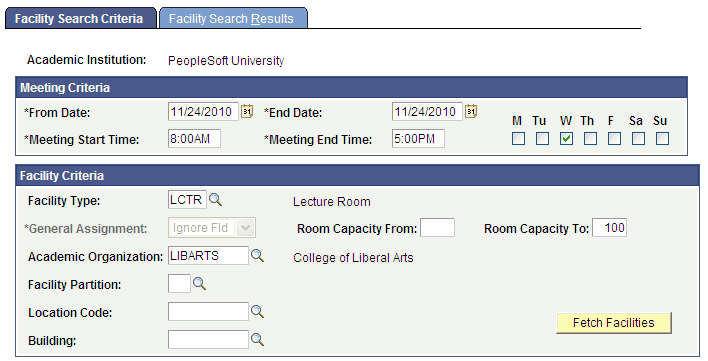
Enter the criteria for your meeting in the Meeting Criteria group box. Enter any specific facility requirements you have in the Facility Criteria group box.
Click the Fetch Facilities button to retrieve a list of facilities that match your request.