Advanced Configuration Page
Use the Advanced Configuration page (FS_CF_TEMPLATE) to perform advanced ChartField configuration such as adding, deleting, renaming and resizing of ChartFields.
Navigation:
You can also access the Standard Configuration page from this page by selecting the Standard Configuration tab.
This example illustrates the fields and controls on the Advanced Configuration page. You can find definitions for the fields and controls later on this page.
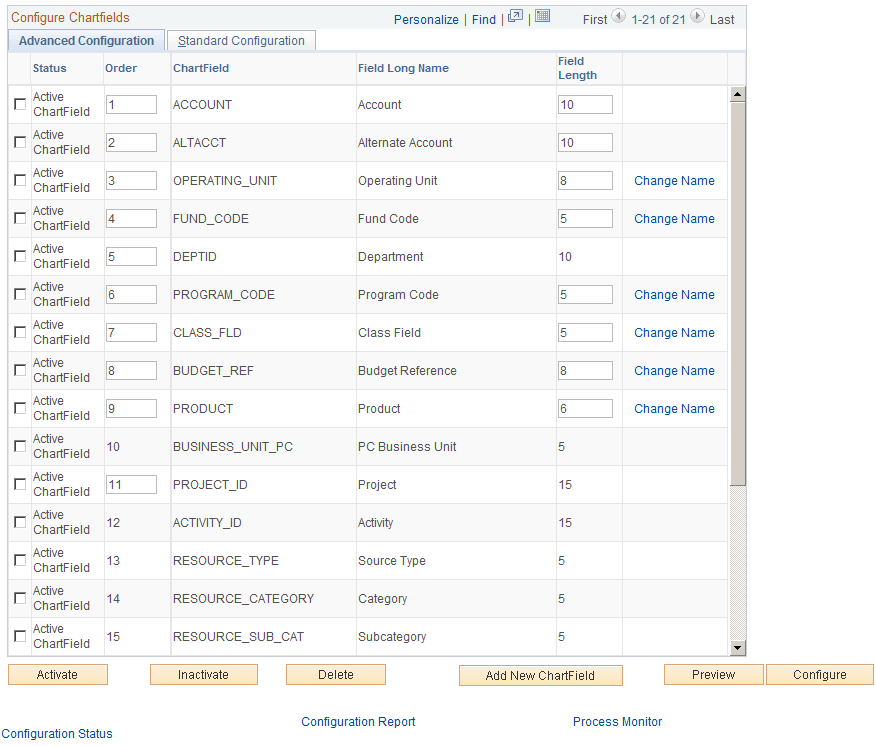
Select one or more advanced actions.
| Field or Control | Description |
|---|---|
|
Field Length |
Enter a value of up to 30 characters to change the length of a ChartField in the database. (Display size will automatically adjust to a new field size of fewer characters.) |
|
Change Name |
Select to access the Change ChartField Name secondary page (FS_CF_TMPLT_CONFIG). Enter a unique new CF name and change the long name and short name accordingly. |
|
Activate |
Click the check boxes next to the fields that you want to activate, and then click the Activate button. |
|
Inactivate |
Click the check boxes next to the fields that you want to inactivate, and then click the Inactivate button. |
|
Delete |
Click the check boxes next to the fields that you want to delete, and then click the Delete button. Account, alternate account, department, project, and affiliate cannot be deleted. Also, you cannot delete your last remaining standard or affiliate ChartField. Oracle recommends that you inactivate a ChartField rather than delete it. |
|
Add New ChartField |
Click this button to access the Add New ChartField dialog box and then select either to add a Standard or IntraUnit Affiliate ChartField. Click OK to access the Add New ChartField secondary page. Enter the field length of the new ChartField that will be added to the database by the configuration process. If you selected the IntraUnit Affiliate check box, IntraUnit Affiliate is also selected by the system on the Add New ChartField secondary page, indicating that you are adding an IntraUnit Affiliate ChartField. In this case, you must also select an IntraUnit Related ChartField. These two fields do not appear on the page when you are adding a Standard ChartField. You cannot add additional Interunit ChartFields. Model lists the prompt tables that exist for a selected ChartField that are also copied to the New Name column. Because counterpart prompt tables are required for the new ChartField, modify the New Name prompt table names to reflect the name of the new ChartField. The new prompt table names entered have to be manually created in the PeopleSoft Application Designer and will be listed in the Configuration Steps Report. Make sure that the prompt tables are created before opening any of the records containing ChartFields. |
|
Preview |
Click the Preview button prior to clicking the Configure button to preview what the ChartField grid display will look like after configuration on the Preview Configuration page (FS_CF_PAGE_DEMO). |
|
Configure |
Refer to the section on running and verifying the ChartField configuration before initiating the configuration using the Configure button. |
See Running and Verifying the ChartField Configuration Program.