Performing One-Time Manual Configuration Tasks
The following table summarizes the manual configuration tasks listed on the Configuration Steps report that typically need to be performed only once regardless of the number of products installed. However, some of these tasks might need to be repeated during a subsequent project-based configuration.
Required steps must be performed for the system to function properly. Optional steps do not affect the functioning of the system, but typically affect the appearance of pages and reports.
This table of sample sequence numbers indicates the order in which the steps are performed. (Gaps occur in the number sequence.)
| Seq # | Common Tasks | Notes/Require/Optional |
|---|---|---|
|
00010 |
Run Full Configuration Process |
Applies only when the Preview Configuration Steps process is run Required for all actions except changing the IntraUnit Affiliate Related ChartField. |
|
00020 |
Define new ChartField Validation Table |
Required only for an Add action. Does not apply to IntraUnit Affiliate ChartFields. |
|
00040 |
Create new ChartField Prompt Views |
Required only for an Add action. |
|
00060 |
Define new ChartField Definition page (Set Up Financials/Supply Chain, Common Definitions, Design ChartFields, Configure, ChartField Definition). (may need to create component in Application Designer first). |
Required only for an Add action. Does not apply to the IntraUnit Affiliate ChartField. |
|
00070 |
Create a table listing Query reports |
Add action only (optional). Does not apply to the IntraUnit Affiliate ChartField. |
|
10010 |
Alter Tables/Create Indexes |
Required for:
|
|
10020 |
Create Indexes |
Applies only when Activate/Inactivate is requested without an Add, Delete, Rename, or Resize. |
|
10040 |
Create Views |
Required for:
|
|
10050 |
Add new TableSet Record Group |
Required for Add (does not apply to IntraUnit Affiliate ChartFields) |
|
10060 |
Update the Table Listing Reports |
Required for Resize and Rename. Optional for Relabel. |
Note:
Create the related language tables first. These tables have a suffix of Lxxx, for example, OPER_UNIT_LANG or OPER_UNIT_LN.
Define New ChartField Validation Tables (Seq.# 00020)
In the PeopleSoft Application Designer, copy the Model table listed in the Configuration Steps Report by selecting File, Save As, and name the new validation table as shown in the report. If the table already exists, replace it. Complete the following steps:
When prompted whether to save a copy of the PeopleCode, answer Yes.
When the new validation table is in place, highlight the model ChartField and select Insert, Field to add the new ChartField.
Compare the attributes of the model ChartField to the new one, and modify the new field attributes to match the model.
Copy any PeopleCode associated with the model ChartField to the new ChartField and modify it as needed.
Delete the model ChartField from the new validation table.
Change the name of the Related Language Record in the Record Properties, if present, to the correct record for the new ChartField.
Change the description of the table in Record Properties.
Save the new validation table.
Use Build, Current Object to create the new table. Acknowledge any warning messages by clicking OK.
Follow the same procedure for each new validation table listed.
Note:
Create the related language tables first. These tables have a suffix of _Lxxx, for example, OPER_UNIT_LANG or OPER_UNIT_LN.
Create New ChartField Prompt Views (Seq.# 00040)
In the Application Designer, copy the Model prompt view listed in the Configuration Steps Report by selecting File, Save As, and name the new prompt view as shown in the report.
When prompted whether to save a copy of the PeopleCode, answer Yes.
When the new prompt view is in place, highlight the model ChartField and select Insert, Field to add the new ChartField.
Compare the attributes of the model ChartField to the new one and modify the new field attributes to match the model.
Copy any PeopleCode associated with the model ChartField over to the new ChartField and modify it as needed.
Delete the model ChartField from the new prompt view.
Modify the view text to reference the new ChartField name. Ensure that the SQL Objects (%Sql) reference the new ChartField name or new validation table name as appropriate.
Change the name of the Related Language Record in the Record Properties, if present, to the correct record for the new ChartField.
Change the description of the prompt view in the Record Properties.
Save the new prompt view.
Follow the same procedure outlined for each new prompt view listed.
The views will be built in Seq.# 10040.
WARNING:
Complete this step before opening records containing ChartFields in Application Designer or you might receive an error stating that a prompt table cannot be found.
Define New ChartField Definition Page and Component (Seq.# 00060)
Copy the Model page listed in the report and use the name provided for the new page.
When prompted whether to save the associated PeopleCode, answer Yes.
Ensure that all references to the old validation table are replaced.
Review any Page PeopleCode that was copied from the existing page and modify or delete it as appropriate.
Copy the Model component, including PeopleCode, replacing references to the Model ChartField and validation table with the new ChartField and validation table. Use the same name as the new page and add the new page to it.
Copy the following two message definitions, including PeopleCode, replacing references to the Model ChartField and validation table with the new ChartField and validation table:
-
<model ChartField name>_CF_FULLSYNC
-
<model ChartField name>_CF_SYNC
In Application Designer under Tools, Register Component, add the new component to the DESIGN_CHARTFIELDS menu, the portal registry, and the appropriate permission lists.
Use the following values and accept the default values provided for fields not included in the following list:
-
Menu Name: DESIGN_CHARTFIELDS
-
Bar Name: USE
-
Portal Name: EMPLOYEE
-
Folder Name: EPCO_DESIGN_CHARTFIELDS_HIDDEN
-
Content Reference Name: EP_<new component name>_GBL (for example, EP_OPERATING_UNIT_GBL)
-
Content Reference Label: <Long Name of the new ChartField>
-
Long Description: <Long Name of the new ChartField>
-
Sequence Number: 99xx (where xx is a number you assign)
-
Node Name: ERP
-
Permission Lists: <select based on your security setup>
Create a Table Listing Query Reports (Seq.# 00070)
Access PeopleTools, Security, Query Security, Query Access Manager and open QUERY_TREE_ERP.
Click the ChartFields Access Group, click the Insert Child Record icon, enter the name of the validation table for the new ChartField, click Add, and save the tree.
Access Reporting Tools, Query, Query Manager and select the Model query listed in the report. Using this query as a model, build a new query to represent the new ChartField using the name specified on the report. Do not copy this query to make the new query, because the new query should refer to the validation table of the new ChartField.
See Managing ChartFields for Reports.
In Application Designer under Tools, Register Component, add the new component to the DESIGN_CHARTFIELDS menu, the portal registry, and the appropriate permission lists.
Use the following values and accept the default values provided for fields not included in the following list:
-
Menu Name: DESIGN_CHARTFIELDS
-
Bar Name: REPORT
-
Portal Name: EMPLOYEE
-
Folder Name: EPCO_DESIGN_CHARTFIELDS_HIDDEN
-
Content Reference Name: EP_<new component name>_GBL (for example, EP_RUN_FIN9000_GBL)
-
Content Reference Label: <Long Name of the new ChartField>
-
Long Description: <Long Name of the new ChartField>
-
Sequence Number: 99xx (where xx is a number you assign)
-
Node Name: ERP
-
Permission Lists: <select based on your security setup>
Modify FS_PANELS_WRK.PB_SELECT_CF FieldChange PeopleCode to include the new ChartField by cloning all PeopleCode related to the Model ChartField. The CheckSecurity and Xfer2Page functions parameters are Menu Bar Name, Menu Item Name, and Component Item Name respectively.
Alter Tables/Create Indexes (Seq. #10010)
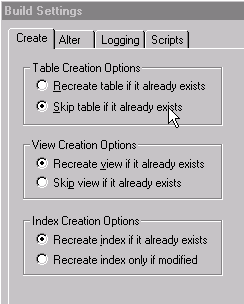
Build the objects in the project listed on the report. Verify the Build Settings by selecting the Create tab on the Build Settings page:
Verifying Build Settings: Create tab
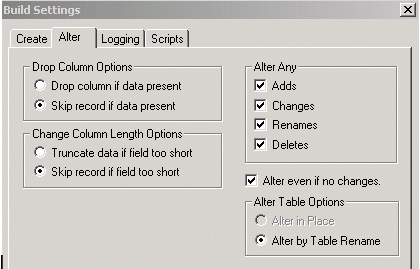
Select the Alter tab to verify build settings:
Verifying Build Settings: Alter tab
Acknowledge any warning messages by clicking OK.
Create Indexes (Seq.# 10020)
Build the objects in the project listed on the report.
Select the Create Indexes check box.
Verify that Build Settings are set as indicated in Seq #10010.
This task and Seq.# 10010 are mutually exclusive.
Create Views (Seq.# 10040)
Build the objects in the project listed on the report.
Select the Create Views check box.
Verify that Build Settings are set as indicated in step #10010.
Add a New TableSet Record Group (Seq.# 10050)
Add a new record group for each new ChartField you are adding under PeopleTools, Utilities, Administration, Record Group using FS_ and select the next available number. Add all the records and views listed in the report to the appropriate record group.
Update the Table Listing Report (Seq.# 10060)
Update the report listed to reflect the ChartField configuration actions requested.