Search Result List Format
When viewing search results, the system displays a configured number of results that match your search criteria, and the count of display pages that contain your results. The result set is determined by a PeopleSoft Search Framework setting in PeopleTools. You can select the page numbers or use the Next Page and Previous Page icons to view each page.
Global - Advanced and component search results can be displayed in a list format. The actual results are identified by:
-
Title link
-
Summary information
-
Actions viewable section
This example illustrates the Global Search Results showing Title, Summary, and Actions.
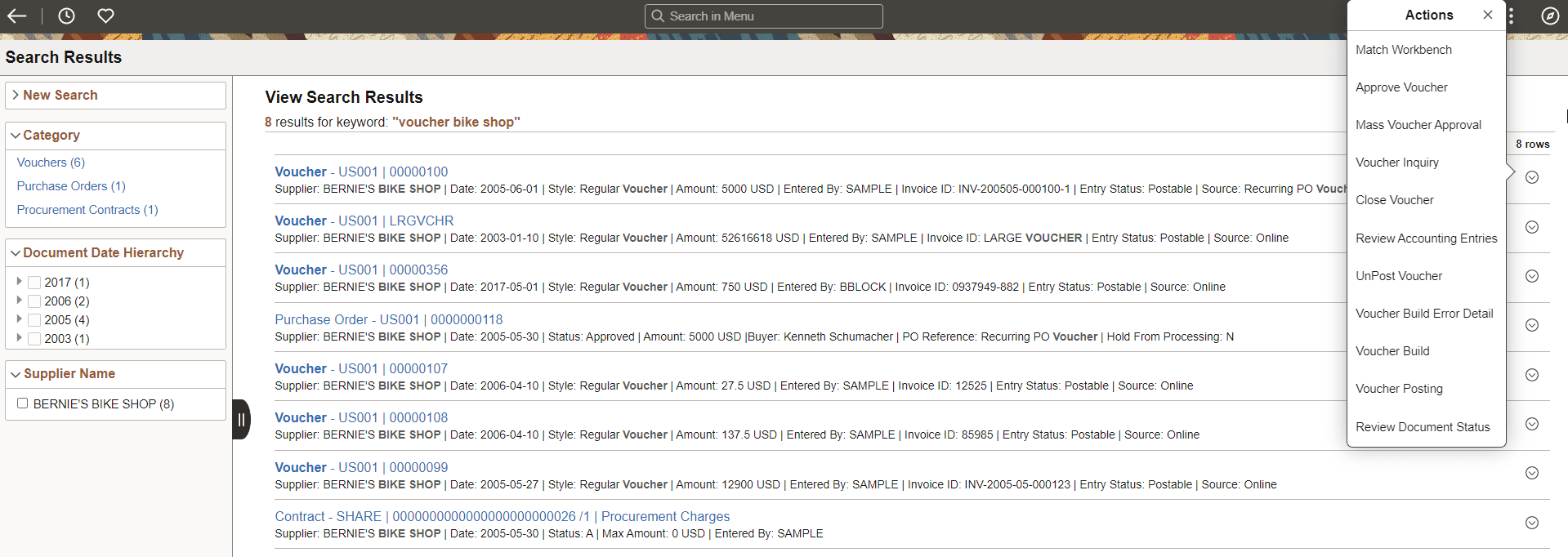
The first word of the title is designed to identify the type of result, which in this example is a Payables Voucher. This is then followed by system-key information. The summary information contains more detailed information for the returned result such as the creation date, status, amount, and who entered the information into the system.
Title Link
The search result title is a link and identifies unique characters for each search result item. When you click on the Title link, the system takes you to the corresponding page to view, or access, the information. Users can then perform the needed tasks.
WARNING:
The Title link contains returned values for drilling into the underlying component and for related actions. Therefore, any customization to the Title should be created with caution.
The format of the search result title contains all keys of the search result item and is displayed in this format:
<Document Label> - <key1> I <key2> I <key3> I <key 4>
This example illustrates a Title link (partial page).

Summary Information
The search result summary enables you to determine whether each result item is the one that you were searching. It is in this format:
<Label>: <label data> I <label data>
This example illustrates Summary Information (partial page).

The data displayed varies based on the type of document returned in the search results.
Note:
Information displayed in the Title link and the Summary Information are defined on the Search Definition. The Title link must contain enough information to make the document unique within the search index. Other information can be modified to show more, or less information in your search results. See the PeopleTools: Search Technology documentation for more information.
Actions
Actions vary based on the type of document returned in the search results and are role-specific. They are only displayed in the list format Search Results page if configured by the application. Actions enable you to take specific actions on the selected document without having to navigate through the menu to access the related component.
Actions are dynamic and depend on user security. For example, if the user does not have access to a component associated with an action, then the action is not displayed. In addition, in some circumstances actions may or may not display depending on the item context in the search results, such as a status.
In most cases, actions are enabled with modal windows. However, if the action is more complex, such as one containing links to other locations in the system, then a new window may be displayed.
In some cases, an action may display if the user has security, even when no action details exist for the returned search result. This is the case when performance considerations, for the action response, outweighs the need to hide specific actions in a larger list.
You can place your mouse over the item to view the glyph, which indicates that actions are available.
Note:
Although actions are delivered with this feature, they are configurable and defined using PeopleTools Security. See: PeopleTools: Portal Technology, Developing and Configuring Related Content