Understanding How To Identify Mouse Over Popup Pages
Mouse over popup pages enable users to see additional information for fields such as customers, suppliers, contacts, and sponsors. The popup page provides information such as name, phone number, location, and email address.
This feature provides the ability to display additional information on the page without having to use space on the primary page and without having to open a secondary page.
The mouse over popup page is a PeopleTools feature that is configured using Application Designer. PeopleSoft FSCM provides the mouse over popup feature on selected pages. However, not all customer and supplier pages are activated for the mouse over popup feature. You can activate the mouse over popup feature on additional pages using PeopleTools Application Designer.
See Activating the Mouse Over Popup Feature.
You can:
-
Set up additional popup pages.
-
Turn on or turn off the mouse over popup page feature at two levels:
-
On the Define Personalizations page at the installation level.
-
On the My Personalizations page at the user level.
-
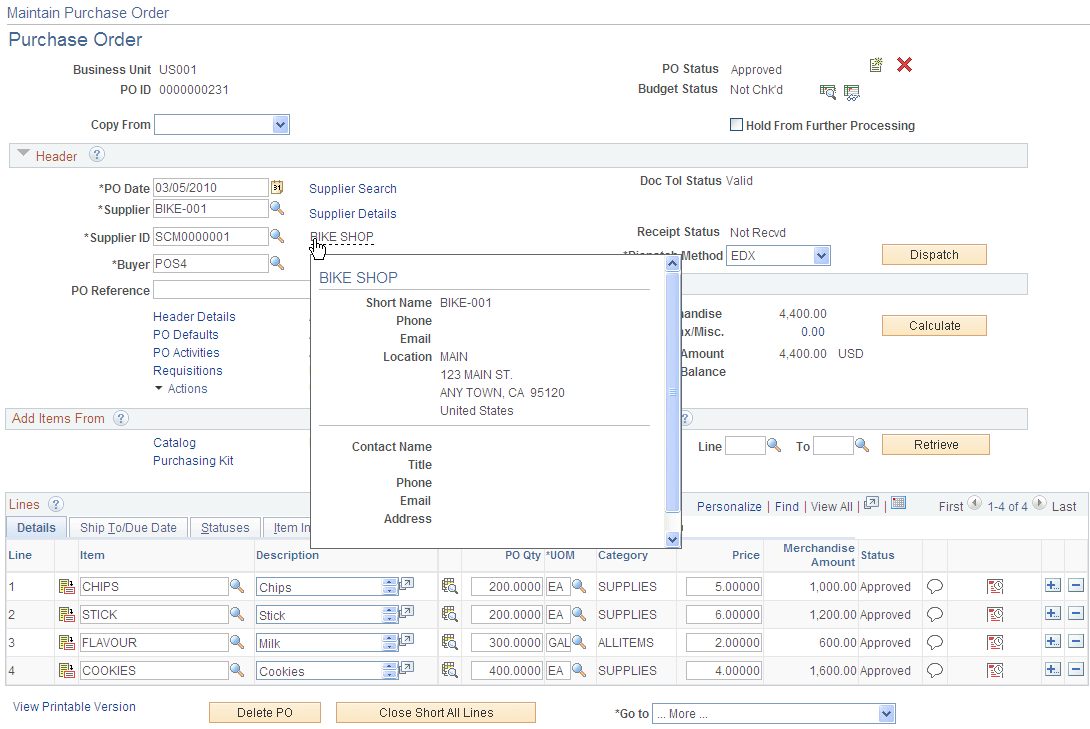
The popup page is activated when you pause your mouse over a field that has a dotted line. For example, this page shows that the popup page is activated for the Supplier Name field, CAMPER'S WAREHOUSE, on the Maintain Purchase Order – Purchase Order page.
This example illustrates the fields and controls on the Example of mouse over popup page. You can find definitions for the fields and controls later on this page.
PeopleSoft Financials and Supply Chain Management deliver these types of popup pages:
-
Customer popup pages.
-
Customer contact popup pages.
-
Customer popup pages.
-
Customer extension popup pages.
-
Customer contact popup pages.