View All Page for Suggestions, Continue With, or Announcements
Use the View All page (EOHP_VIEWALL_FL) to review all transactions for a section and mark transactions as complete, if the configuration allows it.
Navigation:
Select the Edit icon or the View All link from the Suggestions, Continue With, or Announcements section.
This example illustrates the fields and controls on the View All Suggestions page. The View All Continue With and View All Announcements pages work similar to this page.
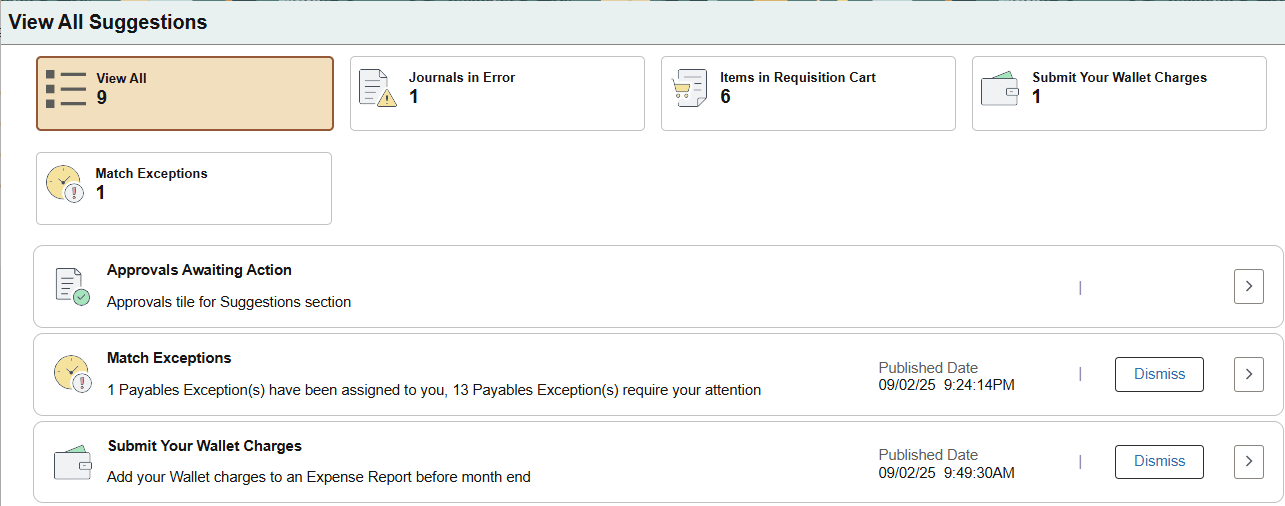
This page displays all transactions that require your attention. The page varies based on the configuration settings and the type of transactions that are available.
The View All Suggestions and View all Continue With pages display filters at the top of the page that allow you to view transactions or select individual filter tiles to narrow the results by transaction type. However, when the View All page is accessed from an aggregate tile in a dynamic section, no filters are displayed.
Note:
Filter tiles are not available for static tiles displayed in dynamic sections, such as Approvals Awaiting Action, or the Announcements section.
When using a mobile device, the filters are available as a drop-down field and appear only if there is more than one transaction type in the results.
| Field or Control | Description |
|---|---|
|
Dismiss |
Select to remove the transaction that you no longer wish to act on. The system removes the transaction from the View All page but does not impact the underlying transaction. This button is available when the Show Mark Complete option is selected on the Enterprise Components: Compose Notification - Define Message Content - In-App Page. Note: Dismissed transactions cannot be restored unless the triggering event occurs again. |
 (more) |
Select to access the transaction page view or update information. |