Large Form Factor and Small Form Factor
There are some differences when using large form factor pages (desktop or tablet) versus small form factor pages (smartphone).
Small Form Factor Group Boxes
The PeopleSoft Fluid Billing WorkCenter for Small Form Factor (SFF) My Work pagelets has two collapsible sections: Current Work and Exceptions, which are determined by your system administrator. For more information about creating collapsible sections for the My Work pagelet, see Enterprise Components: Configure Pagelets - WorkCenter/Dashboard Page.
Only active links are displayed. Inactive links are hidden.
Small Form Factor versus Large Form Factor
This table provides differences between SFF and LFF for PeopleSoft Fluid Billing WorkCenter:
| Feature | Small Form Factor | Large Form Factor |
|---|---|---|
|
Links group box |
Not available |
Available |
|
Non-consolidated Invoices |
The system takes you to the Bill Summary page. From the Bill Summary page, the system takes you to the Bill Details page unless the bill is consolidated or finalized. |
If an invoice has a TMR or TMP status, the system takes you to the Search for Temporary Bills page in PeopleSoft Classic. If an invoice is finalized, the system takes you to the Billing Inquiry page in PeopleSoft Classic. If an invoice is any other status and the Bill Entry Hyperlink options on the Billing Installation page is “E”, the system takes you to the Express Bill Entry page in PeopleSoft Classic. Otherwise, the system takes you to the Standard Bill Entry page in PeopleSoft Classic. |
|
Consolidated Invoices |
The system takes you to the Bill Summary page. |
If an invoice is finalized, the system takes you to the Consolidate header page in read-only mode If an invoice is not finalized, the system takes you to the Consolidated page |
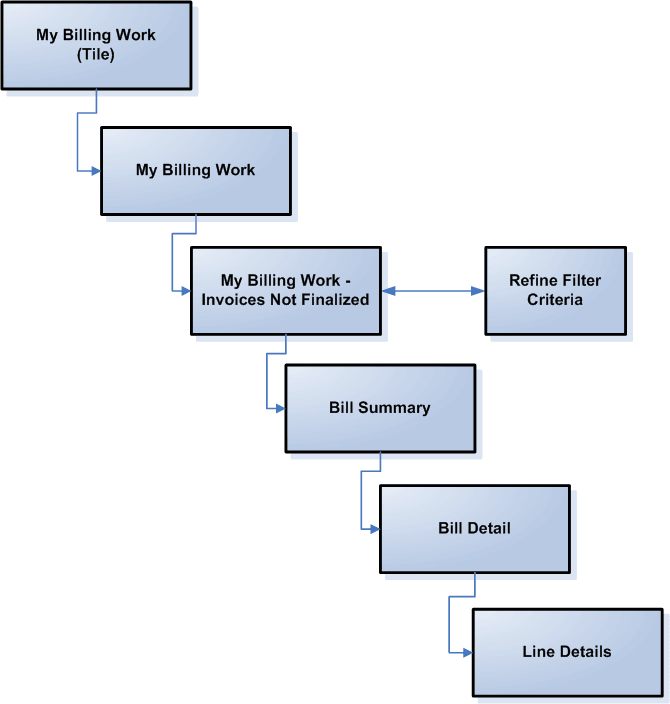
Page Flow for Small Form Factor
This diagram illustrates the page flow for the Billing WorkCenter when using the small form factor:
Page flow of the Billing WorkCenter (SFF)