Catalog Workbench Page
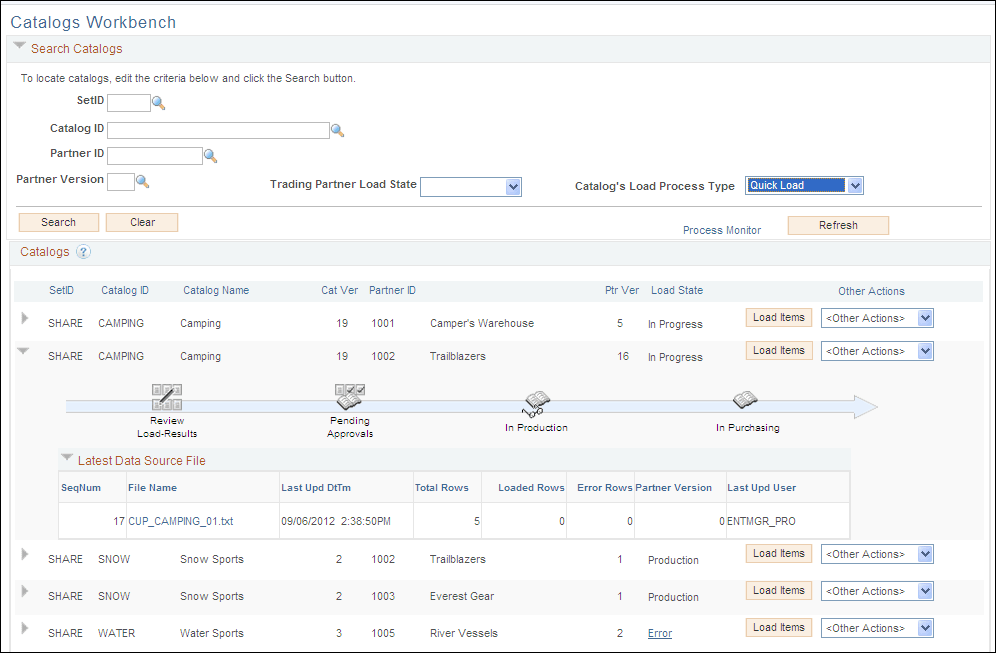
Use the Catalog Workbench Page (EOCM_CAT_WRKBCH) to locate and execute the Quick Items Load process.
Navigation:
This example illustrates the fields and controls on the Catalog Workbench Page. You can find definitions for the fields and controls later on this page.
| Field or Control | Description |
|---|---|
|
Search Catalogs |
The workbench page displays all user authorized catalogs based on the search criteria:
|
|
Trading Partner Load State |
Select the trading partner load state from the options:
|
|
Catalog’s Load Process Type |
Catalog identification is also based on Load Process Type:
A blank selection results in a display of all user authorized catalogs. If there is no data available, a message displays stating the same. |
|
Load Items button |
Click to load items. If the catalog is setup to use the Step by Step load process, it displays a message with an option to access the Partner’s Console and proceed with the corresponding load process. Note: There are only two options available in the Other Actions options, Catalog Console and Partner Console. |
|
Icons |
Click the Expand/Collapse Section on the catalogs setup to use the Quick Items Load process and display icons of progress in lifespan. Four icons are shown on the lifespan for a Master catalog, and three for an Express catalog (no Purchasing). The icons are active or inactive depending on the catalog/partner version load state. |
|
Review Load-Results icon |
Displays as active once a file is added. It also indicates if review is done, or if it is required. It changes to Review errors icon when a handled load error occurs. Click to go to Categorization Review page. |
|
Pending Approvals icon |
Displays as active if there are approvals pending. Click to browse the approval page, where items and/or categories can be rejected (all rows are approved by default). |
|
In Production icon |
Displays as active when loaded data is moved to production within Catalog Management, after the approval process is complete. Click to browse production data. |
|
In Purchasing icon |
Displays as active when production data within Catalog Management is moved to Purchasing via ePro CUP process after approval. This icon does not appear in the lifeline if the catalog is defined as an Express Catalog. It changes to Review CUP-Errors when the CUP process encounters errors. Clicking on Review CUP-Errors icon takes you to the Validate and Process Imported Items. Navigation: link Process Imported Items on the run control page. |
Note:
A catalog workbench row cannot be expanded if no item file is loaded through the Quick Item Load process.