Commitment Control WorkCenter - My Insights
Use the Commitment Control WorkCenter - My Insights to access Commitment Control Insights dashboards.
Navigation:
Select the Commitment Control WorkCenter tile and expand My Insights.
This example illustrates the fields and controls on the Commitment Control WorkCenter - My Insights (Fluid).
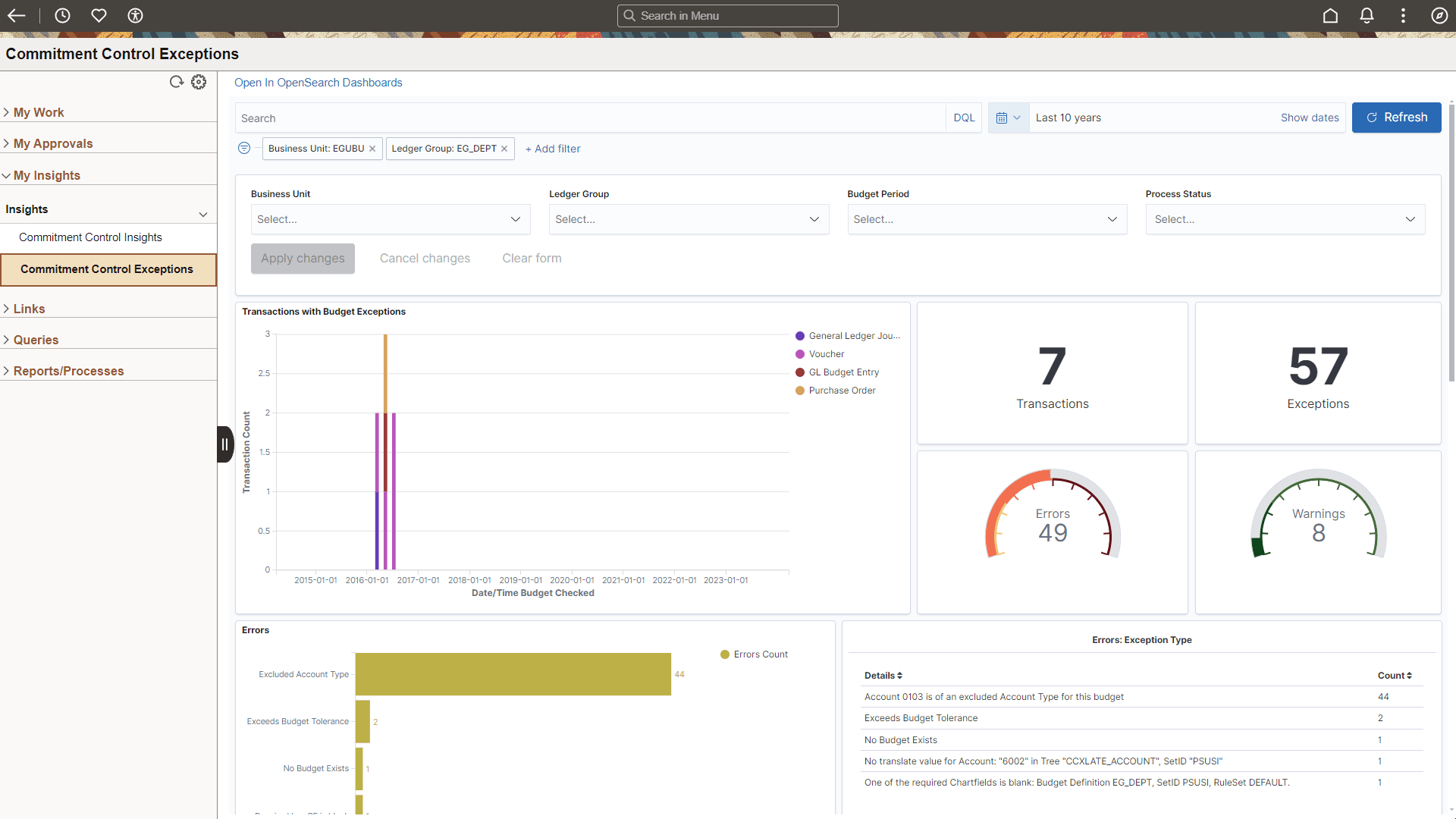
To access Commitment Control Insights dashboards in the Commitment Control WorkCenter, you must have these roles: “Insights GL Edit Privilege” and “Insights GL View Privilege”.
For more information about Commitment Control Insights dashboards, see Analyzing Commitment Control Using PeopleSoft Insights.
Filters Used in the WorkCenter for Insights Dashboards
These are the filters used when accessing the Commitment Control Insights dashboard from the WorkCenter:
-
Business Unit
-
Ledger Group
-
Budget Period
-
Account
-
Department
-
Fund
These are the filters used when accessing the Commitment Control Exceptions Insights dashboard from the WorkCenter:
-
Business Unit
-
Ledger Group
-
Budget Period
-
Exception Type
This information can be found by selecting the Define Map link from the Enterprise Components: Configure Pagelets - My Insights Page.
Use the Enterprise Components: Configure Filter Values Page to define default filter values for a user. They can be changed by the user, for the session by selecting the Personalize button, Edit Filters, and the Filter ID.