Contracts WorkCenter Page
Use the Contracts WorkCenter page (CA_WORKCENTER_FL) to access My Work, Links, Queries, and Reports/Processes pagelets using the PeopleSoft Fluid User Interface.
Navigation:
Select the Contracts WorkCenter tile.
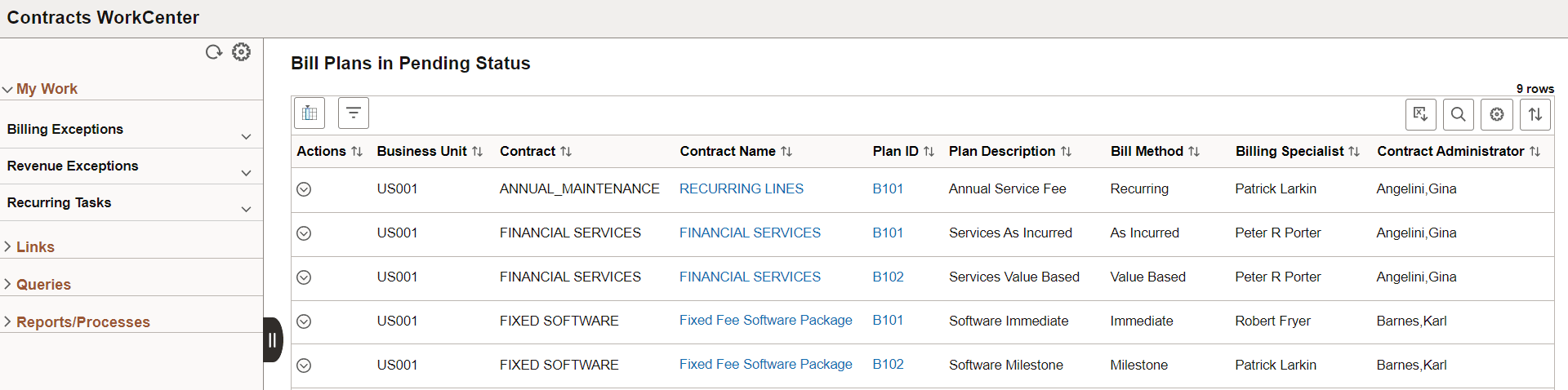
This example illustrates the fields and controls on the Fluid Contracts WorkCenter Page as displayed on a desktop. You can find definitions for the fields and controls later on this page.
This example illustrates the fields and controls on the Fluid Contracts WorkCenter Page as displayed on a smartphone. You can find definitions for the fields and controls later on this page.
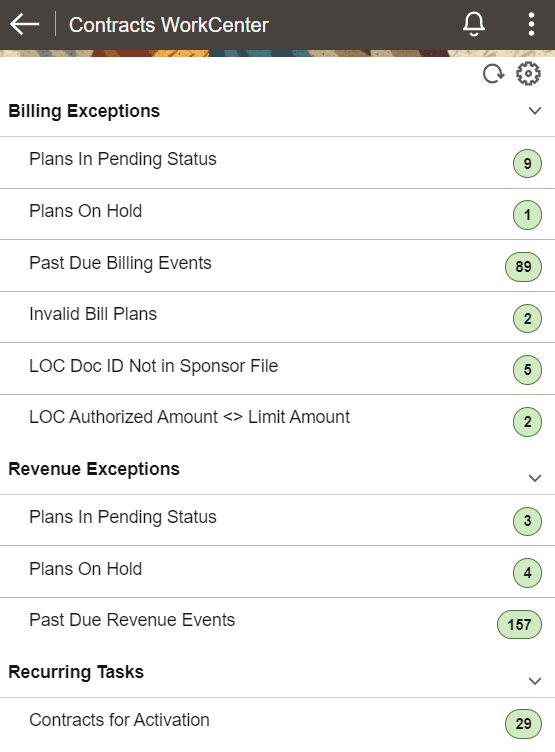
On a smartphone (small form factor) only the My Work pagelet is displayed, and only the processes or exceptions with a count are visible.
| Field or Control | Description |
|---|---|
 (Personalize icon) |
Click the Personalize icon to access these options:
|
 (Refresh icon) |
Click the Refresh icon to apply updates to personalizations or filters. |
 (Update Selected Rows) |
Click to activate the checkboxes and Actions button. Select the checkboxes to select one or more rows from the list and perform the related actions in bulk. |
 (Actions) |
Click to perform the related actions available for the selected items. |
 (Filter) |
Click to refine filter criteria. |
 (Download to Excel) |
Click to download data from the current grid into an Excel file. |
 (Find) |
Click to search for a desired value in the current grid. |
 (Sort) |
Click to sort current grid data by one of the grid columns. |
|
Process Monitor |
This link takes you to the Process List page, where you can view the status of submitted process requests. |