Revenue Plan and Event Statuses
There are two areas related to PeopleSoft Contracts revenue recognition that have status fields: revenue plans and revenue plan events. Status fields exist for each area to initiate edit checking, enable processing, and indicate booking progress.
Understanding Revenue Plan Status
There are eight status values for a revenue plan:
| Term | Definition |
|---|---|
|
Pending |
Appears by default when you define a new revenue plan. When you save a revenue plan in Pending status, the system does not perform edit checking. This enables you to work on a revenue plan, save your work, and return to that revenue plan to finish your work at a later date. When you have completed entering data for a revenue plan, you manually set the status field to Ready. Note: If you are using templates and you selected the Activate Contract option on the template, the system automatically sets the revenue plan status to Ready upon contract activation. |
|
Ready |
You can select this status for a revenue plan when the contract has an Active status. If all required conditions are met (see Changing a Revenue Recognition Status to Ready below), the revenue plan status becomes Ready, and one of the Revenue Recognition Application Engines (CA_LOAD_GL1 for amount-based revenue recognition and PSA_ACCTGGL for rate-based revenue recognition) may now process this revenue plan. If you are using templates to automate your revenue plan process and you selected the Activate Contract option on the template, the system automatically sets the revenue plan status to Ready upon contract activation. |
|
In Progress |
Once revenue recognition has begun, the Revenue Recognition Application Engine changes the plan's status to In Progress. At this point, the revenue plan status becomes display only and the system restricts revenue plan changes to events that have not yet been processed. Plans with a revenue recognition method of % Complete have only one event in this state. |
|
Action Required |
The system sets a revenue plan to an Action Required status if a contract line amendment is processed or an event is reversed. You must review the event inserted by the amendment or reversal process and re-allocate the plan to account for the amendment or reversal. Once you have reviewed the revenue plan and made any necessary changes, click the Reviewed button to signify to the system that the plan is ready to continue with processing. The system validates that 100 percent of the revenue plan amount is defined on events and changes the status from Action Required to In Progress. Note: When you create an amendment for a revenue plan that has a status of Complete, the system sets the revenue plan status to In Progress instead of Action Required. Note: In the scenario where the contract line revenue amount associated with the revenue plan is amended, and the new revenue amount equals the total recognized amount for the revenue plan and all revenue events are in Completed status, when you click Reviewed, the system changes the revenue plan status from Action Required to Completed. This applies to Milestone, Apportionment, and Percent Complete revenue plans with events. |
|
Cancelled |
Revenue plans may be cancelled from a status of Pending or Reversed. Cancellation may occur due to the entire contract being terminated or superseded, a contract line being dropped, or to consolidate contract lines onto another revenue plan. Once cancelled, a revenue plan cannot be reopened. |
|
Completed |
For milestone, apportionment, and percent complete revenue recognition methods (amount-based revenue), once all revenue plan events are complete and total 100 percent of the plan's amount, the system updates the plan to Completed (through the Application Engine − CA_LOAD_UPD). This indicates that all revenue for this plan has been distributed. For as-incurred revenue recognition (rate-based revenue), you must manually select the Completed status because the system does not know when the last transactions were accumulated in PeopleSoft Project Costing and processed through to revenue recognition. If your as-incurred revenue plan has events associated with it, you must wait until all events are complete before you can select the Completed status. Note: For As-incurred revenue plans, the system allows you to change the status back to In Progress even though the status was manually set to Completed. |
|
Reversal In Progress |
When you initiate the reversal of a revenue plan, the system changes the status of the revenue plan to Reversal In Progress. |
|
Reversed |
You can reverse a revenue plan from the Review Revenue page or the Contract Reversal page. When you first reverse a plan, the plan receives a status of Reversal in Progress. When all events have been reversed, the system updates the plan status to Reversed. You cannot reopen reversed plans. Note: Pending and Ready revenue recognition events do not get reversed, so those events may appear on the revenue plan when the system sets the plan status to Reversed. |
Note:
You cannot close a contract if any associated revenue plans have a status of In Progress or Action Required.
If the revenue plan status is Ready, In Progress, Action Required, or Reversal In Progress, you can select the Hold check box to temporarily hold the revenue plan from processing. The system stores the date on which you placed the revenue plan on hold for reference purposes.
The system performs specific edits when the revenue plan is moved from one status to another. A revenue plan must pass all edits for the status change to occur.
Auto Readying Revenue Plans
A check box on the revenue plan page indicates whether the system should mark the revenue plan Ready automatically upon contract activation. The value in this check box populates from the option defined on the Billing and Revenue Plan Template page. The default for this template option is to leave the plan Pending. Therefore, you must select this option on the template for the system to automatically set the revenue plan status to Ready upon contract activation. You also have the option to select this check box while in a revenue plan. Then, upon saving, the system automatically readies the plan.
Changing a Revenue Plan Status to Ready
When you move the revenue plan status to Ready and click the Save button, the system performs the following edit checks:
-
The contract status is mapped to a processing status of Active.
This ensures that the contract is fully captured, pricing is fully allocated, and all accounting distributions are defined and valid.
-
At least one contract line is attached to the revenue plan.
-
For Milestone and Apportionment method revenue plans, a minimum of one event is defined for the revenue plan and the sum of the events equals the plan amount.
Note:
The same edits apply when the system automatically readies the revenue plan upon contract activation through the revenue template option.
Changing a Revenue Plan Status to Pending
You can manually move the status of a revenue plan from Ready to Pending. The system does not perform edit checking for this type of status change.
Changing a Revenue Plan Status to In Progress
For revenue plans containing events, the system automatically initiates a revenue plan status change from Ready to In Progress when the first revenue plan event status is moved to In Progress. The revenue recognition event status is moved to In Progress when you run the Revenue Recognition Application Engine (CA_LOAD_GL1 for amount-based revenue and PSA_ACCTGGL for rate-based revenue).
For as-incurred method revenue plans without events, the system automatically initiates a revenue plan status change from Ready to In Progress the first time that it processes billable lines for a project that is assigned to a contract line associated with that revenue plan. You cannot manually change the status to In Progress.
Changing a Revenue Plan Status to Action Required
The system set the revenue plan to a status of Action Required if a contract line amendment is processed or an event is reversed. The system also places the plan on hold. You must review the event inserted by the amendment or reversal process and reallocate the plan to account for the amendment or reversal. Once you have reviewed the revenue plan and made any necessary changes, click the Reviewed button to rebuild the revenue schedule and to signify to the system that the plan is ready to continue with processing. The system changes the status from Action Required to In Progress.
Note:
When you create an amendment for a revenue plan that has a status of Completed, the system sets the revenue plan status to In Progress instead of Action Required.
Note:
In the scenario where the contract line amount associated with the revenue plan is amended, and the new amount equals the total recognized amount for the revenue plan and all revenue events are in Completed status, when you click Reviewed, the system changes the revenue plan status from Action Required to Completed. This applies to Milestone, Apportionment, and Percent Complete revenue plans with events.
Changing a Revenue Plan Status to Completed
For amount-based revenue plans containing events, the system automatically changes the revenue plan status to Completed when all revenue plan events are Completed. The system does this when you run the Application Engine (CA_LOAD_UPD).
For as-incurred method revenue plans (both with and without events), you must manually initiate the status change because the system does not know when the last transactions were accumulated in PeopleSoft Project Costing, and processed through to PeopleSoft Billing. If your as-incurred revenue plan contains events, you cannot change the revenue plan status to Completed until all events have a status of Event Booked.
Note:
For As-incurred revenue plans, the system allows you to change the status back to In Progress even though the status was manually set to Completed.
Changing a Revenue Plan Status to Reversed
You can reverse a revenue plan from the Review Revenue - Plans page or the Contract Reversal page. When you first reverse a plan, the revenue plan receives a status of Reversal in Progress. When CA_LOAD_UPD is run after the Journal Generator, the system sets the Reversal in Progress events to Reversed. When all events that were originally set to Reversal in Progress are updated to Reversed, the CA_LOAD_UPD process updates the revenue plan status from Reversal in Progress to Reversed.
Note:
Pending and Ready revenue recognition events do not get reversed, so those events may appear on the revenue plan when the system sets the plan status to Reversed.
Changing a Revenue Plan Status to Cancelled
You can change the revenue plan status to Cancelled from a Pending or Reversed status.
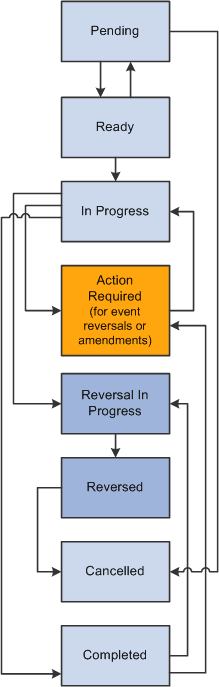
Revenue Plan Status Flow
This diagram depicts the flow between revenue plan status values:
The flow between revenue plan status values is depicted
Understanding Revenue Plan Event Status
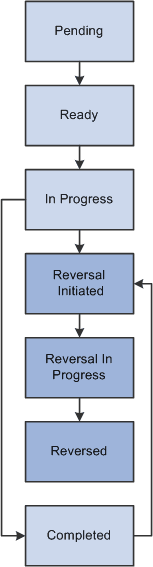
The revenue plan event status acts as the final gatekeeper to determine if the event can be released. The system will not mark a revenue plan complete until all associated events are complete (booked).
There are seven revenue plan event statuses:
| Term | Definition |
|---|---|
|
Pending |
Appears by default status when you define a new revenue plan event. Revenue plan events with this status are not subject to system edit checking. |
|
Ready |
Setting an event to Ready makes it available for processing. The system sets apportionment and percent complete events to a status of Ready by default. |
|
In Progress |
Appears automatically once the revenue recognition event has been processed by the system by using the Revenue Recognition Application Engine process (CA_LOAD_GL1 for amount-based revenue and PSA_ACCTGGL for rate-based revenue). Events marked with this In Progress status are overlooked by future revenue processes. |
|
Completed |
Appears for both amount-based and rate-based revenue when you run the Application Engine (CA_LOAD_UPD) process. |
|
Reversal Initiated |
The system sets this status when you select the Reversal Initiated option and click the Update Event Status button on the Review Revenue - Events page. Selecting this option triggers the system to generate a reversal for the selected revenue plan events the next time that CA_LOAD_GL1 is run. At the same time that the system sets the event status to Reversal Initiated, the system also changes the revenue plan status from In Progress or Completed to Action Required. This indicates that you need to manage the revenue plan events to ensure that you update or define events for event level reversal amounts. |
|
Reversal In Progress |
The system sets this status when the application engine begins the reversal generation process. |
|
Reversed |
Appears when you have completed the revenue plan event reversal. You cannot reuse a reversed event (in other words, you cannot set the status back to Pending or Ready). Instead, you must add new events to the revenue plan. Note: You cannot reverse events for as-incurred revenue plans. |
Understanding the Relationship Between the Revenue Plan Status and Revenue Plan Event Status
The ability to edit revenue plan events depends on the status of your revenue plan:
-
When the revenue plan status is Pending, you can freely edit your revenue plan events.
-
When the revenue plan status is Ready or In Progress, you can edit revenue plan events with a status of Pending or Ready.
-
When you reverse an event and the status of the revenue plan changes to Action Required, you can add new revenue plan events or edit revenue plan events with a status of Pending or Ready.
In addition, the following relationships apply:
-
Once the first revenue recognition event status changes to In Progress, the status of the revenue plan also changes to In Progress.
-
An amount-based revenue plan cannot be set to Completed by the system until all associated events are either Reversed or Completed and the event totals sum to 100 percent.
-
A rate-based revenue plan cannot be set to Completed by the user until all associated events, if any, are Completed.
-
If you reverse a revenue recognition event, the status of the revenue plan changes to Action Required.
Changing a Revenue Plan Event Status to Ready
The process for changing a revenue plan event status from Pending to Ready differs based on the revenue recognition method you are using. The system sets the status of apportionment and percent complete events to Ready upon creation. For milestone and as incurred revenue recognition methods, you can change an event status to Ready from the Review Revenue - Events page. From this page you can view all events matching your search criteria, and then set individual events to Ready (or back to Pending).
For percent complete revenue plans, access the Revenue Plan page, where you can manually update the total percent complete as of the date on which you are making the entry. The system uses this entry to generate the event on the revenue plan. As a result, you must make this entry on the revenue plan itself.
Changing a Revenue Recognition Event Status to In Progress
The revenue recognition event status is moved to In Progress when you run the Revenue Recognition Application Engine (CA_LOAD_GL1 for amount-based revenue and PSA_ACCTGGL for rate-based revenue). The Journal Generator Application Engine books all revenue associated with a revenue plan event to PeopleSoft General Ledger.
Changing a Revenue Recognition Event Status to Completed
When you run the post-Journal Generator process (CA_LOAD_UPD), the system updates the revenue recognition event status to Completed for both amount-based and rate-based revenue. For amount-based revenue, if all events for a revenue plan are booked and the event total equals 100 percent, the system also updates the revenue plan status to Completed. For rate-based revenue, the user must manually update the revenue plan status to Completed. (All revenue recognition events must have a status of Completed.)
Changing a Revenue Recognition Event Status to Reversal Initiated
The system sets this status when you select the Reversal Initiated option and click the Update Event Status button on the Review Revenue - Events page. Selecting this option triggers the system to generate a reversal for the selected revenue plan events the next time that CA_LOAD_GL1 is run.
At the same time that the system sets the event status to Reversal Initiated, the system also changes the revenue plan status from In Progress or Completed to Action Required. This indicates that you need to manage the revenue plan events to ensure that you update and define events for event level reversal amounts.
Changing a Revenue Recognition Event Status to Reversal in Progress
The system sets this status upon the reversal process picking up the events with a status of Reversal Initiated for processing.
Changing a Revenue Recognition Event Status to Reversed
The system sets this status when you run the post-Journal Generator process (CA_LOAD_UPD). You cannot reuse a reversed event (in other words, you cannot set the status back to Pending or Ready). Instead, you must add new events to the revenue plan.
Note:
You cannot reverse events for as-incurred revenue plans.
Revenue Event Status Flow
This diagram depicts the flow between revenue event status values:
This diagram depicts the flow between revenue event status values