Pagelets Used to View Billing and Account Information
This table lists the PeopleSoft eBill Payment pagelets that you can use to review the billing and account information to which your role or user ID has access or permission.
| Pagelet Name | Usage | For More Information |
|---|---|---|
|
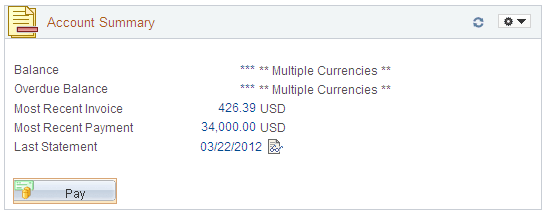
Account Summary |
Review the amounts of the balance, overdue balance, most recent invoice, and most recent payment and the date of the last statement. For more details, click the value links for each field. Click the Pay button to view the Balance Detail page, where you can select invoices to add to the Payment Cart. |
|
|
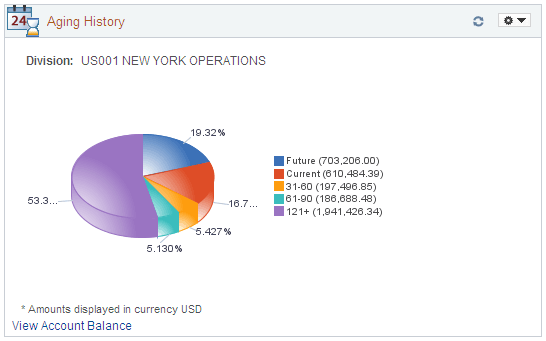
Aging History |
Review aging history in a graphical representation, such as a pie chart or graph. Click the View Account Balance link to access the Account Balance page (AR_SUMBAL_SS). |
|
|
Credit Limit |
Review credit limit information. |
See PeopleSoft Order to Cash Common Information: Adding General Customer Information. |
|
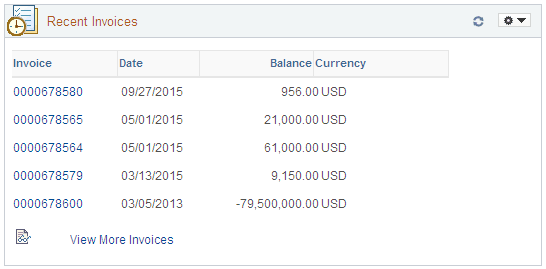
Recent Invoices |
Review the invoice number, balance, and currency of the most recently generated invoices. For more details about a specific invoice, click the invoice number link. Click View More Invoices to access the Invoice page (BI_BILL_LIST_SS), where you can review details of the most recent invoices. |
See the product documentation for PeopleSoft Billing. |
|
Recent Messages |
Review recent messages by datetime, subject, and invoice number. For more details about a specific message, click the datetime link. Click the View More Messages link to access the Review Messages page (AR_CONVR_LIST_SS). |
See PeopleSoft Receivables: Entering and Reviewing Conversations. |
|
Recent Payments |
Review the most recent payments by payment ID, date, amount, and currency. For more details about a specific payment, click the payment ID link. Click the View More Payments link to access the Payment History page (AR_SSREV_PAYMENTS). |
You can also add a Shortcuts pagelet and a Quicklinks pagelet.
Account Summary Pagelet
Use the Account Summary pagelet to review the amounts of the balance, overdue balance, most recent invoice, and most recent payment, and the date of the last statement. For more details, click the value links for each field.
Click the Pay button to view the Balance Detail page, where you can select invoices to add to the Payment Cart.
This example illustrates the fields and controls on the Account Summary pagelet.
Aging History Pagelet
Use the Aging History pagelet to review aging history in a graphical representation, such as a pie chart or graph.
Click the View Account Balance link to access the Account Balance page (AR_SUMBAL_SS)
This example illustrates the fields and controls on the Aging History pagelet.
Recent Invoices Pagelet
Use the Recent Invoices pagelet to review the invoice number, balance, and currency of the most recently generated invoices. For more details about a specific invoice, click the invoice number link.
Click View More Invoices to access the Invoice page (BI_BILL_LIST_SS), where you can review details of the most recent invoices.
This example illustrates the fields and controls on the Recent Invoices pagelet.