Using Transparent Punchout
Once you have completed the setup of a Transparent Punchout supplier, you will be able to retrieve item data from the supplier's website and display it within your eProcurement requisition.
The following is an example of an item search that includes Transparent Punchout:
Access the Catalog page (
This example illustrates the fields and controls on the Create Requisition - Catalog page.
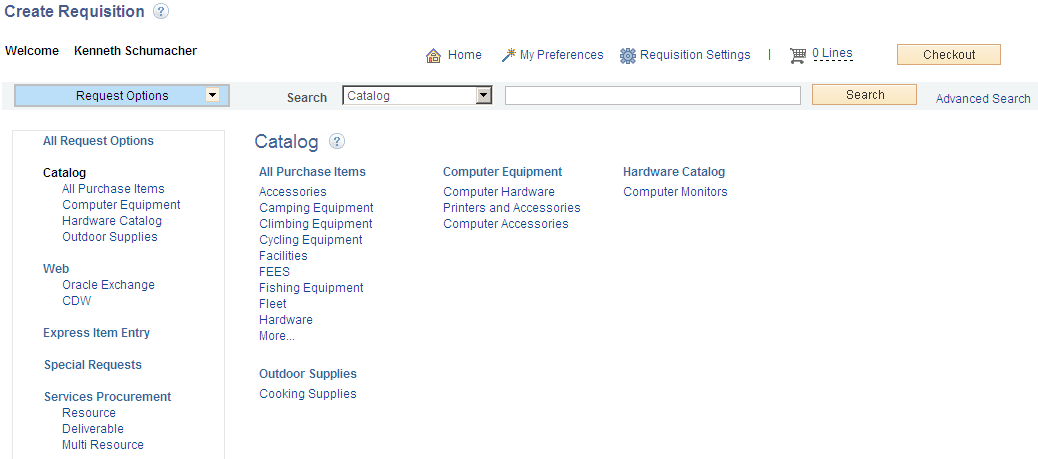
When creating a new requisition or editing an existing requisition, the Search field at the top can be used to search for items from multiple sources. The user enters a keyword or words in the Search field and clicks the Search button.
A search for the keyword is initiated in all available catalogs for which the requestor has access; including both internal items (loaded catalogs, favorites, and templates) and external items (direct connect catalogs and TPO catalogs using Transparent Punchout).
Depending on the search capabilities supported by the third-party websites using Transparent Punchout, you can enter more than one keyword on the search field. When multiple keywords are used for searching the search results are expanded to include items matching any one of the keywords (the Boolean operator is OR not AND).
Access the Search Results page (. Enter search criteria in the Search field and click on the Search button.)
This example illustrates the fields and controls on the Create Requisition - Search Results page.
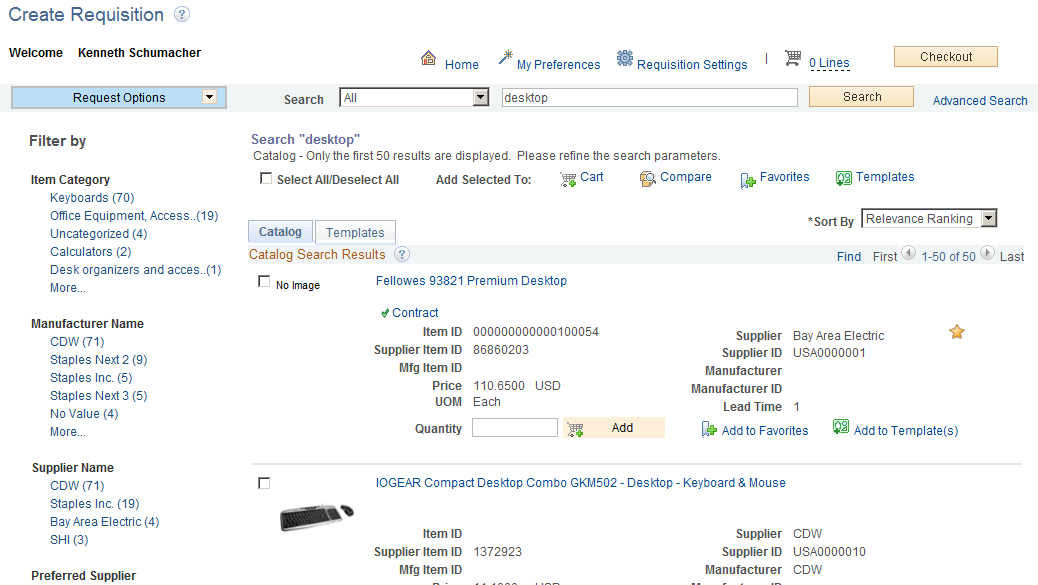
From the search results displayed the requester can select one or more items. The search results are grouped into different tabs based on their source; favorites, templates, and services procurement. The catalogs section contains the search results from Transparent Punchout. Internal and external items matching the search results are displayed in a single tab i.e. the Catalog tab. This happens only under certain conditions:
-
The Consolidate Item Search Results and Facets Option check box is selected on the eProcurement Installation Options page.
-
The marketplace allows facet syncing.
-
The internal catalogs information and internal supplier information has been exported to the marketplace.
In the search results for external items there will not be an item ID displayed. The icons for Inventory Availability, Price Breaks, Price Adjustments and Item Substitution will not be shown. The icon for Contract will be displayed when applicable.
You have to setup cross reference to map the internal supplier ID to the appropriate marketplace supplier ID to display correct marketplace supplier ID in the search result.