Setup and Processing Flow
This diagram shows cash flow statement creation and processing functionality at a high level:
Cash Flow Statement Process Flow
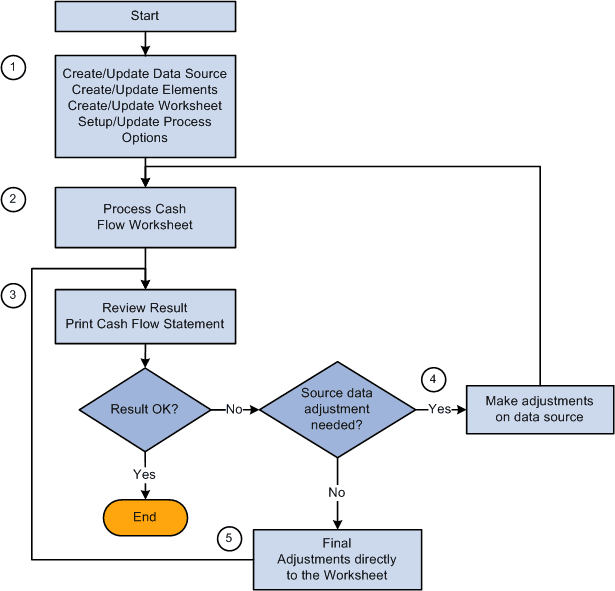
This list presents the basic setup and processing steps, the components used, brief descriptions, and associates these with the numbered steps in the preceding diagram:
| Step | Components Used | Description |
|---|---|---|
|
1. Basic Setup:
|
Use these components:
|
Ledger sets for cash flow statements enables you to specify more than one ledger for a business unit or multiple business units and ledgers for a cash flow statement. ChartField value sets enable you to provide the scope of the ChartFields for an element by entering selected values or ChartField trees. Use the three remaining components for setup, making changes to setup and creating new worksheets or to copy existing worksheets by using the Copy Worksheet function on the worksheet page. |
|
2. Process the cash flow worksheet. |
Use the Worksheet (FR_WORKSHEET) component and the GL Cash Flow Statement (FR_CALCULATE) application engine process. |
From the worksheet component you can run the cash flow calculation process. |
|
3. Review results and print the cash flow statement. |
Use the Worksheet (FR_WORKSHEET) and the Transition Grid (FR_TRANSITION_GRID) components. |
Printing can be done using the Printable Page feature of the worksheet from the browser. You can also print using the Transition Grid page to provide a more detailed audit trail of the calculated balances. |
|
4. Make adjustments to data sources. |
Use components in various PeopleSoft applications. |
Use components that create and update the ledger or source transaction tables. For example, you might need to make adjustment using the components associated with the Journal Entry, Edit, and Post processes. |
|
5. Make final adjustment directly to the cash flow worksheet. |
Use the Worksheet (FR_WORKSHEET) component. |
Enter adjustments that are not supported by data sources already in the system. |