VAT Transaction Entry and Processing in General Ledger
PeopleSoft General Ledger processes VAT transactions originating from the following sources:
-
PeopleSoft subsystems
-
PeopleSoft General Ledger
-
External systems
Note:
Commitment control functionality does not support VAT.
This diagram illustrates VAT processing in PeopleSoft General Ledger:
VAT Processing in PeopleSoft General Ledger
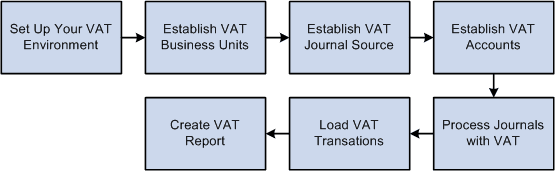
When you create a journal entry with VAT, the Journal Edit process calculates VAT, spreads the VAT amounts, if necessary, and, for an inclusive VAT transaction, subtracts the VAT amount from the journal line and then adds it back in for the journal balances.
You can also create a Standard Journal Entry (SJE) Model journal for VAT. However, Journal Edit does not perform any of the processes mentioned on the model journal. Instead, the SJE process copies the VAT lines to retain any user-entered information and Journal Edit processes VAT on standard journals created from the SJE process.
After creating general ledger journal entries, you can edit and post them online or you can process them in batches. You must run the VAT Transaction Loader process to load data into the VAT Transaction Table before you can run the VAT Report Extract process to enable you to print VAT reports. You run the VAT Transaction Loader process based on your organization's volume of VAT data. For example, you may only need to run this process once each week. You can select this process each time you produce reports or schedule it to run automatically. You then can run the VAT Report Extract process based on when you need to produce reports.
PeopleSoft delivers the General Ledger AE program, GL_JRNL_IMP, that you use to import VAT data to Journal tables from third-party systems. Since this program directly modifies and loads data into transaction tables, a database administrator or someone with detailed knowledge of the physical layout of the tables should run them. You must be aware which tables are affected by these programs and run the programs at the appropriate times.
The Effects of Changing VAT Defaults
The system displays VAT defaults in descending order of effect. When you change multiple VAT defaults and click Adjust Affected VAT Defaults, specific fields will or will not be adjusted. Work from the top to the bottom of the list, clicking Adjust Affected VAT Defaults at the appropriate times to avoid adjustments to VAT defaults that you overrode but did not memorize.
For example, if you override Calculate at Gross or Net and click Adjust Affected VAT Defaults, nothing happens because the Calculate at Gross or Net field does not affect any other VAT defaults. If you then override Supplier Registration Country and click Adjust Affected VAT Defaults again, the system adjusts all VAT defaults except Supplier Registration Country. This time, Calculate at Gross or Net was overridden, which means that you must override this VAT default again to undo the adjustment.
In another example, if you override Supplier Registration Country and click Adjust Affected VAT Defaults, the system adjusts all VAT defaults except Supplier Registration Country and Supplier Registration ID. If you then override Place of Supply Driver and click Adjust Affected VAT Defaults again, the system adjusts all VAT defaults except Service Type, Place of Supply Driver, Supplier Registration Country, and Supplier Registration ID.