Pre-Award Spending
Use the Pre-Award Spending to view spending on a proposal before an award is issued.
Navigation:
Select the Pre-Award Spending Tile to view the pivot grid.
This example illustrates the fields and controls on the Pre-Award Spending Tile.
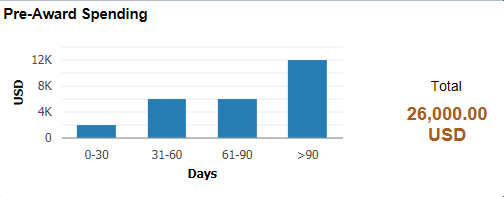
Once an award is generated the proposal is excluded from display and the tile provides an aged view by categorizing spending in increments of 30, 60 or 90 days old.
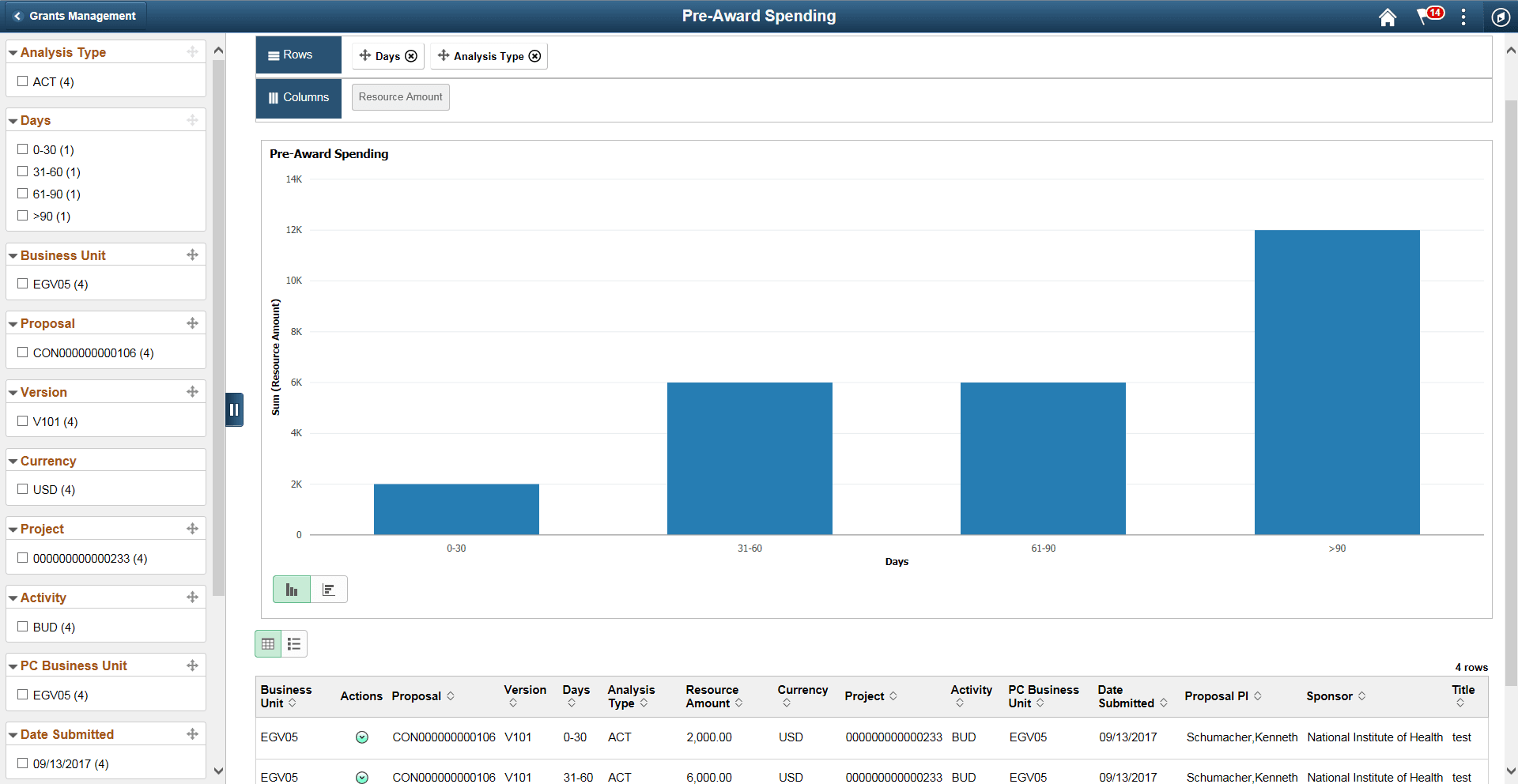
This example illustrates the fields and controls on the Pre-Award Spending page.
Pivot Grid Facets
Use the facets on the left panel to analyze pivot data. Drag and drop facets into the rows on the right panel and the page refreshes to display the grid data, which you can view as a Bar Chart, Line Chart, Pie Chart, or Horizontal Bar Chart. Select facets to filter data displayed in the pivot grid:
-
Business Unit
-
Proposal
-
Version
-
Days
-
Analysis Type
-
Resource Limit
-
Currency
-
Project
-
Activity
-
PC Business Unit
-
Date Submitted
-
Proposal PI
-
Sponsor
-
Title
You can choose to view the results as a grid or a list. The available Actions are:
-
Generate Award
-
Notify
Note:
You can send an email to a member of the team using the Notify action next to that person's name.
-
Update Proposal
-
View Transaction Detail
-
Update Project
See the product documentation for PeopleTools: Pivot Grid