Cost Balancing WorkCenter Page (Fluid)
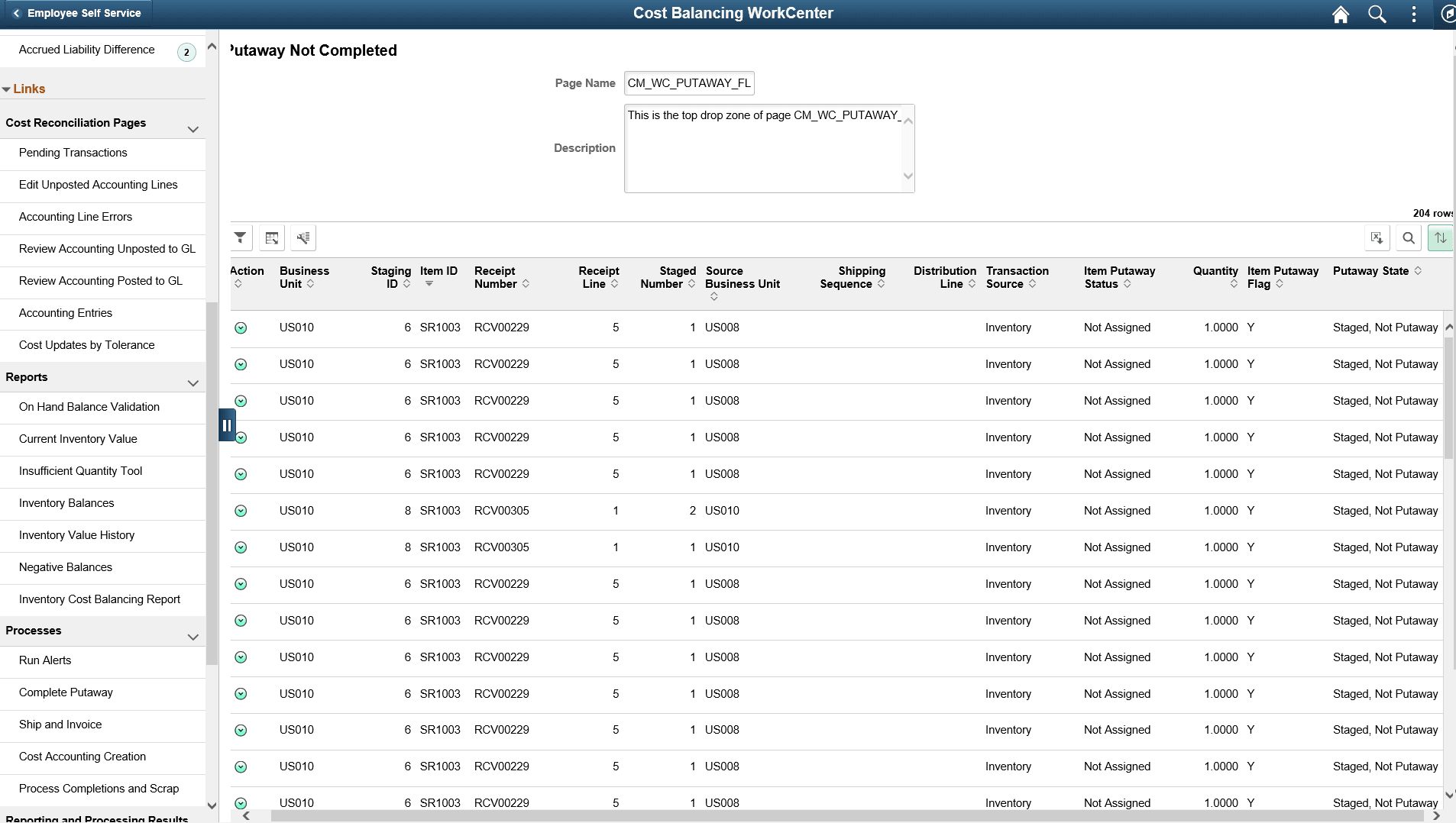
Use the Cost Balancing WorkCenter page (Fluid) (COST_WORKCENTER_FL) to access My Work and Links pagelets using the PeopleSoft Fluid User Interface.
Navigation:
Select the Cost Balancing WorkCenter tile.
This example illustrates the fields and controls on the Cost Balancing WorkCenter Page (Fluid). You can find definitions for the fields and controls later on this page.
Note:
The Cost Balancing WorkCenter is created for the Extra Large Form Factor (ELFF).
| Field or Control | Description |
|---|---|
|
Scope |
Click the Scope drop down to change your scope option. Only users who have been given permission to access the scope field have access to this drop down option. Granting users access to the scope field is performed on the Enterprise Components: Configure Pagelets - My Work Page. |
|
|
Click the Personalize icon to access these options:
Note: This option is only available when the Scope field is enabled for the user. |
|
|
Select to indicate that you want to perform the action selected in the Action drop-down field for the selected rows. |
|
|
Select to access the Refine Filter Criteria Page (Fluid), where you can filter the results of this page. |
|
|
Select to access the Display Option page and choose fields you want to display on the corresponding Alerts page. |
|
|
Select to download data on page in a Microsoft Excel spreadsheet. |
|
|
Select the Download to Excel icon on the top left of the table to download the data to an Excel spreadsheet. |
|
|
Select the Find icon on the top left of the table to search for a particular table entry. |
|
|
Select the Sort icon on the top left of the table to select the sort parameter to be applied to the table. |
 (Personalize)
 (Action)
 (refine filter criteria)


The groupings, such as Current Work and Exceptions, are determined by your system administrator. For more information about creating these groupings, see the Enterprise Components: Configure Pagelets - WorkCenter/Dashboard Page.
Only active links are displayed. Inactive links are hidden.
The number (or count) to the right of black text displays how many transactions fall into that category. This is a setup option and can be turned on or off for each link using the Enterprise Components: Configure Pagelets - My Work Page.