Count Processes
This section details the steps and status changes for system-defined and manual counts.
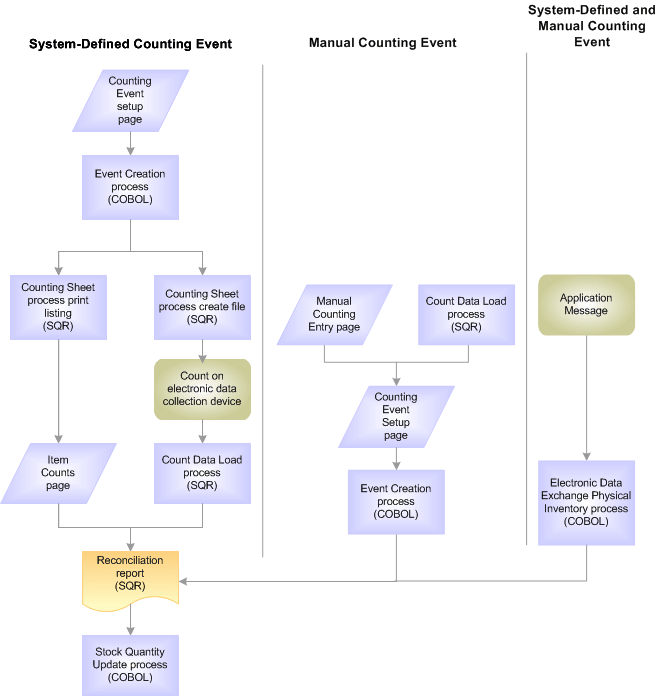
Count Process Flow Diagram
This diagram illustrates the processing flow for completing a system-defined count, a manual count, and using an EIP to record count results. A system-defined counting event is created before the stock is physically counted; however, a manual count completes the actual warehouse count first and then creates the counting event. The PHYSICAL_INVENTORY EIP is an asynchronous inbound service operation that reports counting data (system-defined or manual) from a third-party application, such as a warehouse management system. The Physical Inventory process validates the third-party count data. All methods run the reconciliation report and the Stock Quantity Update process to complete the inventory count:
Non-Blind System-Defined Counts
To perform non-blind system-defined counts:
-
Request a counting event using the Event Creation page.
The Event Creation process (INPCCREA) adds the specified item count lines from the inventory storage location quantity table to the counting event and sets the status of each detail line to New.
-
Use the Counting Sheet page to generate a printed listing or a file to download to electronic data-collection devices.
Running the Counting Sheet report enters the system balance in the Count Quantity field of each counting event detail line and changes the status of the detail lines from New to Ready to Update Stock Quantity and updates the current system data and time to the count date and time.
-
Go to the storage locations specified by the counting sheet listing or file and count the items.
You only need to record the count quantity if it does not match the system balance printed on the listing or displayed by the electronic data collection device.
-
Enter the collected count quantity data into PeopleSoft Inventory.
If you collected the count quantity data manually using the counting sheet listing, enter the quantity information using the Item Counts page. The system balance appears in the count quantity field, so you only need to modify item count lines for which the count quantity does not match the quantity expected by the system.
If you collected count quantity data with an electronic data collection device, upload the data using the Count Data Load page or the Physical Inventory process (INPIPHYS).
-
Run the Physical Accounting Reconciliation report to detect any recovery or shrinkage and to determine whether you need to correct any mistakes.
If you elected not to close storage locations during the cycle count, all inventory transactions that occurred during the counting process are recorded on the TRANSACTION_INV table. The Reconciliation process (INS5050) uses this table to calculate quantity adjustments. If you determine that a discrepancy on the Reconciliation report is due to a data entry error or a timing issue, correct the error on the Item Counts page. If necessary, you can also change the item status manually to include it on another counting sheet listing or to exclude it from the Stock Quantity Update process (INPOPOST).
-
Run the Stock Quantity Update process to update the inventory quantities with the count data.
Only counting event detail lines with a status of Ready to Update Stock Quantities and with the Need Reconciliation option cleared are eligible for the Stock Quantity Update process. If the system does not find errors, the Stock Quantity Update process updates the system tables with the data in the counting event detail lines and then changes the status of these detail lines to Stock Quantity Updated.
If the system finds an error is found in a detail line, the status of the detail line remains Ready to Update Stock Quantities and an error message (such as Container-multiple locations) appears on the Item Counts page. You can then find the error message in the Message Log Inquiry for the process instance.
See Using Error Messages from the Stock Quantity Update Process.
Blind System-Defined Counts
The system balance is not entered in the count quantity field for blind system-defined counts.
If you elected not to close the storage locations during the cycle count, all inventory transactions that occurred during the cycle count are recorded on the TRANSACTION_INV table. The Reconciliation process uses this table to calculate quantity adjustments. If you determine that a discrepancy on the Reconciliation report is due to a data entry error or a timing issue, correct the error on the Item Counts page. You can also change the item status manually to include it on another counting sheet listing or to exclude it from the Stock Quantity Update process.
To perform a blind system-defined count:
-
Run the Stock Quantity Update process to update the inventory quantities with the count data.
-
Request a counting event using the Event Creation page.
The Event Creation process adds the specified detail lines to the counting event and sets the status of each detail line to New.
-
Use the Counting Sheet page to generate a printed listing or a file to download to electronic data collection devices.
Running the counting sheet listing changes the status of the counting event detail lines from New to Counting. For blind counts, the count quantity field of each item record remains blank.
-
Go to the storage locations specified by the counting sheet listing or file and count the items.
You must collect count quantity data for every counting event detail line included on the listing or displayed by the electronic data collection device.
-
Enter the collected count quantity data into PeopleSoft Inventory.
If you collected count quantity data manually using the counting sheet listing, enter the quantity information using the Item Counts page. If you collected count quantity data with an electronic data collection device, upload the data using the Count Data Load page or the Physical Inventory process. When you enter the count quantity data, either with the Item Counts page or by uploading the electronic data collection device file, the status of the counting event detail line changes from Counting to Ready to Update Stock Quantity.
-
Run the Physical Accounting Reconciliation report to detect any recovery or shrinkage and to determine whether you need to correct any mistakes.
Only counting event detail lines with a status of Ready to Update Stock Quantities and with the Need Reconciliation option turned off are eligible for the Stock Quantity Update process. If no errors are found, the Stock Quantity Update process updates the system tables with the data in the counting event detail lines and changes the status of these detail lines to Stock Quantity Updated.
If an error is found in a detail line, the status of the line remains Ready to Update Stock Quantities and an error message (such as Container-multiple locations) appears on the Item Counts page.
See Using Error Messages from the Stock Quantity Update Process.
Manual Counts
You can use the existing counting procedures with PeopleSoft Inventory.
To perform a manual count:
-
Count the quantity in the inventory storage locations.
Collect the data using pen and paper or an electronic data collection device, formatting the data according to PeopleSoft file specifications.
-
Enter the collected count data.
If you collected count data manually, enter the data using the Manual Counting Entry page. If you collected count data with an electronic data collection device, upload the data using the Count Data Load page. PeopleSoft Inventory stores the data in the Manual Count table (COUNT_INF_INV).
-
Modify the count data, as necessary.
Before you create a counting event, you can modify the count data in the Manual Count table using the Manual Counting page. After you run the Event Creation process, however, you must use the Item Counts page to make adjustments because the Event Creation process creates the counting event and moves the manual count data into the Counting Event table (COUNT_INV).
-
Request a manual counting event using the Event Creation Process page.
The Event Creation process moves the counting event detail lines in the Manual Count table to the Counting Event table and sets the status of each detail line to Ready to Update Stock Quantity.
-
Run the Physical Accounting Reconciliation report to detect any recovery or shrinkage and to determine whether you need to correct any mistakes.
If you elected not to close the storage locations during the cycle count, all inventory transactions that occurred during the cycle count are recorded to the TRANSACTION_INV table. The Reconciliation process uses this table to calculate quantity adjustments. If you determine that a discrepancy on the Reconciliation report is due to a data entry error or a timing issue, correct the error on the Item Counts page. You can also change the status manually to include it on another counting sheet listing or to exclude it from the Stock Quantity Update process.
-
Run the Stock Quantity Update process to update the inventory quantities with the count data.
Only counting event detail lines with a status of Ready to Update Stock Quantities are eligible for the Stock Quantity Update process. If no errors are found, the Stock Quantity Update process updates the system tables with the data in the counting event detail lines and changes the status of these detail lines to Stock Quantity Updated.
If an error is found in a detail line, the status of the line remains Ready to Update Stock Quantities and an error message (such as Container-multiple locations) appears on the Item Counts page.