Putaway Processing
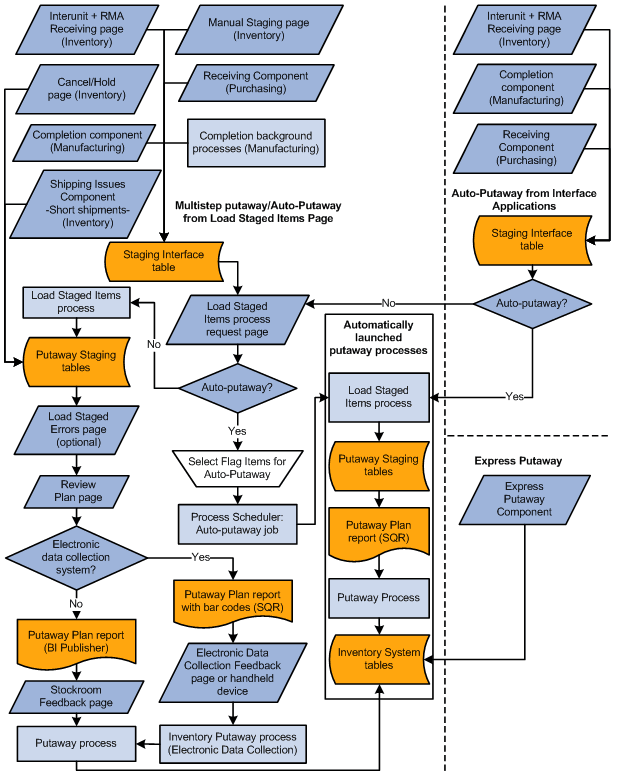
Different environments and stocking situations require different levels of stocking control. PeopleSoft provides three methods of putaway processing:
-
Multistep putaway provides the tightest control over the stocking processes.
-
Auto-putaway automates much of the stocking process.
-
Express putaway enables you to process exceptions to the regular stocking routine.
Multistep Putaway Processing
Multistep putaway processing enables you to validate item data in the putaway staging tables and adjust the default putaway location to reflect the actual putaway location before you update the system tables.
Use multistep putaway processing when:
-
You want to control each step in the putaway process.
-
You use an electronic data collection system to gather putaway information.
Note:
If you are putting stock away through an electronic data collection system but do not want to use multistep putaway processing, use the Auto-Putaway multiprocess job to put stock into a central, temporary material storage location. Then use the electronic data collection transfer transactions to transfer the stock to the proper locations.
To perform multistep putaway processing:
-
Insert items that must be put away into the staging interface tables (STAGED_INF_INV and STGCOST_INF_INV).
The InterUnit and RMA Receiving component and applications such as PeopleSoft Purchasing or PeopleSoft Manufacturing insert items into these tables automatically. You can also insert items manually using the PeopleSoft Inventory Manual Staging page.
To perform multistep putaway for items that are received using the InterUnit and RMA Receiving component, select Stage for Putaway at Save Time on the InterUnit and RMA Receiving - Putaway Details page. To perform multistep putaway for items that are completed using the Record Completions and Scrap component, select Stage for Putaway at Save Time on the Record Completions/Scrap page.
-
Run the Load Staged Items process.
This process pulls items from the staging interface tables and loads them into the putaway staging tables (STAGED_ITEMS_INV and STAGED_COST_INV). If you do not specify a material storage location, the process assigns appropriate material storage locations using either the default putaway location or (if enabled) the directed putaway rules. For pegged items, the process determines whether stock should be placed in the pegging location, the default putaway location, or the location suggested by directed putaway rules. For cross docked items, the process determines whether stock should be placed in the cross docking location, the default putaway location, or the location suggested by directed putaway rules.
-
Correct item data errors.
If you selected the Perform Validation option on the Setup Putaway page, the Load Staged Items process validates item data. Use the Correct Staged Errors page to correct any errors.
-
Review the default putaway plan.
Review the default plan on the Review Plan page and, if necessary, modify it on either the Review Plan page or the Alternate Plan page. If you have enabled directed putaway for the business unit, the default putaway plan includes the material storage locations that best match the putaway rules defined for the business unit on the Directed Putaway Rules page or for the item on the Setup Item Putaway page. Otherwise, the default plan lists either the default putaway location that you established on the Default Putaway Locations page or the location the system assigned during receiving or completion processing.
-
Generate putaway instructions.
If you are using the PeopleSoft Inventory online pages, use the Review Plan page to print the Putaway Plan report (INC3500). This report is written in Oracle BI Publisher using the XMLP report name INX3500.
If you are using an electronic data collection system, use the Putaway Plan page to print the Material Putaway Plan SQR report (INS3500), with the Print Bar Code option selected.
-
Record any changes that were made to the putaway plan during the physical putaway process.
If you're using the online pages, record changes to the Putaway Plan using the Stockroom Feedback page, and select the Putaway option. If you are using an electronic data collection system, run the Inventory Putaway process (INPZPWFB) to update the putaway plan with the actual putaway locations.
-
Run the Complete Putaway process to update the PeopleSoft Inventory system tables with the putaway data.
The Complete Putaway process uses the data in the putaway staging tables to update the available quantity and inbound cost in the appropriate system tables. For lot-controlled items, the Complete Putaway process calculates lot availability, retest, and expiration dates if you have defined shelf life, availability lead time, and retest lead-time values on the Define Business Unit Item - Inventory: Shipping/Handling page.
See Defining Item Quantities and Understanding Lot Management.
Auto-Putaway Processing
With auto-putaway processing, you can streamline the putaway operations by launching the Load Staged Items process, the Putaway Plan report, and the Complete Putaway process in one step.
Use auto-putaway processing when:
-
You do not need tight controls over the putaway process.
-
You want all items to be put away automatically into the material storage locations assigned at receiving or those selected by the system (locations matching pegged locations, cross docking, the directed putaway rules, if enabled, or the default material storage location).
Note:
Auto-putaway processing does not allow you to record exceptions to system-selected putaway material storage locations.
To perform auto-putaway processing:
-
Insert items that need to be put away into the staging interface tables. The InterUnit and RMA Receiving component and applications such as PeopleSoft Purchasing or PeopleSoft Manufacturing insert items into these tables automatically. You can also insert items manually using the PeopleSoft Inventory Manual Staging page.
-
Run the Auto-Putaway multiprocess job.
You can launch this job (consisting of the Load Staged Items process, the Putaway Plan report, and the Complete Putaway process) from the Load Staged Items page or directly from interfacing applications.
-
If you run the job from the Load Staged Items page, select the Flag Items for Auto-Putaway option.
-
If you launch the job from PeopleSoft Purchasing, select the Flag Items for Auto-Putaway option on the User Preferences - Inventory page.
-
If you initiate the job from the InterUnit and RMA Receiving component, select the Putaway at Receipt Save Time option on the InterUnit and RMA Receiving-Putaway Details page.
If you initiate the job from the Record Completions and Scrap component, select Putaway at Receipt Save Time on the Record Completions/Scrap page.
-
You can configure the Auto-Putaway job definition (or add a new definition) to include only a certain subset of the processes. For example, to run the Load Staged Items process and Putaway Plan report (SQR) immediately and perform stockroom feedback, configure the job to include only those two processes and then run the Complete Putaway process separately. If you do not need the putaway plan, you can remove the report from the job definition.
Express Putaway Processing
Use the express putaway option to put away stock that is not tied to a receipt or for which no receiving information is available.
To perform express putaway processing:
-
Enter item putaway information in the Express Putaway component.
-
Save the Express Putaway component to:
-
Update the available quantity and inbound costs.
-
Calculate lot availability, retest, and expiration dates (for lot-controlled items), if you have defined shelf life, availability lead time, and retest lead-time values on the Lot Control Information page.
-
Putaway Process Flow
This diagram illustrates the level of control over putaway processes that is offered by the multistep putaway, auto-putaway, and express putaway methods: