Understanding Inventory Material Storage Structures
You can configure the system to reflect the physical layout of your warehouse and to establish rules governing the storage and movement of materials within the warehouse.
For each business unit, you define material storage locations made up of storage areas and storage levels. A material storage location is a division of a business unit used to store material and to track inventory transactions. Your material storage locations might include shipping and receiving docks, staging areas, warehouse zones, inspection areas, and quality control departments. Each material storage location contains a storage area that can be divided into a maximum of four levels, with each level representing a physical subdivision of the area. For example, you might have a three-level warehouse area consisting of 15 aisles, with 10 cabinets per aisle and 5 shelves per cabinet. The combination of a storage area and that area's most detailed storage level constitutes a material storage location. Each material storage location is identified by area and level.
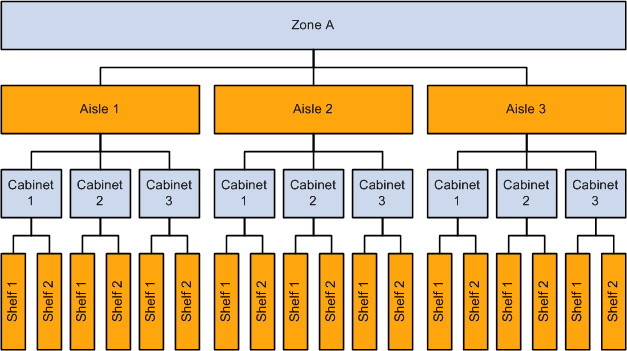
The following diagram illustrates the hierarchical relationship between material storage locations, storage areas, and levels. Zone A is the storage area. The aisles constitute level one, the cabinets constitute level two, and the shelves make up level three. The combination of storage areas and levels create a material storage location where stock can be placed or retrieved.
Establishing Storage Structures
You can design a different level structure for different areas of your warehouse; tailoring individual structures to fit business needs and the physical layout of your business unit. You might want a four-level structure for a primary storage area consisting of aisles, cabinets, shelves, and drawers, and a two-level structure for a staging area containing rows of pallets. In certain cases (if you have a bulk storage area containing only one item, for example), you might want to set up a material storage location with a storage area but no levels.
You define default material storage location attributes for a SetID on the Inventory Options page. You then define attributes for individual storage areas on the Storage Areas page and for material storage locations on the Material Storage Locations page.
Closing Storage Structures
When storage areas and material storage locations no longer physically exist in your warehouse, you can mark them for closure in the system records. The Closed check box, available on both the Storage Areas and Material Storage Locations pages, enables you to indicate that the structure is no longer active and is ready to be deleted from the system. To close an entire storage area, select the Closed check box on the Storage Areas page; when you save the page, PeopleSoft Inventory automatically closes all material storage locations defined with that area. To close a specific material storage location, use the check box on the Material Storage Locations page. You can also use the Select All and Deselect All buttons to mark all locations on the page as closed or to unmark all locations.
Important:
Closure is permanent. After you save either page, you cannot reopen the closed storage structure. If you want to inactivate a material storage location temporarily, use the Suspend option.
The following conditions must exist before you can close a storage structure. If any condition is not met, PeopleSoft Inventory issues an error message and cancels the close.
-
For storage areas only, all material storage locations assigned to a storage area are empty (there is zero on-hand and zero reserved quantity in the PHYSICAL_INV record).
If the area is not empty and you want to close it, transfer all of the stock to another storage area.
-
For material storage locations only, the material storage location is empty.
If the material storage location is not empty and you want to close it, transfer all of the stock to another location.
-
The storage area or material storage location is not associated with a production area, production replenishment location for an item, or work center in PeopleSoft Manufacturing.
Before you can close the material storage location, you must use either the Production Area Summary page or the Defining Production Area/Item Detail page to disassociate the location from the production area.
-
There are no open transactions involving the area or material storage location.
No open transactions can exist in the following tables:
-
Manufacturing Production (SF_PRDN_AREA).
To avoid errors, use either the Production Area Summary page or the Item Detail page to disassociate the material storage location from the production area.
-
Data Collection Transaction (BCT_DTL).
To avoid errors, run all processes that affect the storage structure that you want to close.
-
Putaway Staging (STAGED_ITEM_INV and STAGED_INF_INV).
To avoid errors, run the Load Staged Items (INPSSTGE) and Complete Putaway (INPPPTWY) processes.
-
Purchasing Receipts (RECV_LN_ASSET).
To avoid errors, make sure no receipts have been assigned to the material storage location.
-
Shipments (IN_DEMAND tables).
To avoid errors, run the Deplete On Hand Qty (Depletion) process (IN_FUL_DPL).
-
Inventory Counts (COUNT_INF_INV and COUNT_INV).
To avoid errors, run the Stock Quantity Update process (INPOPOST) or cancel the open counting event.
-
Manufacturing Picking (SF_ISS_TRANSFER).
To avoid errors, use the Review Plan to remove the material storage location from any picking plans on which it appears.
-
Manufacturing Work Center (EN_WORK_CENTER).
To avoid errors, make sure that the material storage location is not designated as a work center WIP location. Use the Define Work Center page to disassociate the location from the work center.
-
When you close a material storage location that has been assigned as a default putaway, fixed picking, RMA, ship staging location, cross-docking, or pegging location, PeopleSoft Inventory issues a warning message and gives you the option of canceling the close. Once you save the close, the system automatically deletes the material storage location from all tables and issues a warning that you cannot reopen the location.
Closed storage areas and material storage locations do not appear as options on transaction pages, and you cannot perform transactions against them. You can, however, include them in the Inventory Purging process (IN_PURGE).