Process Flow for Mobile Delivery
As part of the Mobile Delivery task flow, you begin with a search page that also provides advanced search criteria so you can better define the receipt lines that you want to deliver. The advanced search criteria enables you to enter additional search criteria that refines the search for receipt lines. For example, if you enter a business unit and a delivery document, and then you enter an item ID, the search results provide only receipt distribution lines that match all three criteria.
You can search for deliveries based on:
-
Receipt number.
-
Purchase order number.
-
Tracking number (progressive number) that is stored as a child table of the receipt line (RECV_LN_PRO).
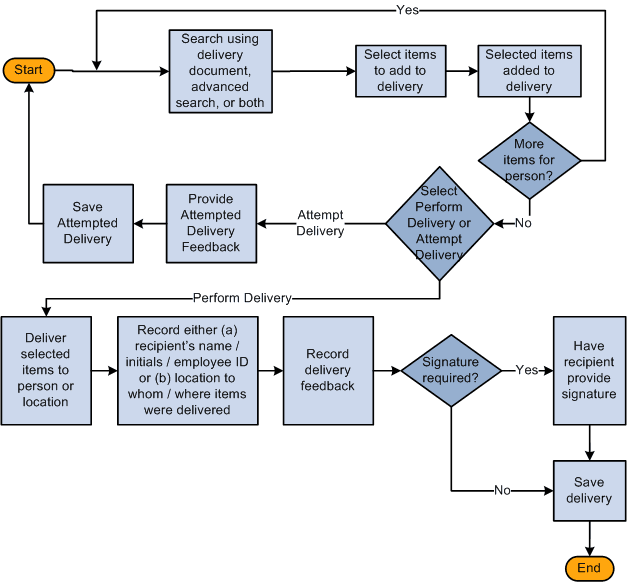
The next example illustrates the beginning of the Mobile Delivery task flow where you perform the search and continues through the process until you save the delivery:
Using the Mobile Delivery application, you cannot perform ad hoc deliveries; however, you can create an ad hoc receipt either in the PeopleSoft system or using a Mobile Receiving transaction. And, then perform a delivery using the Mobile Delivery transaction based on that receipt.
The process for the Mobile Delivery task flow is as follows:
-
Sign into the Mobile Inventory Management application and select Delivery.
-
Using the Delivery page, perform a search using the delivery document, advanced search criteria, or both.
The system provides the default business unit defined for the Mobile Delivery user. Using the Delivery: Advanced Search page, you can search on fields such as receipt number, item ID, attention to person, and so on. Using the Delivery: Options page, you can define how information is displayed on Delivery pages.
-
Using the Select Items for Delivery page, select items to add to the delivery.
After adding receipt line items, you can add additional items.
-
Using the Select Delivery Option page, select Perform Delivery or Attempt Delivery.
-
If you selected Perform Delivery, use the Perform Delivery page to record the delivery of the selected items to the persons or locations.
From the Perform Delivery page, you can:
-
Delete items from the delivery
-
Record delivery feedback.
-
Record a delivery signature.
If you selected Attempt Delivery, go to step 8.
-
-
Save the delivery.
After you click the Save button, the system provides a delivery confirmation page.
-
Click OK on the delivery confirmation page.
The system takes you to the Delivery page to begin another delivery.
-
If you selected Attempt Delivery, use the Delivery: Attempt Feedback page to record why the delivery could not be completed in the Attempt Feedback section.
-
Click the Save Attempt button.
After you save the delivery attempt, the system provides confirmation page.
-
Click OK on the attempt delivery confirmation page.
The system updates the PeopleSoft system with the new delivery information by recording the recipient's name, initials, or ID or the location to whom or where the items were delivered.
In addition to providing the default date, the system defaults the time and the user name of the person who performed the delivery.
Note:
The Mobile Delivery task flow also supports the business process flow where an employee goes to a location, such as a mail room, to pick up a package that has been received for them.