Updating List Price and Cost Information in Microsoft Excel
The Calculator button acts directly on the data in the spreadsheet. The other buttons open dialog boxes wherein you make additional selections.
You are limited to one list price maintenance spreadsheet on your hard drive. If you have an existing spreadsheet from a previous maintenance session, then the system will prompt you to override it with the current download or not.
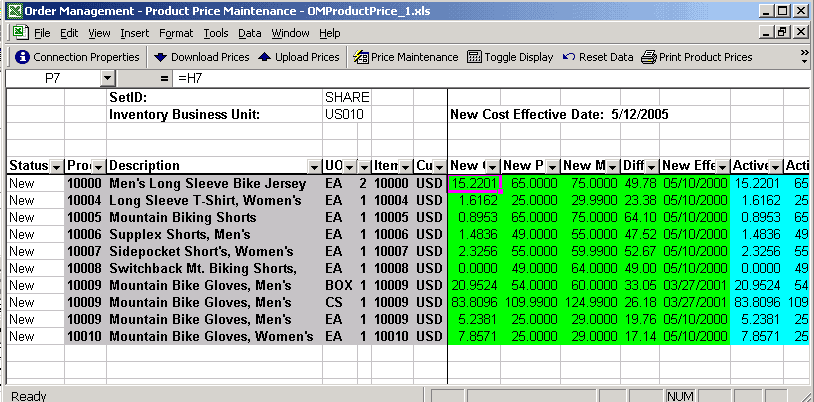
You can access the price maintenance spreadsheet you are working on by opening it directly in Microsoft Excel. Downloaded information appears in Microsoft Excel in three sections on the spreadsheet delineated by different column colors:
-
Key fields that identify the product appear in gray columns.
-
Fields that can be edited, such as New Cost, New Price, New MSRP, and New Eff. Date (new effective date), appear in light green columns. All other cells on the spreadsheet are locked.
-
Current price and cost information appears in beige columns.
This example illustrates the fields and controls on the Product Price Maintenance spreadsheet. You can find definitions for the fields and controls later on this page.
| Field or Control | Description |
|---|---|
|
|
Click the Download Prices button to view product information in the spreadsheet. |
|
|
Click the Calculator button to toggle between the two views using the Price Maintenance toolbar. Differences are not uploaded, but the view affects the mass maintenance changes that are available when changes are based on the differences in values. |


Key Field Columns
| Field or Control | Description |
|---|---|
|
Prod ID (product ID) and Prd Grp (product group) |
A product may be included in more than one product group. If this is the case, and you have downloaded data that encompasses more than one group, the product will appear multiple times on the spreadsheet. The only data changes that are uploaded are those made in rows where the key fields appear in bold. The system emphasizes the group you designate as the primary pricing product group on the Product Group page. If you do not designate a primary group among multiple groups, the system uses the first one it encounters. |
|
Inv BU (inventory business unit) |
If the product is not stocked in a warehouse (a service or product kit, for example), the value in the column will be Non Inv (non-inventory) and the Item ID field will be blank. |
Editable Columns
These editable columns are affected by pricing, costing, and effective date changes. The data in these columns is uploaded to update PeopleSoft tables. You can edit each cell individually or apply Mass Maintenance.
| Field or Control | Description |
|---|---|
|
New Cost |
The spreadsheet displays only information for inventory products that are actual, periodic, perpetual, standard-costed, retroactive perpetual average, and non-inventory products. This column does not contain a value for other products. The system retrieves product costs for standard-costed stocked products from PeopleSoft Inventory, and the cost cannot be changed here. Unit costs for non-stocked products are established on the Product Price page in PeopleSoft Order Management, where you can update the cost. The data that appears preceding any changes reflects the costs as of the Product Cost Effective Date selected on the Product Price Maintenance page. Note: Stocked products that are not costed in PeopleSoft Inventory are not downloaded. |
|
New Price |
Matches the Active Price values until you make changes. These prices are active for the Product Price As Of Date selected in Product Price Maintenance changes. |
|
New Eff. Date (new effective date) |
Matches the Product Cost Effective Date selected on the Product Price Maintenance page until you make changes. To prevent inconsistent pricing for the current date, the minimum new effective date value allowed for uploaded rows is the current date plus one day. Note: If you selected the current date as the Product Cost Effective date on the Product Price Maintenance page, then change the value of New Eff. Date here for any rows you want uploaded. |
|
New Diff. (new difference) and Diff. abs. (difference percent) |
View the difference between the New Cost and the New Price as an absolute amount (New Diff. = New Price-New Cost) or as a percentage (New Diff. = (price – cost) / cost * 100). |
Current Price and Cost Information Columns
The Active Cost, Active Price, Diff % (difference percent), MSRP (Manufacturer's Suggested Retail Price) and Eff. Date (effective date) reflect the status of the data at download. They are available for comparison, but you cannot change the values in these columns. The toggle between the two differences affects both the New Diff. column and the Diff % column.