EDI Records
The Voucher Build process provides support for data that is connected through EDI.
This flowchart illustrates how the EDI Manager integrates with the Voucher Build process.
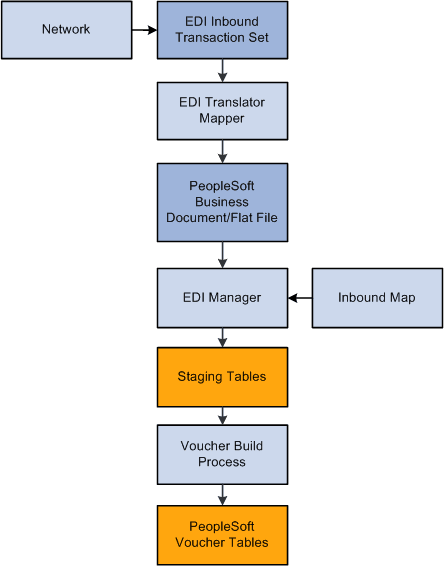
Typically, you use a private value-added network (VAN) to exchange EDI transactions. However, you can also use the internet, a dedicated link, or a sole-source provider.
EDI Transaction Processing
To process EDI transactions:
-
Translate the EDI file.
The translator converts the EDI transactions into a PeopleSoft business document format. A PeopleSoft business document is a layout that describes the fields—including name, type, length, format, short name, and long name—that make up the EDI file.
To translate a data file into a PeopleSoft business document, use a translation tool that prepares, parses, and maps the flat file into the PeopleSoft business document format. You can develop this tool yourself, or you can use third-party tools that are readily available.
-
Use EDI Manager to load the business document.
EDI Manager uses a supplied EDI agent Structured Query Report (SQR) to import the electronic data flat file, translate the data using the PeopleSoft business document layout, and stage the data in the Voucher Staging tables in the PeopleSoft database.
Use the Schedule Inbound EC Agent - Run Control Parameters page in EDI Manager to load the flat file with the invoice data into the staging tables.
-
Confirm that the data loaded into the staging tables successfully.
Use the Business Document Summary page in EDI Manager to confirm that the status is Loaded.
-
Run the Voucher Build process to create voucher records and load them in the Voucher tables.
Use the outbound AP_VCHR_MESSAGE_OUT EIP that was initiated in the Voucher Build process to send verification messages to the sender.
Note:
In addition to delivering the outbound AP_VCHR_MESSAGE_OUT EIP as an application message, PeopleSoft also delivers it as a web service (VoucherOut). Enabling web services is discussed in the PeopleTools: Integration Broker.
See PeopleTools: Integration Broker
Invoices that are entered into the system through EDI Manager might contain a blank space or the word Next in the Voucher ID field. The system automatically assigns voucher IDs for these vouchers during the Voucher Build process regardless of whether the PeopleSoft Payables business unit is set up for auto-numbering.
The Voucher Build process assigns match delay days to EDI transactions that require matching based on the PeopleSoft Payables hierarchy, business unit, origin, control group, supplier, and the ability to override on the voucher. If you do not define match delay days on the PeopleSoft Payables hierarchy, the Voucher Build process will not assign match delay days. As an example, if the match delay days are five days, the system adds five days to the entry date to determine the match due date. On the Match Request page, enter a date in the As of Date field to work in conjunction with the match due date. The Matching process selects only the vouchers that are ready to be matched as of that date. Match delay days are only applicable to EDI, XML, Document imaging, Spreadsheet vouchers, Online, Quick and Self Service invoices. These types of transactions usually are processed in the system before the lines are received. Using match delay days enables you to wait to include these transactions in the Matching process.
When EDI transactions have been processed, they are deleted from the voucher staging tables. The Voucher Build process places any vouchers that receive pre-edit validation errors in the quick invoice entry tables for review and correction using the Quick Invoice Entry component.
Voucher Build Minimum Data Requirements for EDI
The following lists show the minimum sets of fields that the Voucher Build process requires when you supply the voucher header, voucher line, and distribution line information:
-
Voucher header:
-
ROW_ID
-
BUSINESS_UNIT
-
INVOICE_ID
-
INVOICE_DT
-
VENDOR_ID
-
OPRID
-
GROSS_AMT
-
-
Voucher line:
-
ROW_ID
-
BUSINESS_UNIT
-
MERCHANDISE_AMT
-
VOUCHER_LINE_NUM
-
-
Distribution line:
-
ROW_ID
-
BUSINESS_UNIT
-
VOUCHER_LINE_NUM
-
DISTRIB_LINE_NUM
-
ACCOUNT
-
MERCHANDISE_AMT
-
The particular fields that are required for any given run of the Voucher Build process can vary depending on the following circumstances:
-
When you are trying to associate invoice lines to a purchase order, the supplier ID is optional and the distribution line should be absent.
The rest of the required fields vary depending on the Voucher Build code.
-
When you are trying to associate invoice lines to a receiver, the distribution line should be absent and the rest of the required fields vary depending on the Voucher Build code.
You can build distribution lines from voucher line information without associating purchase order or receiver lines by specifying the general ledger business unit and account, at a minimum, along with any additional ChartField information, on the voucher line.
Related Topics