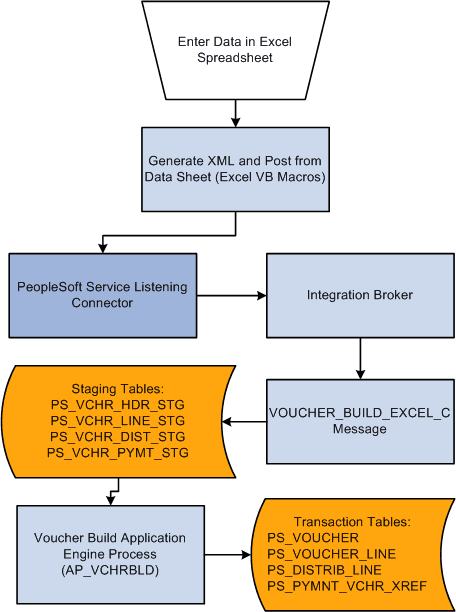
Spreadsheet Voucher Flow
To create spreadsheet vouchers:
-
Enter the data into the spreadsheet voucher using a format that includes the minimum data requirements for a PeopleSoft Payables voucher.
-
Generate the XML and post the file from the spreadsheet voucher options.
A Visual Basic (VB) macro built in the spreadsheet converts the spreadsheet data into an XML format that is readable by the Integration Broker. Also, a VB macro posts the file to a URL available to PeopleSoft systems.
-
Enter a valid user ID and password.
Users are prompted to enter a valid user ID and password before the macro posts the file to the PeopleSoft system. Upon validation, a message appears either with the number of vouchers loaded, or with that identified vouchers that are in error.
Note:
On the login page select the Dedicated Integration Broker Gateway check box if your Integration Broker gateway is dedicated to the database you are currently using. If you leave the check box unselected, the Local Node field appears. The system appends the local node value you enter to the URL when posting the XML to the Integration Broker.
After you generate the XML and post your file, PeopleSoft systems:
-
Retrieves the data from the XML file and validates the data.
If there are errors in the data the VOUCHER_BUILD_EXCEL_C message flags the data as being in error. You must correct the data, regenerate XML and Post before the data can be processed successfully.
-
Copies the data into the voucher staging tables if there are no data errors.
-
Selects the vouchers based on the Voucher Build process run control parameters and builds and edits them.
-
Updates the voucher transaction tables.
-
Deletes the record from the voucher staging tables.
Note:
The user credentials are stored for an hour after you generate the XML so that you need not login again for next submission.
The following graphic illustrates the flow for processing spreadsheet vouchers.