The Funds Distribution Process
Project costs can be distributed among multiple funding sources. The Funds Distribution Application Engine (PC_FND_DIST) process distributes funding by applying funds distribution rules to incoming transactions and assigning costs accordingly. You can use the Pricing Application Engine (PC_PRICING) process to price funded rows for billing purposes.
Note:
The Funds Distribution process applies funds distribution rules only to incoming transactions and funds distribution burden targets
This diagram illustrates the Funds Distribution process:
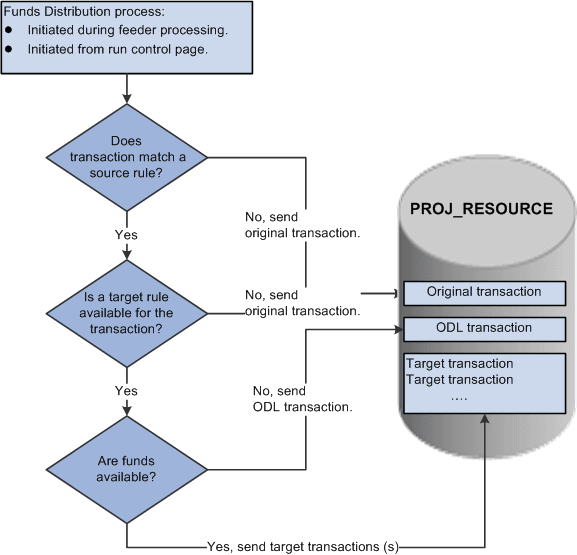
The Funds Distribution process consists of three primary steps:
-
Match a transaction to a source rule.
If a matching source rule is not found, the original transaction is maintained in PROJ_RESOURCE without further processing.
If a matching source rule is found, the process proceeds to the next step.
-
Determine if a target rule is available for the transaction.
If a target rule is not available for the transaction, the original transaction is maintained in PROJ_RESOURCE without further processing.
If a target rule is available for the transaction, the process proceeds to the next step.
-
Check for available funds.
If available funds are not found, the system creates an over the distribution limit (ODL) transaction in PROJ_RESOURCE.
If available funds are found, the system creates target distributions.
Group Target Definition
The Group Target Definitions option when selected indicates that all the source rules in a group can be associated to a single target definition. For example, to group source rules with several different budget references you can assign a single target group ID on the Funds Distribution – Source page to the required rules. Any number of source rules can be grouped together by assigning the same target group ID. This option can be used if the grouping of source rules is more complex than grouping different analysis types.
The Group Target Definitions option can be defined at many levels and provided by default to the next level, where you have the option to override it. The Group Target Definition option can be defined at these levels:
-
The installation level.
-
The business unit level.
-
The project level.
-
The funds distribution rule level.
Process Transactions
The Funds Distribution process allows you to process source transactions that have not been distributed or to reprocess transactions that were previously distributed. When running the Funds Distribution process to reprocess source transactions, the old target distributions are deleted and recreated if the original cost row and all target rows have not been:
-
Sent to PeopleSoft Billing, General Ledger, or Asset Management.
-
Linked to an asset.
-
Used in fee calculations for government contracts.
-
Created by the Variance Pricing process.
Budget Checking
The Funds Distribution process budget checks rows if the Budget Check option is selected on the Funds Distribution - Target page. Target distributions are created for a single source row, but all the related target distributions from the same source transaction are treated as a group.
The Project Costing to Commitment Control (PC_TO_KK) process is called from the Funds Distribution process, and a unique journal ID is created for target distribution rows. This action enables the system to identify all related target distribution rows if one row in the group fails the budget checking process.
If one or more of the target distribution rows fail the budget checking process, then the entire group of rows is held from additional processing until all the rows pass budget checking.
You use the Funds Budget Exceptions page to view rows that have failed budget checking.
Note:
Budget overrides are not allowed for funds distribution budget checking exceptions.
Balancing
A Balancing check box is available on the Funds Distribution - Target page. This check box ensures that the sum of all target amounts, for a target sequence, for a given source, equals the source amount. It also ensures that the distributed amount does not exceed the threshold for the sequence.
Note:
Only one row can be selected within each sequence.
A default analysis type can be determined on the Installation Options – Project Costing Integration page. The system automatically selects the Balancing check box for the target distribution row with the default analysis type on the Funds Distribution - Target page. The check box can be deselected on this page, and you can select the check box for a different target distribution row.
On the Funds Distribution - Target page, the selected distribution receives the balance of the source amount if the system has to round the target distributed amounts to maintain the distribution percentage.
For example, if FDS is selected on the Installation Options – Project Costing Integration page, and FDS is added to the Target page, then the system automatically selects the FDS row as the balancing row. If more than one FDS row is added to the sequence, the system automatically selects the first FDS row as the balancing row.
If you have not defined a balancing analysis type on the Installation Options – Project Costing Integration page, and do not select one when adding target distributions, then the system will automatically select the last target row as the balancing row. You can change this selection on the Target page.
Selecting this option ensures that the sum of the target amounts, for any given source, equals the amount of the source row. It also ensures that the distributed amount does not exceed the threshold for the sequence. This is done by attributing any differences, due to rounding, to the distribution that has the Balancing check box selected.