Manual Capitalization
Use manual capitalization processes if asset integration requires manual intervention, or if you want to:
-
Summarize transactions by profile.
-
Process asset information at the book level.
To use manual asset capitalization:
-
Set up asset profiles.
Asset profiles are templates that contain standard depreciation criteria for asset types and the corresponding asset books. Asset profiles are usually set up in PeopleSoft Asset Management, but they can also be created in PeopleSoft Project Costing if Asset Management is not installed.
See Asset Profile Page.
-
Set up these asset integration rules on the Asset Integration Rules page for integrating with PeopleSoft Asset Management:
-
Select Enable Integration in the Asset Integration Defaults group box.
-
Select Manual Identification in the Asset Identification Rule group box.
-
-
Define assets in PeopleSoft Project Costing.
If the actual asset that is produced by a project is not yet known, define the asset by using a temporary asset ID and an asset profile.
-
Relate the defined assets to the projects and activities that accumulate costs for the assets.
Project transactions can be associated with a specific asset or, if the actual asset is not yet known, with an asset profile. Projects and activities can be related to the asset by project ID or asset ID.
-
Select and group (filter) transaction attributes into criteria that the system uses to identify transactions to assign to the asset or asset profile.
Note:
You set up filter criteria for the manual capitalization process on the Define Filter Criteria - Standard 1, Standard 2, and Custom pages. This differs from the filter criteria that you set up for the express capitalization process on the Express Asset Filter Criteria page.
-
Periodically run the capitalization process that summarizes project transactions based on asset or profile information, distributes the costs, and creates new assets in PeopleSoft Asset Management.
You can set up the process to require approval of summary data before you send it to PeopleSoft Asset Management.
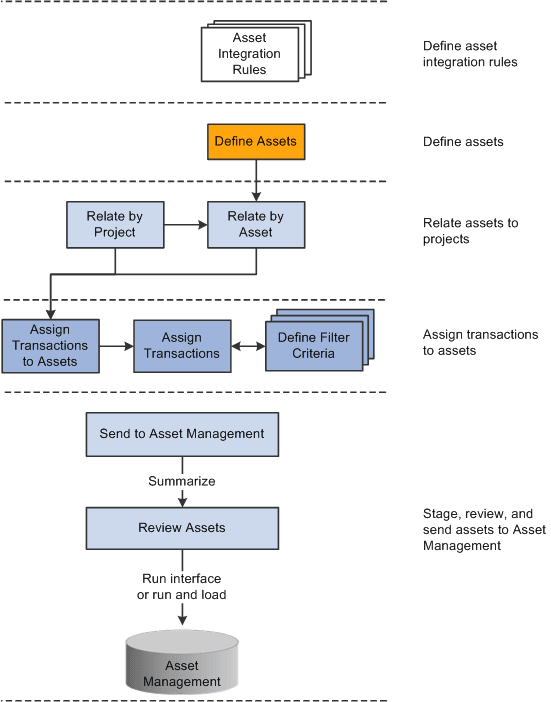
This diagram illustrates the process of manually capitalizing assets in classic interface and lists the related application pages that you use in PeopleSoft Project Costing. The arrows represent links to pages in the PeopleSoft Project Costing application:
Book Processing
You can select the Enable Book Processing option on the Define Assets page to process asset information at the book level. With this option the system populates each book with default information from the book profile, such as salvage value, useful life, depreciation method, or depreciation convention. For example, by using book processing an asset valued at 10,000.00 USD on the corporate book may be value at only 9,000.00 USD on the tax book if a tax rule prevents you from capitalizing the difference.
As another example, assume that an asset is created from these transaction rows:
| Source Type | Amount |
|---|---|
|
LABOR |
3,000.00 USD |
|
MATERIALS |
2,000.00 USD |
|
INTEREST |
1,000.00 USD |
In this example, the corporate book allows all three types of costs to be capitalized, but the tax book does not allow you to capitalize interest costs. To track this asset, set up two filter criteria—one called CORP_CRITERIA that includes all the rows, and another called TAX_CRITERIA that only includes LABOR and MATERIALS. Associate CORP_CRITERIA to the corporate book and TAX_CRITERIA to the tax book in the same manner that you perform the assign process for a nonbook asset.
When you associate the criteria with their respective books, processing for the asset occurs in the same manner as for a nonbook asset. Setting up filter criteria for each book and associating each criterion with its appropriate book results in sending a different value for each book to PeopleSoft Asset Management. You use Selection Criteria pages to define transactions for assignment to assets and to specify to which books each transaction is posted. If you post transactions to more than one book, the Assign Transactions to Assets page displays multiple rows (one for each book).
When you search for assets on the Review Assets page, you can limit the search results to assets that use the book processing functionality. The amount for the default book for each asset appears in the search result rows on the Integration Summary page.
See PeopleSoft Asset Management: Maintaining Asset Book Information.
Note:
Book Processing is not available in the fluid Assign Cost to Asset component.