Project Request Activity Guide Step 4 of 4: Project Team
Use the Project Team page (PC_PRQ_PRJTM_FL) to enter the project team members.
Navigation:
From the Project Request activity guide, select Project Team.
This example illustrates the fields and controls on the Activity Guide Step 4 of 4: Project Team page.

| Field or Control | Description |
|---|---|
|
Save |
Select to save the project request. If there are any validation issues, an error message will be displayed. After fixing the error, the requester should Save and Submit the request to clear the error message. Requests that have been submitted and in the process of being approved will display a separate button to validate the request. If error exists, the approver can fix the error and then select the Validate button. |
|
Submit |
Select to submit the project request for approval and view the Project Request Status page. |
Note:
The project manager should not be entered on this page. When the project is successfully created, the project manager from the Project Request step is added to the project team component.
This example illustrates the fields and controls on the Project Request Status page.
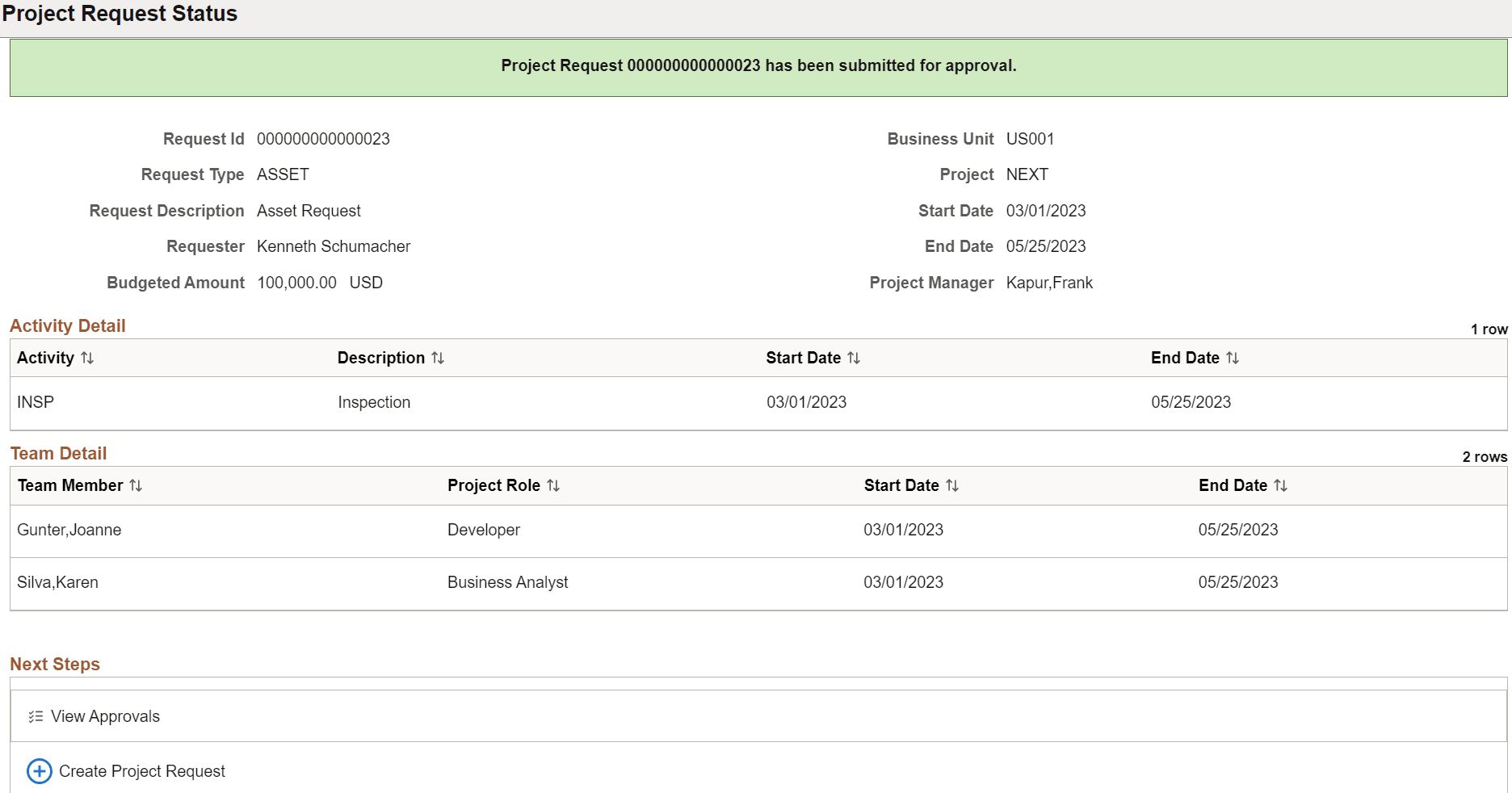
The Project Request Status page allows you to view the approval chain and also to create a new project request. Requests that bypass approvals will have additional links to open the Project, Project Activities and Project Team component.