Setting Up Approvals in PeopleTools Workflow Technology
You can use PeopleSoft Workflow to automate the approval process for requisitions and purchase orders. Depending on the configuration of the business unit, amount and ChartField approvals may be needed before the system changes the status of a requisition or purchase order from Pending Approval to Approved. While these approvals are independent of each other, they are set up similarly.
Changing the status on the requisition or purchase order approval table to In Process triggers the workflow approval process. Workflow searches for requisitions or purchase orders that require approval and moves those requests to the appropriate users for approval.
You can use either of the following methods to send requisitions and purchase orders into workflow:
-
Use the PeopleSoft Application Engine processes.
PeopleSoft Application Engine processes use queries to determine which requisitions and purchase orders are eligible for workflow routings and approvals. To be eligible, a requisition or purchase order must have a status of Pending Approval and the approval status on the requisition or purchase order approval table must be Initial. The requisition or purchase order approval table tracks the approval status.
For eligible requisitions and purchase orders, the PeopleSoft Application Engine processes sets statuses on the approval table to In Process, and the first worklist entries are created for the requisition and purchase order. The requisition or purchase order is now in workflow. The status remains as Pending Approval, until the requisition or purchase order completes its workflow cycle and the status changes to Approved.
-
Perform manual steps on the requisition and purchase order approval pages.
If the requisition or purchase order requires workflow approval, setting the requisition or purchase order status to Approved on these pages changes the status on the requisition or purchase order approval table to In Process, which triggers workflow approval.
This requisition or purchase-order-in-process is an activity in the workflow process that must be approved before it can move to the next event in the process. After the requisition or purchase order is submitted, workflow verifies that you have the authority to approve the activity. If you don't have the authority, workflow notifies the approver at the next higher level that the activity needs approval and adds the activity to that approver's worklist or sends email notification. The status of the requisition or purchase order remains as In Process. Workflow moves the activity up the hierarchy of approvers until the person with the proper authority approves the activity.
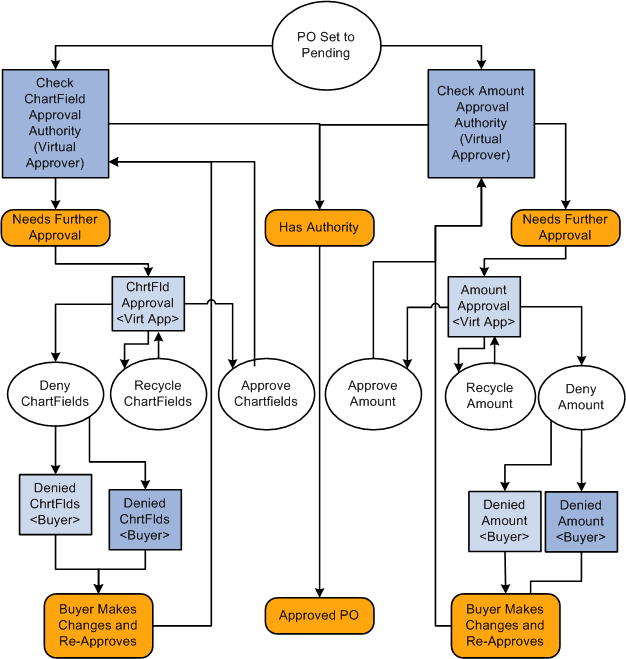
This diagram illustrates the use of workflow objects to define the approval workflow for purchase orders:
Virtual Approver
PeopleSoft Purchasing uses a workflow model that is called Virtual Approver to handle the requisition and purchase order approval processes. Using the Virtual Approver model, you define approval rules in PeopleSoft Application Designer and routings in PeopleSoft Workflow Administrator, instead of writing lines of PeopleCode.
When you define an approval process, the Virtual Approver determines transactions that need further approval and routes them to the appropriate approval user. Users enter transactions, as they always have, through a PeopleSoft application page. When an user saves the page, the Virtual Approver checks the approval rules that are defined through the Approval Rule Set to determine what kind of approval is necessary.
On purchase orders and requisitions, the approval transactions are the amount and ChartField approval transactions. If the current user has the authority to approve the transaction, the Virtual Approver sets the transaction status to Approved and doesn't route it using workflow.
Note:
Even if you do not implement PeopleSoft Workflow at this time, the approval function is still defined within the Workflow component. If workflow isn't being used, the approver manually accesses the approval pages and the approval rules are invoked when he or she saves the page.
The purchase order approval process workflow diagram illustrates a typical example of how you might use the Virtual Approver model to define approval processes. In the example, the system checks both the purchase order amount and the ChartField authorization.
If the system finds that the person who set the purchase order status to Pending Approval has authorization for both of those approval transactions, the purchase order is approved.
However, if the purchase order needs further approval, the system adds a transaction to the worklists or sends an email to the appropriate users, based on the rules that are set up in PeopleSoft Workflow Administrator. The purchase order status changes to In Process until all approval actions are complete. The next user selects the worklist entry on the Worklist page to access the approval pages and recycles, approves, or denies the purchase order. If the user denies the purchase order, the system generates an email message and a worklist entry to notify the buyer that appears on the purchase order.
Setting Up Requisition Approvals
When you use the PeopleTools Workflow Technology, requisitions are approved using workflow roles, rules, and routings. To implement workflow approvals, define the roles, rules, and routings using the Workflow component. Your system is delivered with basic approval rules already established.
To set up requisition approvals:
-
Access the User Preferences - Procurement: Requisition Authorizations page.
To authorize a user to approve requisitions, select the Approval check box in the Allowed Requisition Actions group box.
-
Access the Purchasing Definition - Req Approval Options page.
-
If you want to use automatic approvals for the selected business unit, do not define any approval requirements on this page.
-
If you want to use workflow approvals for the selected business unit, define your amount and ChartField approval options.
-
-
Access the Requester Setup page.
In the Requisition Status group box, select either Open or Pending to determine the default status of requisitions once the selected requester saves them.
Setting Up Purchase Order Approvals
When you use the PeopleTools Workflow Technology, the system approves purchase orders by using workflow roles, rules, and routings. To implement workflow approvals, define the roles, rules, and routings by using the Workflow component. PeopleSoft delivers a system that includes basic approval rules.
To set up purchase order approvals:
-
Access the User Preferences - Procurement: Purchase Order Authorizations page.
To authorize a user to approve purchase orders, select the Approval check box in the Allowed Purchase Order Actions group box.
-
Access the Purchasing Definition - PO Approval Options page.
-
To use automatic approvals for the selected business unit, do not define any approval requirements on this page.
By leaving these options blank, you have chosen to use automatic approvals.
-
To use workflow approvals for the selected business unit, define the amount and ChartField approval options.
-
-
Access the Buyer Setup - Buyer Setup page.
In the Default PO Status group box, select either Open or Pending Approval/Approved to determine the default status of purchase orders once the selected buyer saves them.
See the product documentation for PeopleTools: Workflow Technology