Assignment Workflow
You specify a project business unit's workflow options for assignment approvals or notification messages on the Resource Management Options page during implementation.
You can approve assignments in two ways. You can either approve assignments using the Assignment Workflow Engine options or choose to use the traditional workflow options for approving assignments.
Assignment Workflow Engine Options
If you choose to approve assignments using the Approval Workflow Engine, then you must select the Use Approval Workflow Engine check box in the Resource Management Options Page. Select the Status Approval process ID AssignmentStatusApproval for Assignment Status approval. For more information, see the Approval Workflow Engine Options section in the Resource Management Options Page
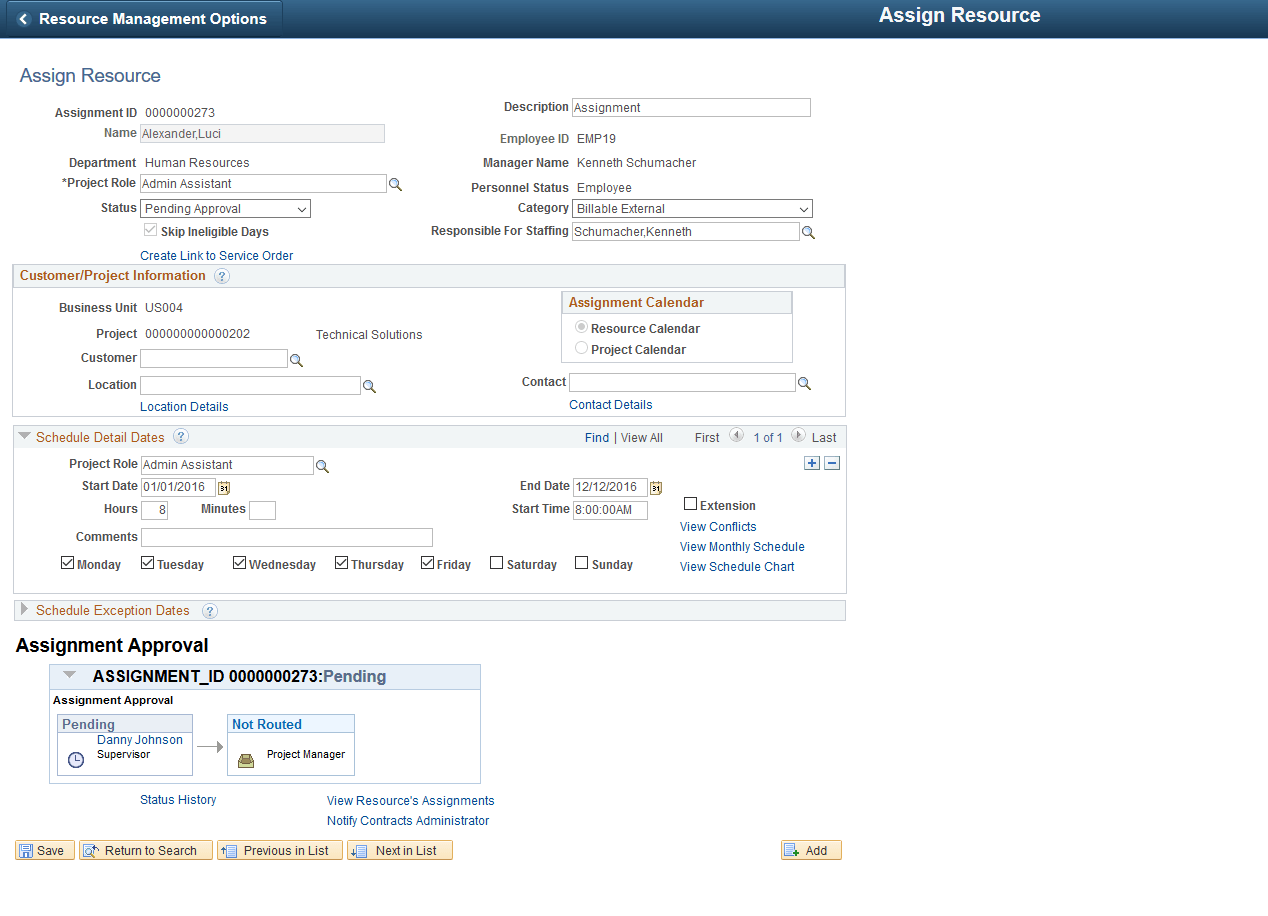
The assignment status approval is initiated when the Assignment status is set to Assign and the transaction is saved. Once an assignment is saved with the Assign status, the status moves to Pending Approval and the approval workflow is initiated. The approval once initiated is first sent to the supervisor. The supervisor can navigate to the approval component using the Worklist entry, or by clicking on the link in the Push notification, or by accessing the link in the email that is triggered to the approver as part of the approval workflow. The supervisor can enter comments, if any, and approve or reject the assignment. After the supervisor has approved the assignment, the approval moves to the next level, the Project Manager. If the current approver is the final approver, the assignment status changes to Assign from Pending Approval.
If the approval workflow moves to the next level, the Project Manager at the next level can access the approval component similar to the Supervisor approval action (that is via the Worklist entry, Push notification, or the link on the email). Here, the Project Manager has the option to approve, reject or pushback the assignment.
This example illustrates the fields and controls on the Assign Resource Page — Assignment Approval Workflow.
Use the AssignmentDateApproval Process ID to handle any changes in the date in an assignment in the approval workflow.
A Date Change approval workflow is initiated when an assignment in Assign status is added an new schedule detail date or an exception detail date. Modifying the existing schedule details date also triggers the date change approval process. The status changes to Pending Approval and the approval is routed first to the Supervisor and then to the Project Manager.
Traditional Workflow Options
In a traditional worklow for assignment approvals, you determine:
-
The roles that must approve resource assignments — the resource manager, the project manager (if you use PeopleSoft Program Management), or both. If you specify that the resource manager must approve assignments, you must also specify which resource manager—the pool manager or the supervisor—is responsible for approving the assignments. If you specify that both the resource manager and project manager must approve assignments, you must also specify which role approves the assignments first. If you are using resource pools, it is recommended that you specify the pool manager as the approving manager.
If you use PeopleSoft Program Management and you specify that project manager approval is required, a resource cannot be assigned to a project that does not have a project manager. You designate the project manager on the Resource Details page in the Project Resource Plan component (PGM_RESOURCE_LIST).
-
If a resource manager must approve assignment schedule changes.
-
If a resource, resource manager, or project manager is notified if an assignment schedule changes.
-
If a resource, resource manager, or project manager is notified if an assignment's status changes.
For this option, you select the assignment statuses that trigger a notification message.
See PeopleSoft Program Management: Understanding Schedule Dependencies.
Important:
For all resources, if you select Supervisor instead of Pool Manager in the Resource Manager Options group box on the Resource Management Options page, a manager must exist for the resource on the Update Employee Data - Employee Job page before you can use workflow to send assignments for approval or notification to the resource manager.