Requisition Approval Page
Use the Requisition Approval page (PV_REQ_APPROVAL) to approve, deny, or hold a requisition during the workflow approval process.
Navigation:
. Select the requisition ID that needs approval.
This example illustrates the fields and controls on the Requisition Approval page (1 of 2). You can find definitions for the fields and controls later on this page.
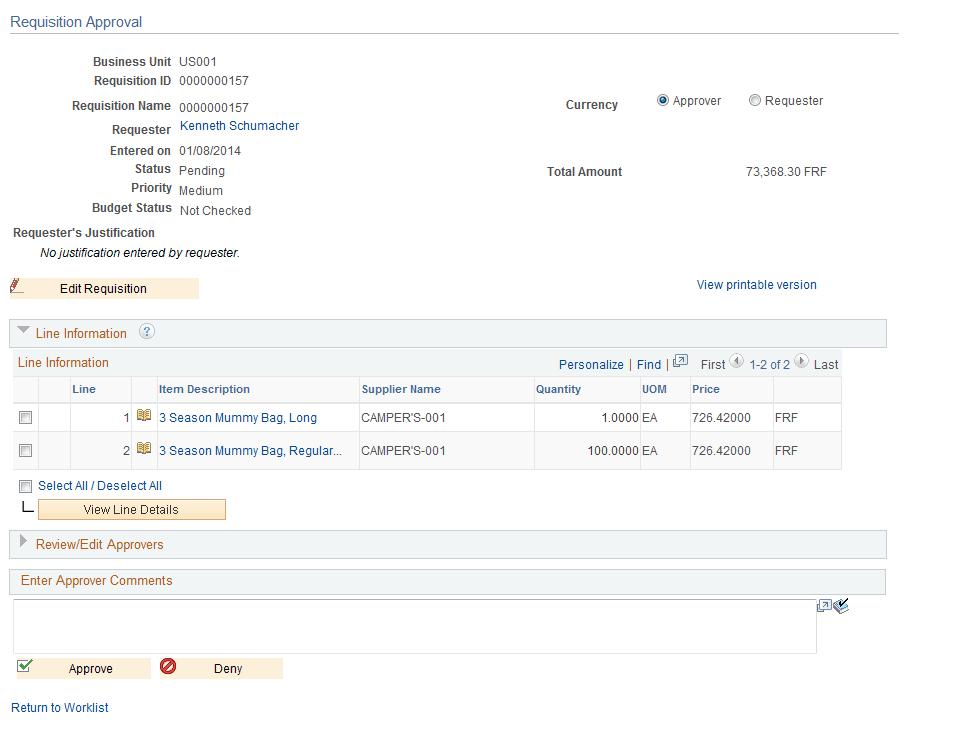
Use the Requisition Approval page to approve, deny, or push back a requisition during the workflow approval process. You can also add approvers and reviewers to the workflow routing. If you are a reviewer, this page is display-only. You can also access the page using the eProcurement Manage Approvals component.
Available actions change depending on the authorizations for each user accessing the Requisition Approval page. For example, an approver, might not have the authorization to edit the document, so the Edit Document button does not appear and the approver can only enter comments as part of an approval or denial.
Note:
You must have a workflow role that is assigned for requisition approval or else you must be the requester who entered the requisition.
Click the Edit Requisition link to access the Maintain Requisitions - Requisition page. You can make updates to the requisition before approving it.
Line Information
This section displays information about requisition lines.
| Field or Control | Description |
|---|---|
|
View Line Details |
Click to view all lines associated with the requisition. The system creates a scrollable report with the requisition details. |
|
Approve |
Click to approve the requisition and access the Requisition Approval confirmation page. Using the page you can view any additional approvals. The approval is immediate when you click the Approve button. |
|
Deny |
Click to deny this requisition. A worklist entry is sent to the original requester with any comments that you enter. Note: When you click this button, you access the Requisition Approval confirmation page, where you can enter a reason code and comments for the denied requisition or requisition line. |
Review/Edit Approvers
Use this section of the Requisition Approval page to review aspects of the approval flow, such as who has approved the requisition or who the requisition goes to after your approval. The grid displays all approval steps for the paths that are defined in the approval stage. Each stage is identified by a heading within the grid. The first stage must be approved before the next stage begins the approval process. When a stage begins the approval process, the system updates the approval status in the heading and sets the next stage or stages to the Awaiting Further Approvals status.
| Field or Control | Description |
|---|---|
|
|
Click to enter another approver or reviewer for this requisition. New approvers are added after the approval. The system adds the requisition to the new approver's worklist, and the approver must approve the requisition before it can continue through the approval process. You can add any combination of approvers and reviewers to the requisition by clicking the Insert Approver button. Note: Another, identical button in this section is used for another function. Click the Start New Path button to start a new approval path for the requisition approval process. |

| Field or Control | Description |
|---|---|
|
User ID |
Enter the ID for the user that you add as an approver or reviewer of this requisition. Note: If you click the Start New Path button, this field is used to add a new approver or reviewer to the new requisition approval path. |
Note:
After a requisition is fully approved, it is removed from the reviewer's to do list whether or not it has actually been reviewed. The requisition then appears in the Worklist belonging to the service coordinator responsible for sourcing the requisition.
Enter Approver Comments
Use this box to enter comments about the requisition. The system keeps the comments for others to review. If comments are required when you deny an approval, the system highlights the box when you click the Deny button without entering comments. You must enter a comment before denying the requisition. After you enter comments, click the Deny button again to deny the approval of the requisition.
Related Topics