Creating and Testing Public Supplier and Bidder Templates
To create and test public supplier and bidder registration templates:
-
Log into setup pages as a supplier administrator and create public supplier and bidder templates. For detailed instructions, refer to Creating Templates for Online Registration.
-
For each template ID, enter an access code on the Registration Template Setup – General page (Set Up Financials/Supply Chain > Product Related > Procurement Options > Suppliers > Registration Template Setup > General).
-
Test the link to see if the URL works with the template. The URLs can also be secured servers (https).
-
For suppliers, the URL will use this format:
http://<apserver><supplierportal>SUP_OB_MENU.AUC_BIDDER_REGISTRATION.GBL?Action=U&SUP_OB_TEMPLATE=< public supplier template >For example, http://slc00tch.us.oracle.com/psp/ps_3/SUPPLIER/ERP/c/SUP_OB_MENU.AUC_BIDDER_REGISTR.GBL?Action=U&SUP_OB_TEMPLATE_ID=SUPPLIER.
-
For bidders, the URL will use this format:
http://<apserver><supplierportal>AUC_BIDDER_REGISTRATION.AUC_BIDDER_REGISTRATION.GBL?Action=U&SUP_OB_TEMPLATE=< public bidder template >
-
See also the product documentation for Oracle’s Weblogic and PeopleTools: System and Server Administration ().
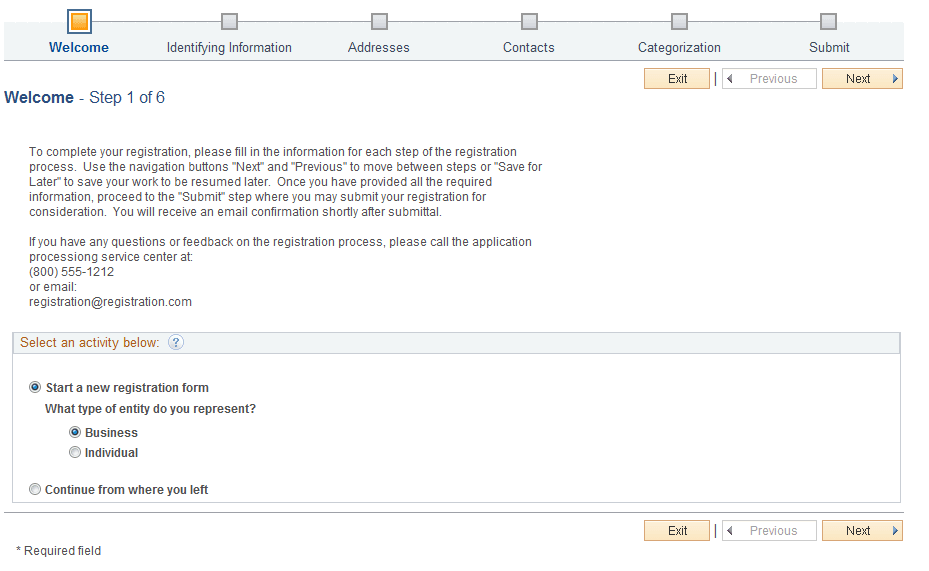
Based on the public access setup and the template setup, the user is logged in automatically, and the supplier and bidder registration pages appear, as shown in this example:
This example illustrates the fields and controls on the Online Registration: Welcome page.
For more information about registering online and sample pages, see Registering Online.