Supplier Skill Page
Use the Supplier Public Skill page to inquire on user registration, public bidding events, calendar events, announcements, and FAQs and contact details.
Navigation:
From the Supplier Public home page, select the button.
This example illustrates the fields and controls on the Supplier Skill page.
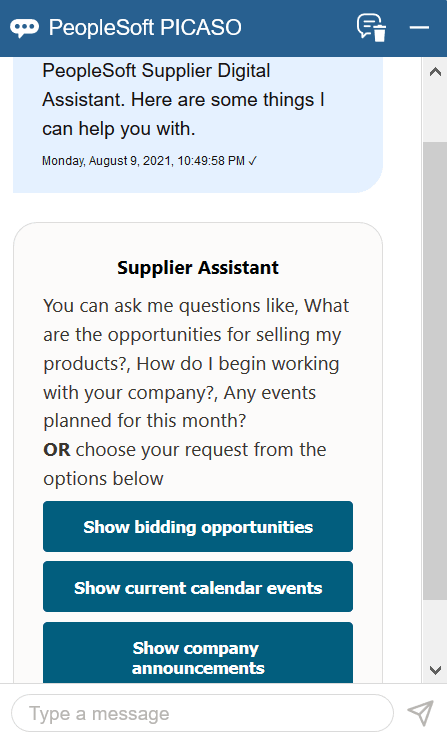
After launching the skill, you can start the conversation either by selecting one of the options displayed or entering your query. Show bidding opportunities, Show current calendar events, and Show company announcements are the options displayed by default.
Note:
The Skill does not display the Show bidding opportunities option, if the Strategic Sourcing product check box is deselected on the Products – Installation Options page. To any queries related to bidding opportunities, the skill displays the links to User Registration and Contact Us pages, so that you can obtain more information on how to proceed.
For more information on installation options, see Application Fundamentals: Setting Up Cross-Application Installation Options.
For example, if you select the Show bidding opportunities option, the skill displays the available bidding events.
This example illustrates the fields and controls on the Supplier Skill - Show Bidding Opportunities option
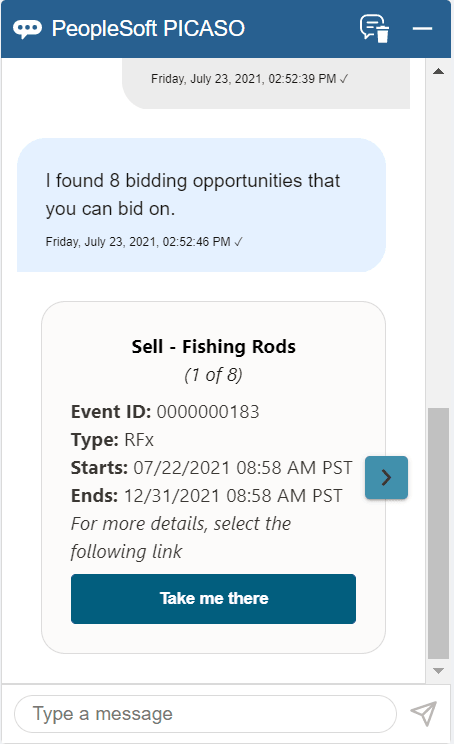
Go through the set of results. For each event, its ID, type, start and end dates are shown. Events are displayed based on their end date. Those ending soon are displayed first.
Click the Take me there button to navigate to the respective application pages. These application pages do not display the PICASO button.
You can narrow down your search results by entering appropriate queries. Besides the options mentioned above, the skill can fetch results by identifying the following keywords or combinations of these from your queries:
-
Event Format - You can specify the event formats (Sell and Buy) in your query.
Example: Opportunities for selling my products
-
Product category - You can include a product category such as laptop or monitor in your query. The skill uses OpenSearch to find the results. A flexible keyword search enables you to search for the specified product across the product categories available in PeopleSoft.
Example: Any opportunity to sell my laptop
You can include multiple categories too. Example: Any opportunity related to laptop/office equipment.
-
Time Period - You can include a time period such as a month or date range in your query.
Bidding opportunities available in July, Sell my product next month
Note:
Any queries related to calendar events, announcements, and FAQs are powered by OpenSearch. In case you enter an indirect query, the skill tries to understand it and suggest results that you might find helpful.
This example illustrates the fields and controls on the Supplier Skill page.
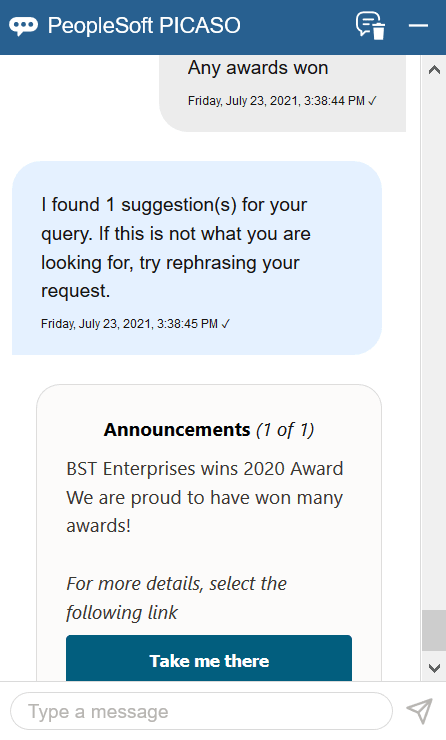
To any queries related to the contact details, the skill displays the FAQs and Contact Us links so you can navigate to the respective pages.
Note:
OpenSearch functionality provides suggestions based on the contents available on the Maintain Content page, where the contents of FAQs, Announcements, and Event Calendar are managed. A hosting organization can further improve the relevance of results by adding new answer/regular intents for contents, which are less dynamic.
A couple of sample intents depicting such scenarios are delivered as part of this skill.
The Supplier Skill can answer to questions related to diversity policy. Suppose you enter Veteran or women-owned business opportunities. When the skill responds, you can click the clicking the Take me there button to navigate to the FAQ page that displays the particular category to which the Diversity Policy information belongs.
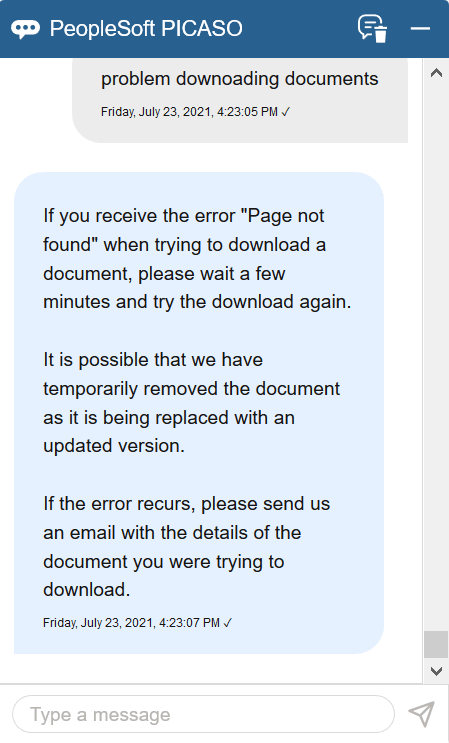
As another example, you can inquire about any errors, such as Problem downloading documents.
This example illustrates the fields and controls on the Supplier Skill page.