Editing Clause Text
Clause text fields can include user-defined text and bind variables. Use the Clause Definition Page to insert these elements directly into the clause using plain text. Plain text does not support formatting. You can also use this page to open the clause in Microsoft Word and edit the rich-text.
Note:
When you define simple clauses, editing in Microsoft Word is not necessary because the system applies basic paragraph styles from the Microsoft Word template that has been set up on the Document Format and Options Page. This setup can apply basic formats, such as body and number styles, using a consistent method for the entire contract. If you need to apply special character-based formats such as bold text, underlined text, italic text, or other rich-text formats, then you can edit the clause directly using Microsoft Word.
For additional information about formatting text within Microsoft Word so that it renders correctly using the preview feature and the final assembled document, see Understanding Microsoft Word Integration with Supplier Contract Management.
This example illustrates how a simple clause might appear when you edit it using Microsoft Word.
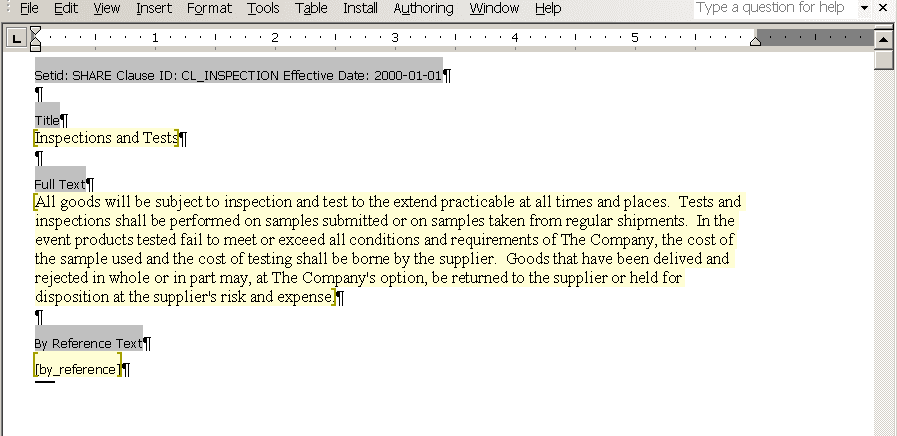
When you edit a clause using Microsoft Word, only the title, full text, and by-reference text are included in the edit. The system does not include other values that appear on the PeopleSoft page for Microsoft Word maintenance. Only the clause content can be edited.
When you open a document using Microsoft Word, the system includes information about the clause. This information appears with instructional components with a gray background in the document and the structure of the clause and its contents. The displayed information includes the SetID, clause ID, effective date, and fields to which the text belongs.
Note:
Oracle does not recommend that you apply custom paragraph styles while editing in Microsoft Word. You should limit style changes to character styles, such as changing text to bold or underlining text.
Note:
The system enables Microsoft Word document protection for the clause to protect hidden tags used by PeopleSoft Supplier Contract Management and to recognize the title and text fields when checking-in the document. Protection can prevent you from performing certain format changes using Microsoft Word. In these cases, you can deactivate the protection, make the change, and then re-activate the protection Clause protection is determine by the Enforce clause protection during check in check box on the Installation Options - Supplier Contract Management Page
Microsoft Word XML Formatting
When the system generates the Microsoft Word document, the document is stored in .xml format instead of a .doc formatted template. You can view the XML content controls for the Microsoft Word document using the task pane in the document. To view content controls:
-
Select the Developer tab from the menu.
If you do not see the Developer tab, go to the Word Options, select Popular from the menu on the left, and then select the Show Developer Tab in the Ribbon check box on the right.
-
Select Design Mode.
-
Select Structure.
The Task Pane opens on the right side of your document and displays the XML Structure options.
-
Select the Show XML Tags in the Document check box to see the content controls.
The system displays the XML tags for the clause document.
Clauses contain titles, body, and by-reference text, which the system converts into a Microsoft Word XML document.