Route for Internal Signatures Page
Use the Route for Internal Signatures page (CS_DOC_ROUTE_SIGN) to route documents for internal signatures.
Navigation:
Click the Route for Internal Signatures button on the Document Management page.
This example illustrates the fields and controls on the Route for Internal Signature page. You can find definitions for the fields and controls later on this page.
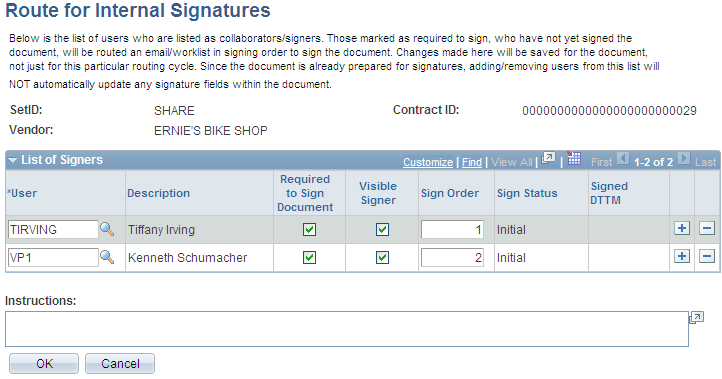
This page displays the internal users to whom the system will route the document for signature. The document is routed based on the sign order. You can add and delete signers. Use the Instructions field to provide additional signing information.
| Field or Control | Description |
|---|---|
|
User |
Select a user to include for the internal signature routing. |
|
Required to Sign Document |
Select to indicate that this internal user is required to sign the document. When you select this check box, the Visible Signer and Sign Order fields become available for entry. This field controls the visibility of the Sign Document button when the contract is routed to the user. When a user is not required to sign the document, then the user is considered a collaborator or viewer for the document and is not provided signing authority for the document. The user will not see the Sign button or be included in signature routings. |
|
Visible Signer |
Select to indicate that this internal user's signature will be visible on the contract document. The field is available if the Required to Sign Document check box is selected. Visible signers are those signers whose signature labels appear on a contract document. Unlike visible signatures, you can also set up a signer with an invisible signature. You can only see an invisible signature in the signature properties of the document, and not in the document itself. |
|
Sign Order |
Select to indicate that this internal user's signature will be visible on the contract document. The field is available if the Required to Sign Document check box is selected. If a user is not a visible signer |
|
Signed Status |
Displays the status related to whether a signer has signed a document. Values include: Initial Signed Pending Signature Replaced by Alternate Signed by Proxy Marked as signed Declined |
|
Signed DTTM (signed date and time) |
Displays when an internal signer has signed the document and indicates when the signer completed the document. |