Send Document for Signing Page
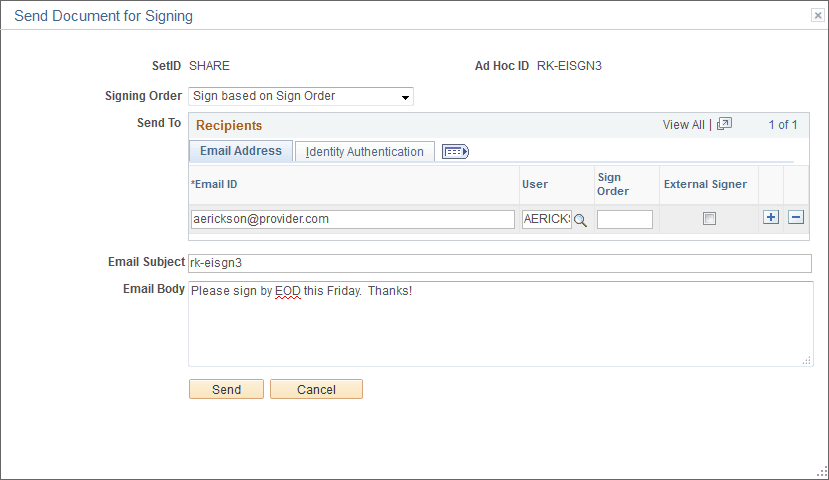
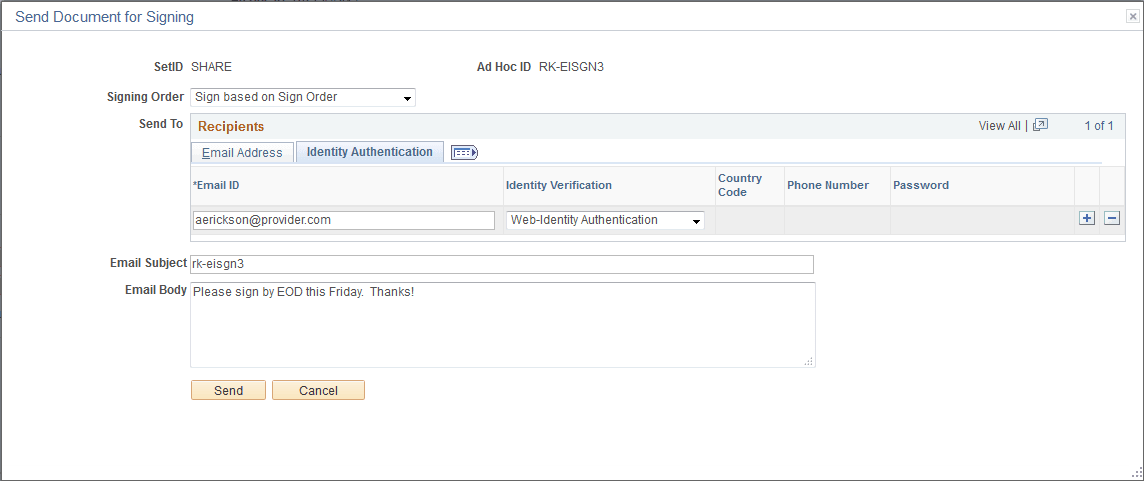
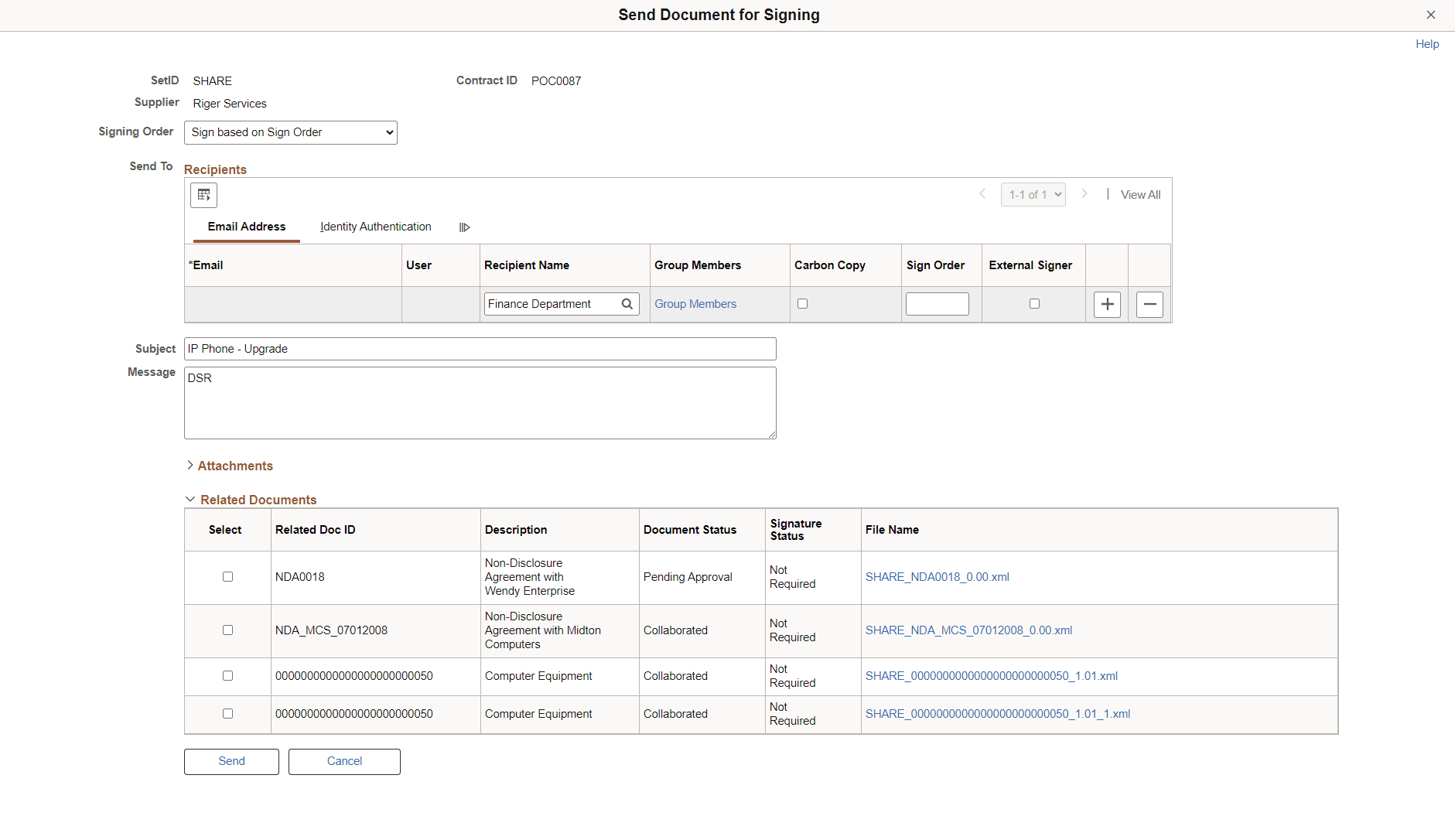
Use the Send Document for Signing page (CS_ESIGN_SEND) to specify document recipients, authenticate identity, and send documents for signing.
Navigation:
Click the Prepare and Route for e-Signature button.
Send Document for Signing page, Adobe Sign (1 of 2)
Send Document for Signing page, Adobe Sign (2 of 2)
Send Document for Signing page - DocuSign
| Field or Control | Description |
|---|---|
|
Signing Order |
Select a signing order for the document recipients:
|
|
|
Enter an email address for the recipient. |
|
User |
Specify a signer for the document by entering their user ID. This field is optional. |
|
Recipient Name (DocuSign only) |
Specify a name for document recipient. This can be used for an individual recipient or signer, or signing group if it is set up in DocuSign. The prompt button displays a list of signing groups, if available. This field is required. If user ID is specified and you do not provide a value for Recipient Name, this field defaults to the name associated with user ID. |
|
Group Members (DocuSign only) |
Select the Group Members link to access the Signing Group Users page and view individual users associated with the signing group. Signing groups are defined in the DocuSign application. |
|
Carbon Copy (DocuSign signature method only) |
Select this option to send a copy of the document to the recipient. If this option is selected for a recipient, they do not sign the document. |
|
Sign Order |
Enter a numerical value representing the signing order for the recipient. If you selected ‘Sign based on sign order’ for the Signing Order field, this field is mandatory. |
|
External Signer |
Select this option to indicate the signer is external to your organization. If you select this option, the signer information is added to the External Contacts page. |
|
Identity Verification(Adobe Sign signature method only) |
Select a method to authenticate a signer’s identity. The authentication method is sent with the document when it is routed to Adobe Sign from PeopleSoft. The following authentication methods are available:
|
|
User Authentication(DocuSign signature method only) |
Select a method to authenticate a signer’s identity. The authentication method is sent with the document when it is routed to DocuSign from PeopleSoft. The following authentication methods are available:
|
|
Attachments |
Select the documents to be sent along with the contract document for signing. Note: Adobe Sign only accepts PDF, DOC, TXT and JPG file types as attachment. Documents of other file types is converted into a supported file format before it can be sent to Adobe Sign for signature. Multiple files can be attached. |
|
Related Documents (DocuSign only) |
Select the related documents to be sent along with the contract document for signing. All selected related documents are included as supplement documents for the signatory to review. |
|
Send |
Select to send the documents to the reviewer. The reviewer receives an email with the selected attachments and related documents. If the supplier contract document is created using the Create Document page, the file type is Microsoft Word XML and must be converted to PDF before it is routed for signing because signature providers do not support this file type. The file conversion uses an application server on a Windows machine, as defined on the Installation Options - Supplier Contract Management Page. PDF conversion also applies to any imported document with a file type of Microsoft Word XML or OpenOffice. Other XML file types are not supported and cannot be converted to PDF. |