Freight Results Page
Use the Freight Results page (IN_FRT_RESULT_SP) to view freight results sent by the external third-party freight system or view any error messages when the integration fails.
This page displays information sent by the external third-party system including freight amounts, the committed shipment date and the committed arrival date. For the delivery, the freight service definition, carrier, ship via code, shipping weight, shipping volume, and the total number of pieces are also displayed.
Navigation:
-
Select one or more deliveries on the Calculate Freight page and click the Preview Freight button.
-
Select the Auto-Freight button on the Delivery Management Workbench- Deliveries page. You are transferred here is you have an error.
-
Select the Auto-Freight button on the Delivery Management Workbench- Manage Delivery page. You are transferred here if you have an error.
This example illustrates the fields and controls on the The Freight Results page using the rate shopping freight option. You can find definitions for the fields and controls later on this page.
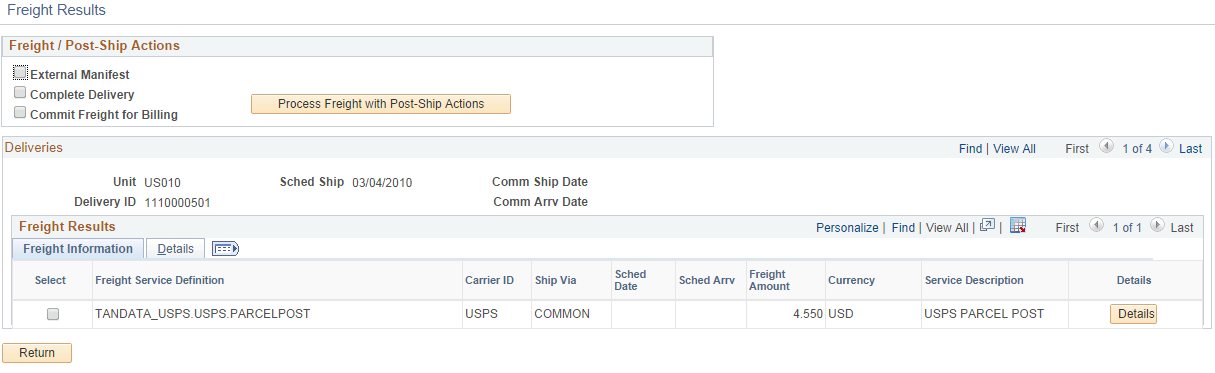
Use this page to review freight results sent by the external third-party freight system or view any error messages if the integration fails. This page displays information sent by the external third-party system including freight amounts, the committed shipment date and the committed arrival date. For the delivery, the freight service definition, carrier, ship via code, shipping weight, shipping volume, and the total number of pieces are also displayed.
If you are using the Shop For Rates freight option, then this page displays all freight services returned by the third-party system.
If you are using the Best Way freight option and get an error, then the page also displays all freight services returned by the third-party freight system.
Select an option and click the Return button.
Freight / Post-Ship Actions group box
Use the Freight / Post-Ship Actions group box to select options and launch another transaction request to the external third-party freight system using synchronous Inventory Freight Ship Request EIP. The Post-ship actions cannot be performed until all demand lines have been shipped or depleted.
| Field or Control | Description |
|---|---|
|
External Manifest |
Select this check box to instruct the external third-party freight system to create or update shipping manifests for the individual carriers. Label URL references and tracking numbers for the selected deliveries, containers, and packages, are sent to the PeopleSoft system and maintained with the shipping history information. In order to use external manifest all of the demand lines in the delivery must be in the fulfillment state of Shipped. A freight option of Best Way or Use Specified Carrier must be selected to perform external manifesting. |
|
Complete Delivery |
Select this check box to set the status of the delivery to Complete Delivery which indicates that all fulfillment steps for the delivery are complete and all demand lines in the delivery are ready to be depleted using the Deplete On Hand Qtys process. If the PeopleSoft Inventory business unit is using deliveries, the Deplete On Hand Qtys process only pick ups demand lines that are on a delivery with the Complete Delivery status. |
|
Commit Freight for Billing |
Select this check box to indicate that the freight on this delivery is ready to be processed by PeopleSoft Billing and by PeopleSoft Cost Management. |
|
Process Freight with Post-Ship Actions |
Click this button to send a transaction request to the external third-party freight system including any selected post ship actions such as external manifest. The third-party freight system sends freight results based on your selection in the Freight Options group box on the Freight Results page. |