Pegging a Work Order with a Non-Inventory Item
When using a non-inventory item ID or a description-only item on a work order line, you cannot peg to a materials stock request (interunit transfer, supply-side) or a production ID. You can peg to a requisition or purchase order. You can create the peg from the PeopleSoft Maintenance Management side or the PeopleSoft Purchasing side. The Pegging Workbench cannot be used to peg a non-inventory item ID or a description-only item. The Pegging Inquiry component can be used to view peg chains to non-inventory item ID or a description-only items.
This process flow diagram illustrates pegging, from PeopleSoft Maintenance Management, a work order that is using a non-inventory item ID or a description-only item. The sequence of events in the process flow is explained below the diagram:
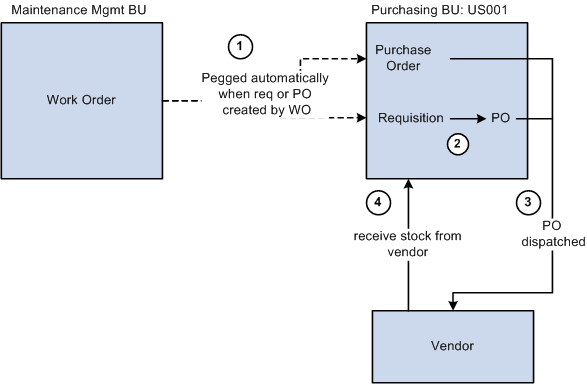
The sequence of events in the process flow is:
-
Using the Work Order - Schedules page, select the Purchase/On-Hand link, add a non-inventory item or description-only item, and then:
-
Click the Load Requisition button to place the work order line in a staging table where the Requisition Loader process will retrieve it and create a requisition in PeopleSoft Purchasing.
-
Click the Load Purchase Order button to place the work order line in a staging table where the Create Purchase Order process will retrieve it and create a purchase order in PeopleSoft Purchasing.
-
-
Use the sourcing module in PeopleSoft Purchasing to build a purchase order from the requisition. The requisition cannot be placed on a material stock request since there is no inventory item ID.
-
The purchase order is dispatched to the supplier.
-
If receiving is required, then the parts are received into the purchasing business unit. If receiving is not required, then the peg status is updated to complete when the purchase order is closed.
This process flow diagram illustrates pegging, from PeopleSoft Purchasing, a work order that using a non-inventory item ID or a description-only item. The sequence of events in the process flow is explained below the diagram:
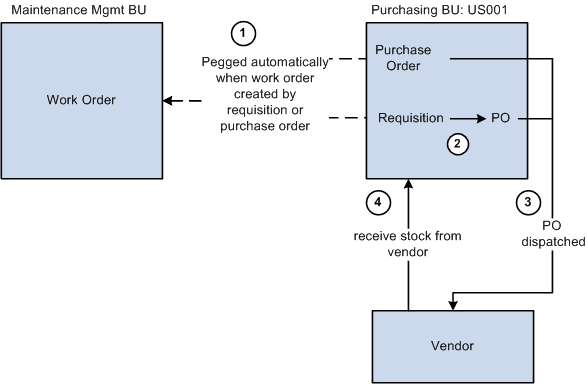
The sequence of events in the process flow when pegging from PeopleSoft Purchasing to a work order is:
-
Create a requisition or purchase order line:
-
In the Add/Update Requisitions component in PeopleSoft Purchasing, add a non-inventory item ID or a description-only item, select the Schedule button, select the Maintenance WO tab. Enter the Maintenance WO business unit, work order, task number, resource type, and resource line number. The work order ID and task must already exist in PeopleSoft Maintenance Management, however the resource line number can be added here if needed. If the item does not exist on the work order and you want to add it, then leave the resource line number at zero. When the requisition is saved, a peg is automatically created between the requisition line and the work order.
-
In the Add/Update Purchase Order component in PeopleSoft Purchasing, add a non-inventory item ID or a description-only item, select the Schedule button, select the Maintenance WO tab. Enter the Maintenance WO business unit, work order, task number, resource type, and resource line number. The work order ID and task must already exist in PeopleSoft Maintenance Management, however the resource line number can be added here if needed. If the item does not exist on the work order and you want to add it, then leave the resource line number at zero. When the purchase order is saved, a peg is automatically created between the purchase order line and the work order.
-
-
For a requisition, use the sourcing module in PeopleSoft Purchasing to source the requisition into a purchase order. The requisition cannot be placed on a material stock request since there is no inventory item ID.
-
The purchase order is dispatched to the supplier.
-
If receiving is required, then the parts are received into the purchasing business unit. If receiving is not required, then the peg status is updated to complete when the purchase order is closed.