Define Business Unit Item - Planning Page
Use the Define Business Unit Item - Planning page to define business unit items
Navigation:
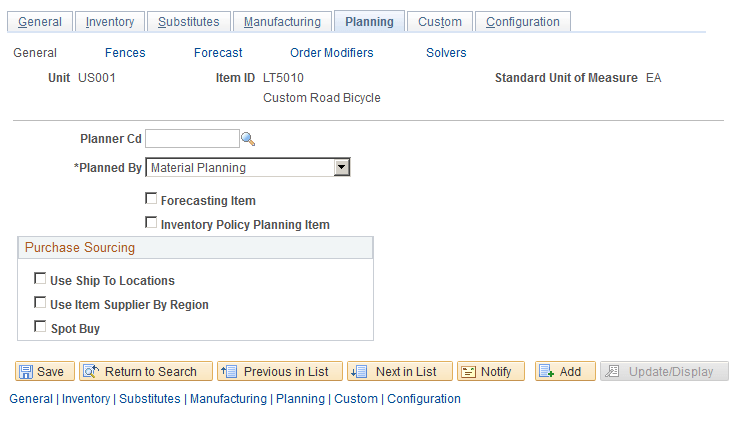
This example illustrates the fields and controls on the Define Business Unit Item - Planning page: General. You can find definitions for the fields and controls later on this page.
For each item, define information using the Define Items and Attributes - Define Business Unit Item - Planning pages:
-
On the Planning - General page, define planning information for an item, such as whether the item is planned by distribution planning, master planning, or material planning, or is not planned. You can also define the PeopleSoft Purchasing sourcing option. Options include Use Ship To Locations, Use Item Supplier by Region, or Spot Buy. You can only select one method.
-
On the Planning - Fences page, define planning time fences, planning message parameters, safety stock and excess stock parameters, lead times, new order fences, and other general information about how you will generate supply for inventory items.
Note:
PeopleSoft Supply Planning generates recommendations for new orders, reschedules, or order cancellations and then routes these recommendations to PeopleSoft Inventory, Purchasing, Order Management, and Production Management. In many cases, the volume of changes number in the thousands. To help manage this activity more effectively, the system enables you to define a time fence and filters to control the message review and approval process.
-
On the Planning - Order Modifiers page, define transfer, purchasing, and manufacturing order quantities, order multiples, yields, and whether to use the purchase order modifier.
Note:
For transfers, you can set up order modifiers on the Transfer Attributes page. The system uses the transfer order modifier values that you define on the Planning - Order Modifier page when you do not define values on the Transfer Attributes page. You can select the Include in Planning check box on the page to indicate that sourcing options will be created for this given item and business unit. You can also select to Include in Planning check box on the Transfer Attributes Defaults page.
Note:
If you select the Use Purchase Order Modifier check box, the system uses the item's purchasing attributes defined on the Supplier's UOM and Pricing Information page.
For more information about the Planning page, see the documentation — PeopleSoft Managing Items.
See PeopleSoft Managing Items: Define Business Unit Item - Planning: General Page.