4.7 Upgrading File Attachments
The file attachment architecture is enhanced to provide interfaces for existing legacy attachments for use in definition for PeopleTools Search Framework indexes. In order for attachments to work properly in Search Framework, the definitions for database and FTP or SFTP based file attachments are linked to a Tools URL definition. You can add links in the architecture to define what is required. You can follow the steps listed, to make the system ready for attachment processing in Search Indexes.
If your attachments are all stored within the database this procedure is not required. For any existing non-URL (FTP) based file attachment setup which is crawled, there is a URL definition created in the Search URL Equivalent column on the Administer File Attachment page. The corresponding URLs are automatically set up in PeopleSoft PeopleTools. You need to verify that the file attachments for FSCM are set up.
To set up special URLs for File Attachment Architecture:
-
Select Set Up Financials/Supply Chain, Common Definitions, File Attachments, Administer File Attachments. The Administer File Attachments page appears as shown in the following example:
Figure 4-3 Administer File Attachments page
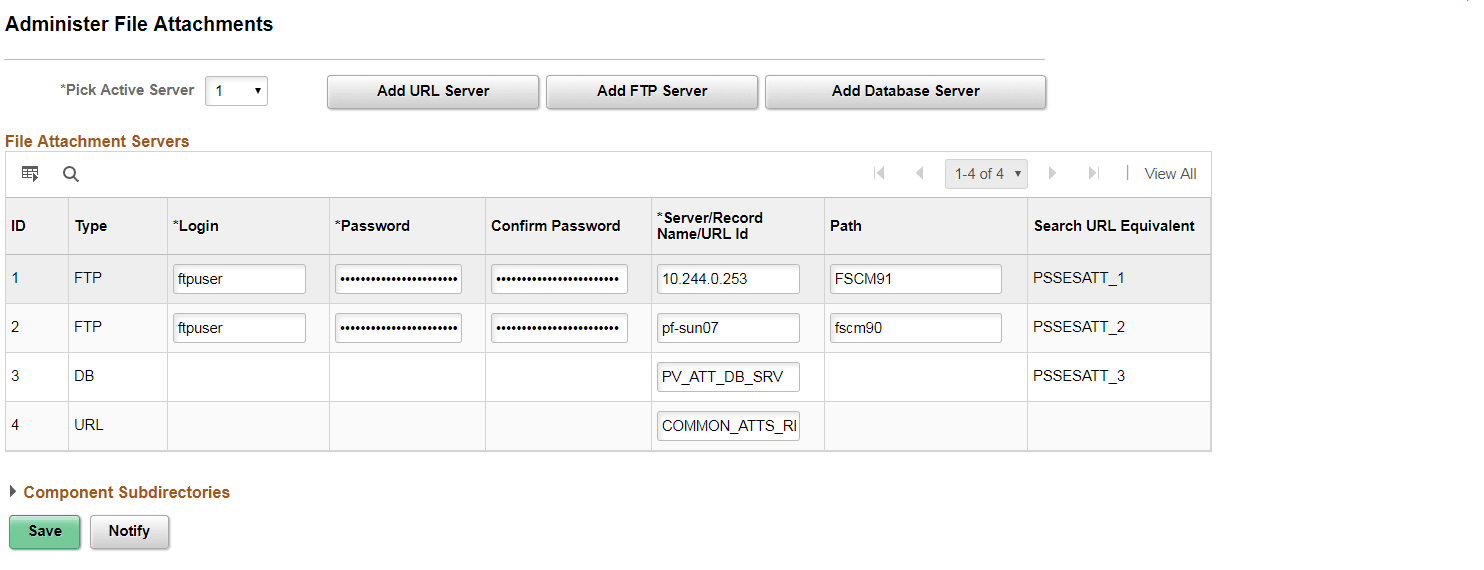
The page displays the definitions that you have created. Make some small change on the page, for example; change the active server or add a space to the end of the login name, and save it. If required, you can revert the change later.
Note:
The Search URL Equivalent column is populated with the required URL values.
-
Select PeopleTools, Utilities, Administration, Maintain URLs, to create PeopleSoft URL definitions.
Verify that in the PeopleSoft URL definitions page, the URLs are created automatically. The following example shows a URL definition page:
Figure 4-4 URL Maintenance page
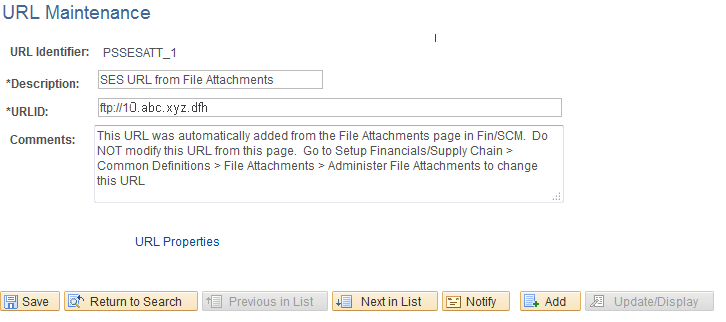
These URLs are created with PSSESATT_<number> prefix. The <number> corresponds to the ROW number on the URLs listed in Administer File Attachments page.
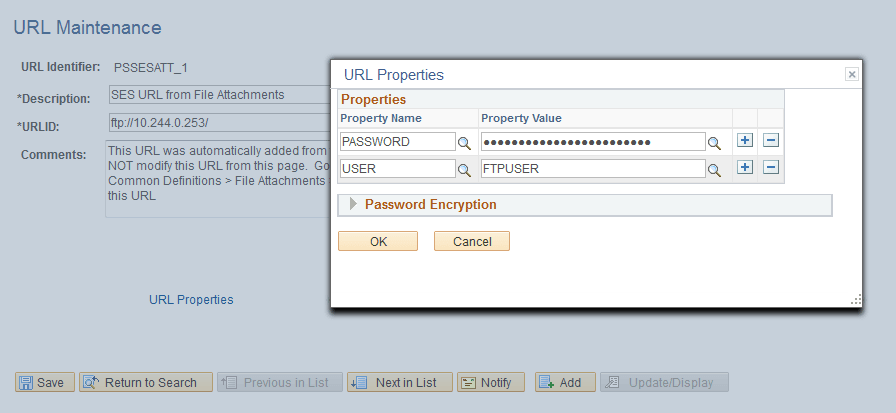
Verify the username and password are created under the URL Properties hyperlink and the URL path is correct. The following example shows URL Properties window:
Figure 4-5 URL Properties window
-
Select PeopleTools, Search Framework, Search Admin Activity Guide.
On the Search Administration section, click Administration, and select the Attachment URLID List option to view the Attachments URLIDs page, as shown in the following example:
Figure 4-6 URLID List Used by Search Framework Attachments page
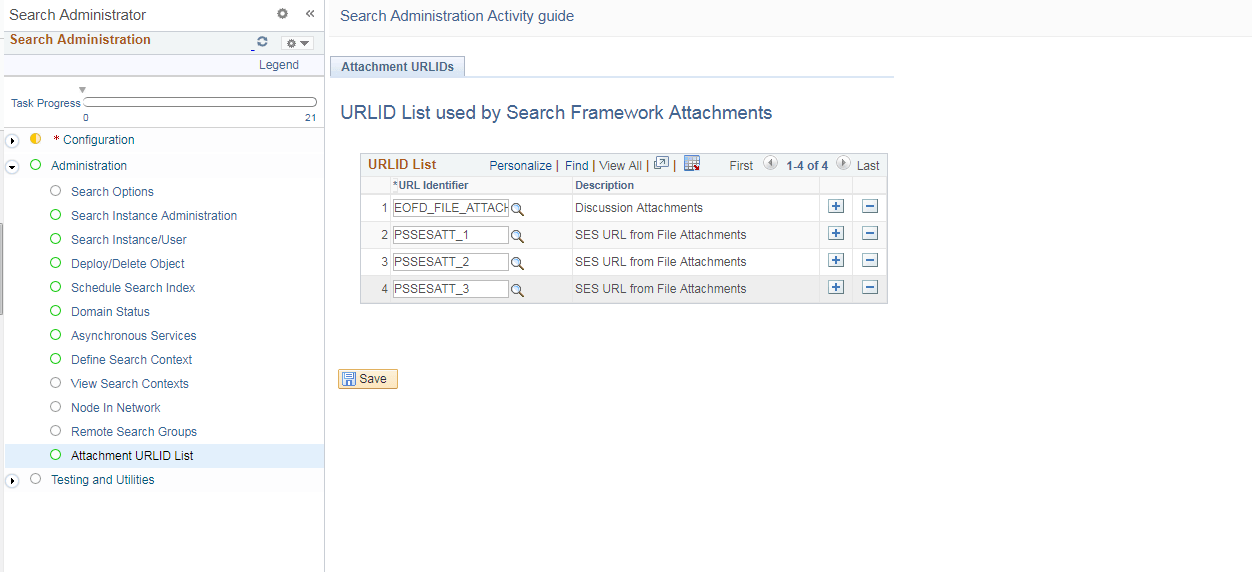
Add the URLs created in step 2 to this list.
-
Click Save.
Note:
You cannot delete a server after you save the row and quit the component. After you quit, the system assumes that attachments are stored on this server location.
See the product documentation for PeopleTools: Search Technology for more information about the Attachment URL ID list
Note:
URLs for Search Framework are only created for servers that are not already defined as a URL type.