1.4 Using the Fluid User Interface
When you sign in to your PeopleSoft application, you may see the PeopleSoft Fluid User Interface by default.
In PeopleSoft Fluid User Interface, you can search menu items using global search or the Navigator (NavBar button).
To access menu items using Global Search:
-
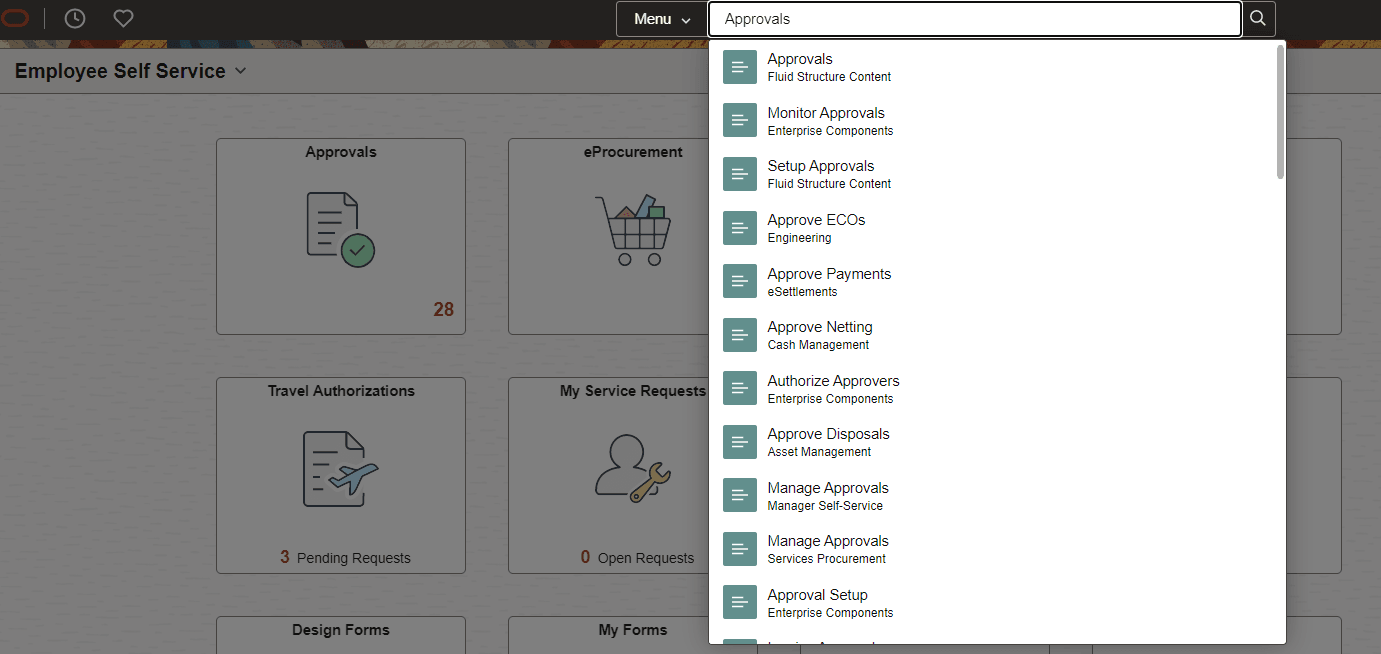
Open the Global Search bar.
-
Click in the keyword input field to see search suggestions, as shown in the following example:
Figure 1-1 Global Search
See the product documentation for PeopleTools: Applications User’s Guide, “Working with Search in Fluid Applications,” for more information on global search.
See the product documentation for PeopleTools: Applications User’s Guide, “Working with Suggestions Search,” for more information about search suggestions.
To access the menu items, as seen in the classic user interface, from the PeopleSoft Fluid User Interface:
-
On the PeopleSoft Fluid User Interface, shown in this example, select (press) the NavBar button at the top right, which looks like a compass.
Figure 1-2 PeopleSoft Fluid User Interface home page
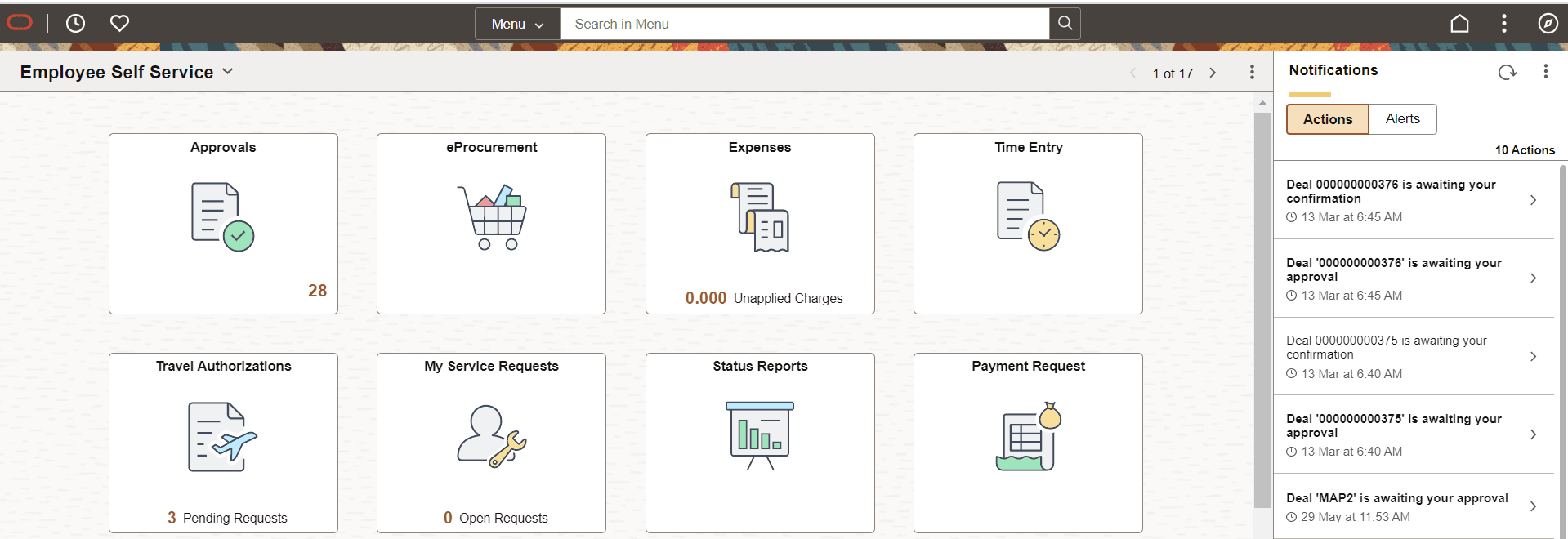
The Navigation bar (NavBar) side page appears.
-
Select (press) Navigator.
Figure 1-3 Navigator side page with PeopleSoft menu items
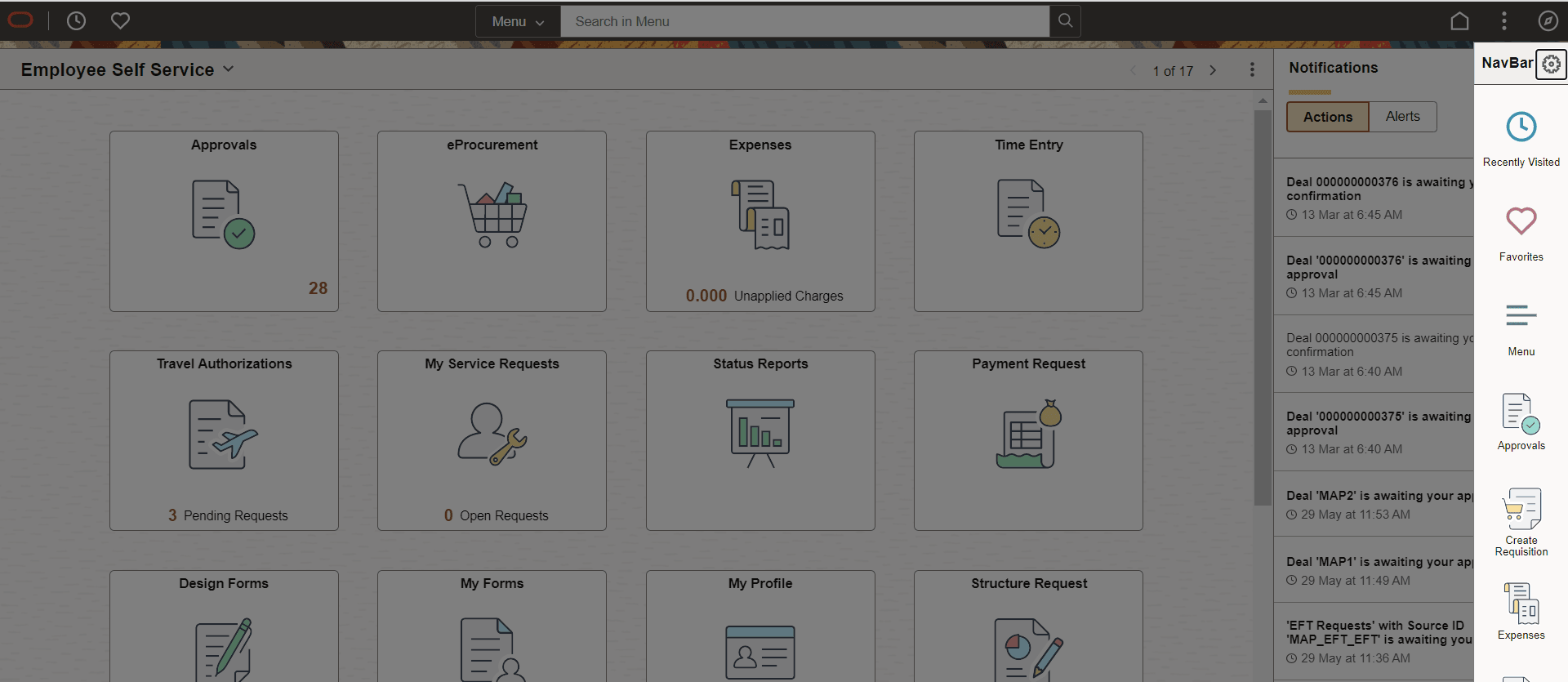
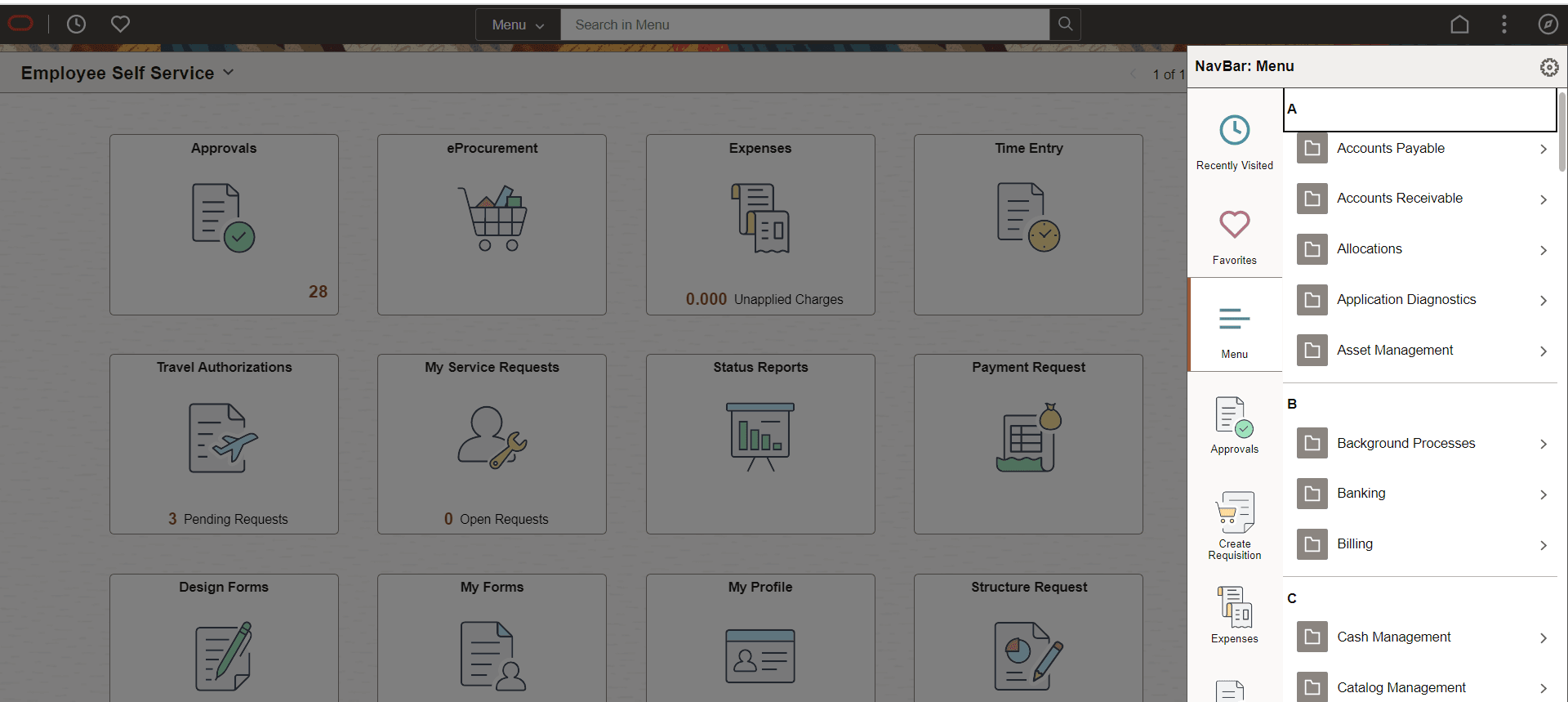
The menu structure appears.
-
Navigate to the desired item, such as Set Up Financials/Supply Chain or PeopleTools.
Figure 1-4 Navigator side page with PeopleSoft menu items
Note that you can use component search to run searches against application data in the database using search keys that you can enter on the fluid component search page.
Using keyword search, you can run a free text search against indexed data in the PeopleSoft Search Framework search engine.
See the product documentation for PeopleTools: Applications User’s Guide, “Working with Search in Fluid Applications,” for more information on component search.
See Also
PeopleTools: Applications User’s Guide, "Working With the PeopleSoft Fluid User Interface."
PeopleTools: Fluid User Interface Developer’s Guide