(GBR) Bank and Building Society Setup in the UK
This topic discusses how to set up the pages in the Bank/Branch component for British financial institutions. This setup is required prior to entering employee bank and building society information on the Bank Account Information page.
See PeopleSoft Human Resources Administer Workforce: Entering Bank Account Information.
You must set up every bank or building society that your organization deals with during the course of business. This information is stored in the BANK_EC_TBL and BANK_BRANCH_TBL tables. A third table, PYE_BANKACCT, stores the details of your payee's bank and building society accounts.
For UK banks, set up bank branches on the Bank Table page. For building societies, use the Bank Table page to identify the bank branch that handles clearing for the society. Use the Branch Table page and its associated Building Society Address page, to enter the building society details. This table shows how to complete these pages:
| Type of Account | Bank Table Page | Branch Table Page and Building Society Address Page |
|---|---|---|
|
Bank Branch |
Enter the name, address, and phone number of the bank branch. |
Leave blank. |
|
Building Society |
Enter the name, address, and phone number of the bank branch that handles clearing for the building society. |
Enter the building society name and address and the number of the account that the building society has with the clearing bank that is identified on the Bank Table page. |
WARNING:
You must set up a building society on the Branch Table page, linking the society to its clearing bank on the Bank Table page. If you don't set up building societies as described, the BACS interfaces and processes that are provided by Global Payroll for the UK do not generate valid data.
This example shows how a building society is defined on the Branch Table page:
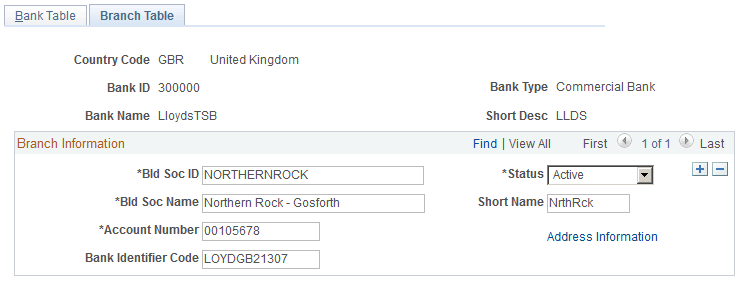
In the example, the building society is linked to LloydsTSB bank (bank ID 30000) that handles clearing for the building society. The building society's clearing account is shown in the Account Number field.