How to Search
As is the case for internal Search/Match, two methods exist for performing searches in an external system:
-
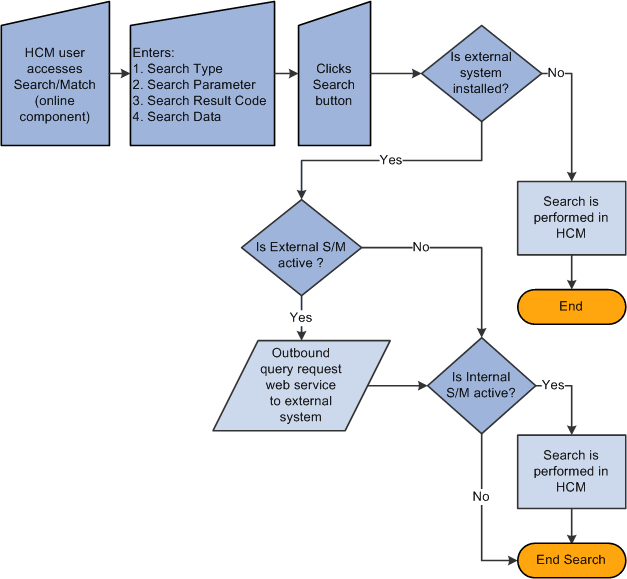
Online search: Manually navigate to the Search/Match Integrated component and enter search options.
-
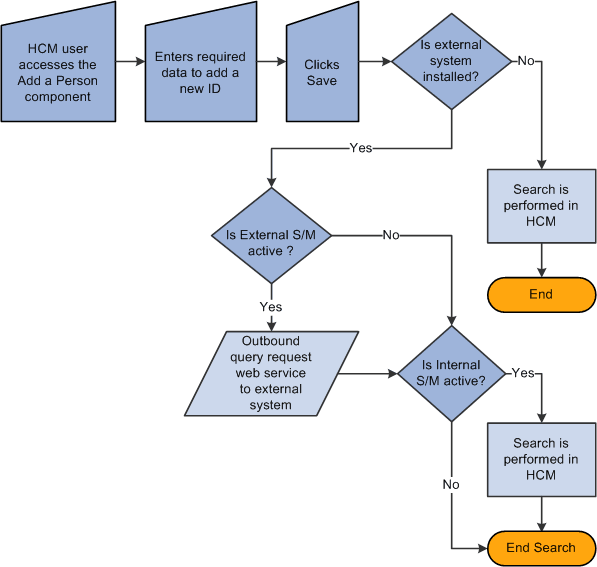
Automatic search: From a Campus Solutions component where an ID can be created, the External Search/Match triggers behind the scenes after user clicks Save.
You can perform either an online or an automatic search using External Search/Match.
Online Search
To perform an online search:
-
Access the Search/Match Integrated component.
-
Select a Search Type, Search Parameter, Search Result Code, and other search fields as appropriate; this step is the same as the existing Search/Match.
-
After populating some or all of these fields with search data, click the Search or Selective Search button.
The system validates the external system data settings and determines whether the institution supports Search/Match, External Search/Match, or both. This determination causes the system to then perform the search inside the HCM database, outside to an external system, or both.
If the system determines that an external search should occur, then it generates the outbound search request (Match Request). That search request contains all information known about the search. The XML message will contain the search parameters used, the search fields and their values, and so on.
This diagram displays this online search process:
Automatic Search
To perform an automatic search, all of the above information applies. When you enter data to create an employee ID on as HCM page and then click the Save button, the system invokes additional logic to validate the external data integration settings and then triggers the Match Request.
This diagram displays the automatic search business process flow: