Understanding How to Access the Approvals Pages
When using a mobile device, you can access the approvals pages by tapping the Approvals tile from the Manager Self Service home page. In the PeopleSoft Classic User Interface, access the Approvals tile by selecting the Fluid Home menu option, then access the Manager Self Service home page. You can also select the Notification flag icon at the top of either the fluid or classic PeopleSoft pages to view alerts in a notification window.
Note:
Oracle PeopleSoft delivers Notification Composer Framework to manage the setup and administration of all notifications in one central location.
Once you have adopted the Notification Composer feature, you must use it to create new notifications and manage your existing notifications.
Notifications delivered with HCM Image 47 or later must use Notification Composer.
For more information about Notification Composer Framework, see Enterprise Components: Understanding Notification Composer.
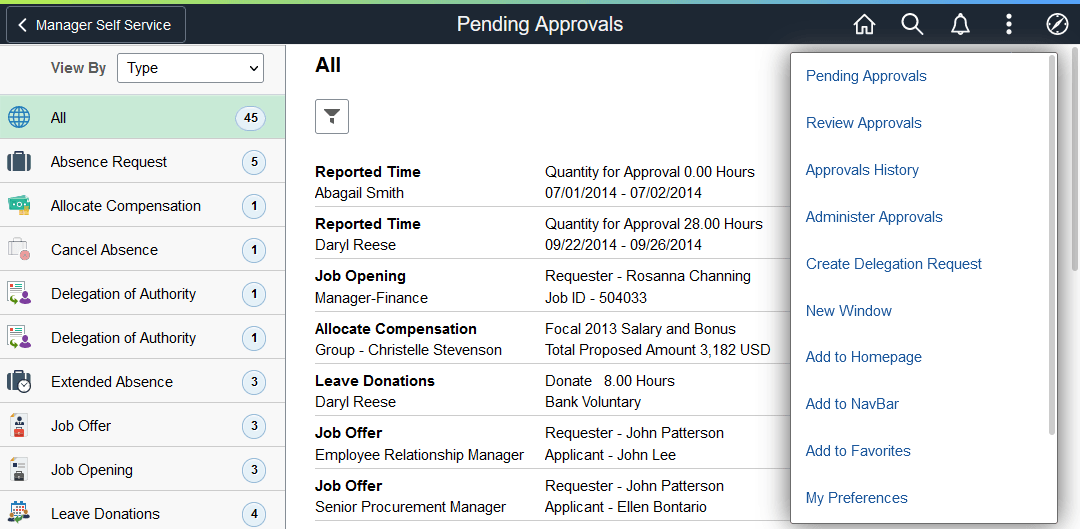
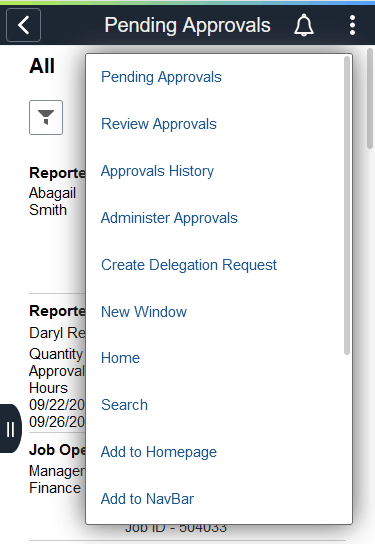
When you access the approvals pages by tapping the Approvals tile, the page defaults to the Pending Approvals page. The application enables you to switch between these approval views (by tapping the Action Menu drop-down icon to access either of these pages):
-
Pending Approvals
An approver can view transactions pending their approval under one interface, thus eliminating the need to go to several different components to look for pending approvals. The Pending Approvals page groups pending approvals by type, date received, from (last sender), and person; filter pending approvals by type, date, and from; display details of each approval request, including the approval chain; and provide AWE actions like Approve and Deny.
When a transaction type is enabled for mass approvals, the approver can filter requests by that transaction type and take the approval action on multiple requests simultaneously.
-
Approvals History
An approver can also view approval requests that they already worked on. This functionality enables the user to view the status of the approval request in the approval chain and also view any comments by individuals within the chain. The administrator can define how far in the past historical approvals can be retrieved and viewed.
-
Administer Approvals
An Approvals administrator can view all approvals to which they have access, and take necessary actions on one or more approval requests simultaneously.
-
Create Delegation Request
Use this link to add new delegation requests using Fluid Delegation.
See Enterprise Components: Create Delegation Request - Delegation Dates Page.
This example illustrates how to select other related approval pages from the Actions menu on the fluid banner for the tablet.
This example illustrates how to select other related approval pages from the Actions menu on the fluid banner for the smartphone.
Note:
The Approval pages may display slightly different depending on if you are using a smartphone, tablet, and if you are holding your device in landscape or portrait mode.