View All <Suggestions, Continue With, or Announcements> Page
Use the View All Suggestions, View All Continue With, or View All Announcements page (EOHP_VIEWALL_FL) to review all transactions for a section and mark transactions as complete, if the configuration allows it.
Navigation:
Select the View All (pencil) icon from the Suggestions, Continue With, or Announcements section.
This example illustrates the fields and controls on the View All Suggestions page. The View All Continue With and View All Announcements page work similar to this page.
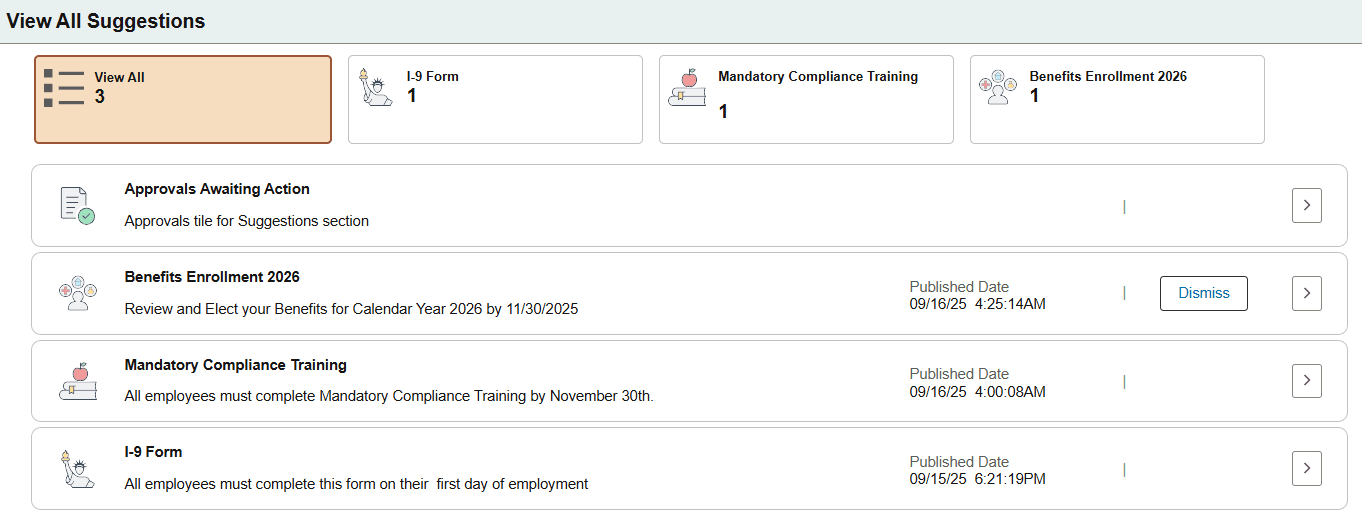
Use this page to view all transactions that require your attention. The page varies based on the configuration settings and the type of transactions that are available.
(Suggestions and Continue With sections) The top of the page displays filters that enable you to view all transactions or select individual filter tiles to narrow your view by transaction type. Each tile displays the number of transactions that apply to that transaction type. When using a mobile device, the filters are available as a drop-down field and will appear only if there is more than one transaction type in the results.
Note:
Filter tiles are not available for static tiles displayed in the dynamic sections (like Approvals Awaiting Action) or the Announcements section.
| Field or Control | Description |
|---|---|
|
Dismiss button |
Select this button to mark a transaction complete and dismiss the suggested action. This button is available when the Show Mark Complete option is selected on the Enterprise Components: Compose Notification - Define Message Content - In-App Page. |
|
|
Select this button to access the transaction page to view or update information. |
 (More) arrow icon button