The Absence Take Process
During this process, the system looks at each daily record and determines the amount of time that should be paid or unpaid, according to your absence rules. It converts paid and unpaid units to positive input and adjusts entitlement balances. The take process creates daily data and uses system elements in daily data. These two aspects of the take process are discussed below:
Daily Data
When you run the take process, one of the first things the program does is expand each absence event in the process list that occurred for a payee during the absence processing period (or current segment, if the processing period is segmented). Expanding the event means that the system creates a detailed row of data for each day of the absence in the GP_RSLT_ABS record. We call these rows daily data.
The take process expands each event that includes a date in the current segment. It creates a row for each day of the absence event, including days that fall outside the processing period. The system also populates the work schedule and holiday schedule system elements for the day before and after the absence, if the payee was not absent on those days. If the payee was absent the day before or the day after the reported absence, other absence-related system elements can be populated, depending on your rules.
For example, assume that the processing period is May 1 to 31, and there is no segmentation. If the payee is absent from May 5 to May 6 and again from May 29 to June 2, the take process creates two rows of daily data for the first absence and five rows for the second absence.
This graphic illustrates how daily data is created for each day of an absence event.

Even though the system creates a row of daily data for each day of an absence event, this does not mean that each day is processed. The entire event is expanded so that the system has all the information it needs to accurately evaluate each absent day. Only those days that occurred during the processing period are processed. Using the above example, the system would process the following absent days: May 5, 6, 29, 30, and 31.
Sources of Daily Data
Data that populates the daily data row initially comes from two sources:
-
The payee’s work and holiday schedules, which provide the day of the week, scheduled hours, and holiday type.
-
The absence event, which provides the absence take, begin and end dates, partial days absent, if applicable, and other information.
The following graphic illustrates the sources of daily data.
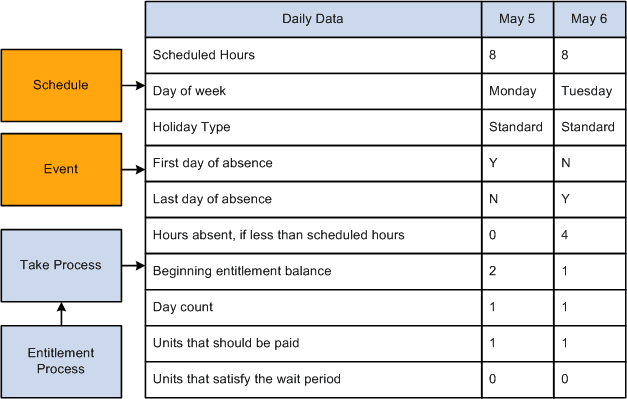
The take process also contributes to the daily data. When it applies the absence rules—defined by your absence elements—to the event and schedule data, it derives a set of results that populates the daily data. The results include the beginning entitlement balance, absent units, paid and unpaid units, ending balance, and other information.
The day formula, which you create and assign to your take rule, is what drives the results. This formula interprets each day of the absence and returns the number of units that the absent day represents; for example, four hours or one day. Once the system knows the absence day count, it can compare the count to the entitlement balance, determine whether a wait period or any other requirements for payment have been met and determine whether any part of the absent day should be paid. It can also calculate the ending entitlement balance.
The Role of System Elements in Daily Data
Much of the daily absence data is stored by system elements—a collection of predefined elements.
-
Using System Elements in Formulas.
When you define a take element, you identify the day count formula that the system will use to calculate the number of units that the payee was absent for the day being processed. The formula makes use of any information that is stored in the daily data, including—in some cases—data from the day before or after the day that is being evaluated. For example, three system elements store a payee's scheduled hours:
-
SCHED_HRS captures the number of hours that the payee was scheduled to work for the day that is being evaluated.
-
SCHED_HRS_DB captures the number of hours that the payee was scheduled to work the day before.
-
SCHED_HRS_DA captures the number of hours that the payee was scheduled to work the day after.
You might create a day count formula that uses the prior or next day's values in its calculations. Or you might create a day count formula that uses the value of the SCHED_HRS element to calculate the day count.
Depending on what absence features you want to use, you might need to create other formulas. Any of these formulas can make use of the daily data that is captured by the system elements.
-
-
Using User-Defined Fields.
User-defined system elements enable you to capture and use absence data that is specific to your organization. Data that is entered into these fields is stored by system elements and added to the Daily Data records during the Take process. As is true of all system elements, the data captured by these elements can be used by any absence formula. Each of the following pages includes a set of user-defined fields:
-
Absence Event Entry
-
Take Calculation
-
Shift
-