Email Notification Templates
Clicking the Submit button from the Compensation Cycles - Manage Cycle Transactions or Allocate Compensation page launches the Approval Workflow Engine (AWE) and initiates the approval process. Workflow tables track who initiated the request and who is the next approver. The system also submits the compensation information for approval and triggers the respective email notifications that were setup in AWE.
Clicking the Submit button also sets the status of the cycle to Submitted. After a transaction has been submitted, a user cannot edit the transaction. An event can be resubmitted only if the approver denies the transaction or after the next approver in line has clicked the Push Back button to send it back to the requestor or originator.
If you set up the notification process within AWE, the original submitter receives an email notification. Recipients of notifications include requesters, approvers, and reviewers. These users can receive their notifications in the form of worklist entries, email notifications, and push notifications. The PeopleSoft eCompensation Desktop Manager application provides several templates (template name begins with WCS_) for specific AWE events that you can modify for your own specific use. To modify email templates select
Here is the suggested text for the email notification template:
| Generic Template Definition Field | Text |
|---|---|
|
Subject |
Your Compensation Recommendation was submitted. |
|
Message Text |
The following request has been submitted by %5. This request requires your approval before the compensation proposals can be confirmed. Submitted Request Cycle: %2 Begin Date: %3 Group: %4 Please visit the following URL for detailed information about the request: %1 This communication was sent via Oracle Workflow Technology. Please do not reply to this email. |
|
Template Variables |
%1 URL (provided by AWE) %2 Cycle %3 Begin Date %4 Group %5 Originator Name |
Note:
AWE automatically creates the URL when the system sends the notification.
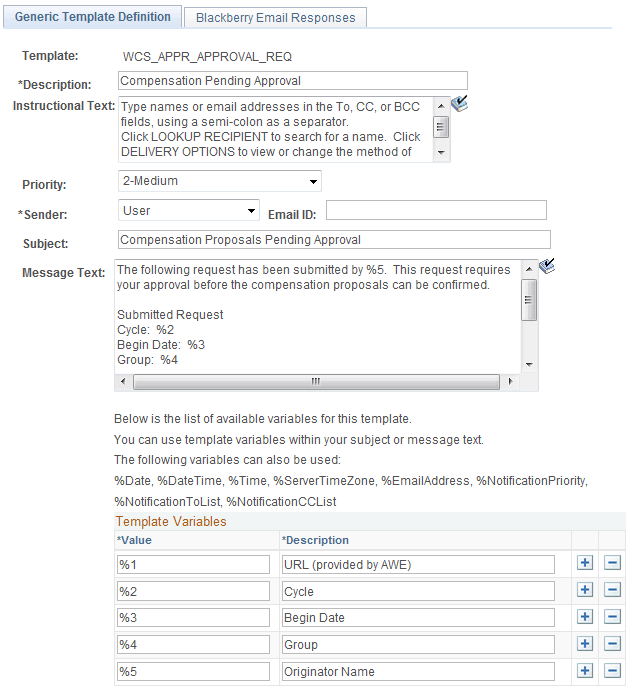
Here is an example of the Generic Template Definition page that you can use on the Configure Transaction page to route approvals to requesters, approvers, and reviewers:
This example illustrates the fields and controls on the Generic Template Definition page.
Note:
The eCompensation Manager Desktop application delivers the Compensation Pending Approval template (WCS_APPR_APPROVAL_REQ).
See Application Fundamentals: Defining Notification Templates for Approvals.