Understanding Job Change Processing During Open Cycles
After the administrator has built and subsequently opened a compensation cycle, managers can begin allocating salary and variable compensation amounts to employees and submitting proposals for approval. During this time, changes can happen to employees’ HR data, and these changes (for example, employee termination) may have an impact on the adjustments that an individual and as well as other employees should receive. To provide managers more information and hence better insight on how to handle employee job changes during the open cycle, the system delivers the ability to:
-
Capture job changes that occurred to employees during the open cycle and optionally zero out proposed amounts that are assigned to employees as configured in the compensation cycle definition.
-
Display alert messages for employees who had job changes.
To set up this functionality, you specify the type of job changes that the system needs to track on the Define Compensation Cycles - Salary page. Supported job change types include:
-
Change of employee’s HR status from active to inactive (for example, termination)
-
Salary change
-
Salary currency change
For each type that is selected, indicate if the system should zero out the budget and proposed amounts for individuals that are found with that type of job change, or leave the amounts unchanged and let the managers take care of them manually.
The system generates alert messages when employees with one or more of the preselected job changes were identified during the open cycle. These alerts are available when managers and administrators access the Allocate Compensation component, and they are displayed next to the associated employees in the View Alert column:
This example illustrates the fields and controls on the Display of job change alert on the Allocate Compensation page.
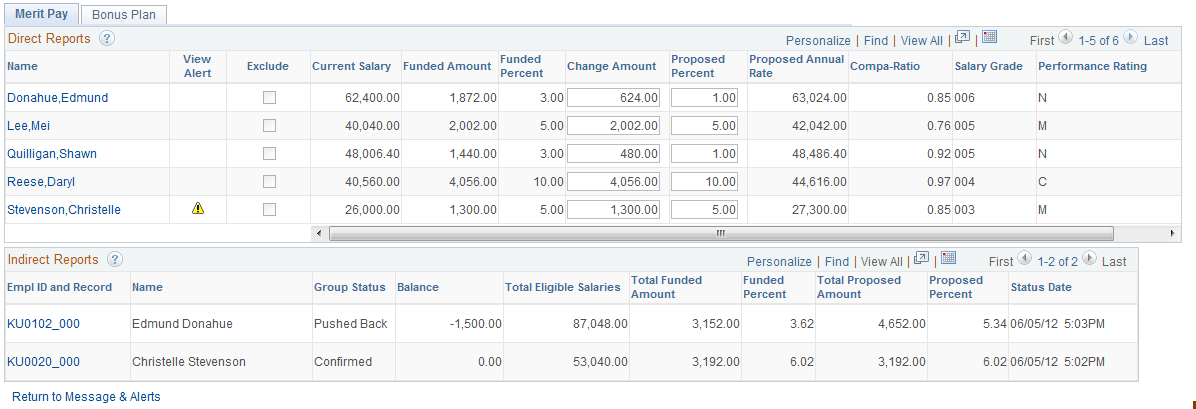
To ensure that these alerts are always visible as they become available, the View Alert field (under the Grid Display Settings section of the Define Compensation Cycles - Self-service page), where the alert icons are shown, is selected by default. When a manager clicks an alert icon, a modal window appears, and it lists details pertaining to the corresponding job change:
This example illustrates the fields and controls on the Display of job change alert message after clicking an alert icon.
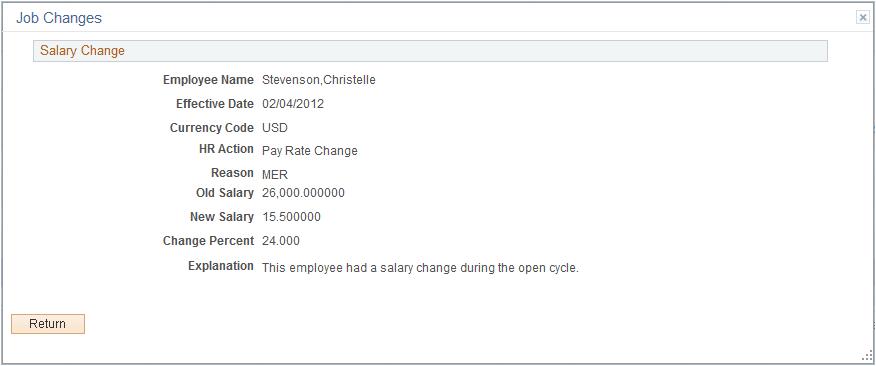
With this information in hand, the manager can allocate compensation amounts to his or her reports appropriately.
Note:
The View Alert field is only available when the selected display type is Salary Grid.